

Approving resumes
When auto-approve is off, resumes that job seekers create wait in the approval queue until you approve them. Use it if you want to check candidates before employers can find them.
Open the approval queue
Section titled “Open the approval queue”Go to WP Job Portal → Resume → Approval Queue. The page is titled Resume Approval Queue.
The queue has the same search and sort tools as the resume list, without the status filter.
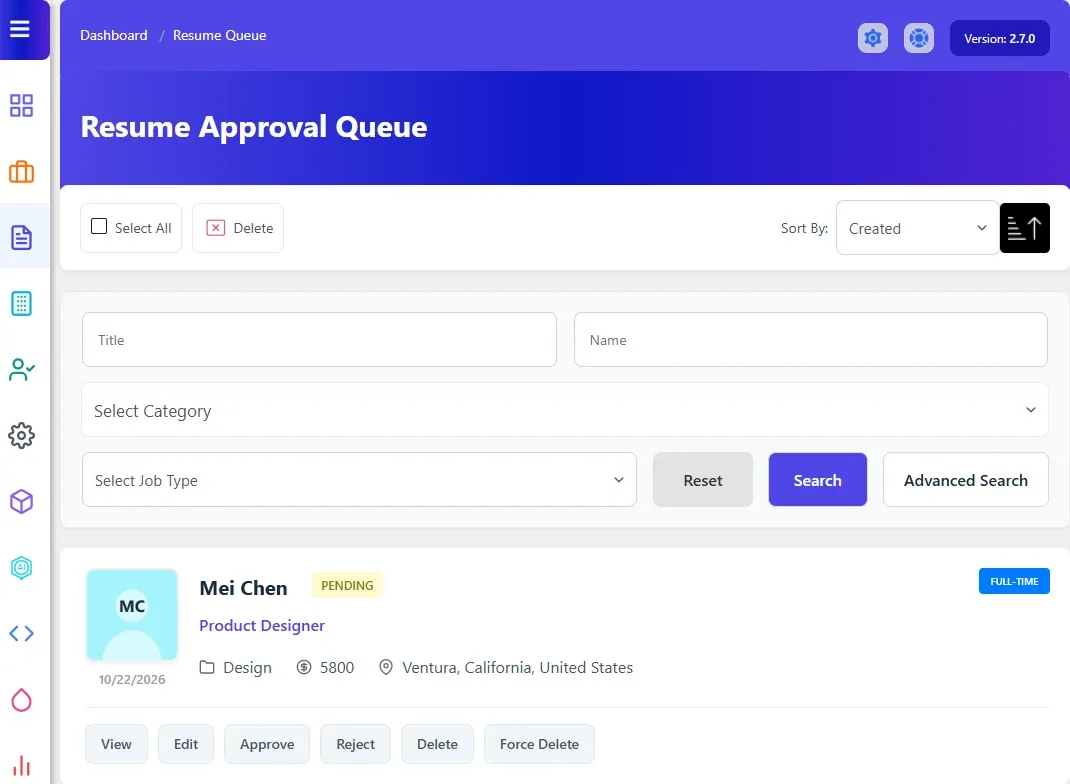
Approve or reject a resume
Section titled “Approve or reject a resume”- To read the resume first, select View. To correct it, select Edit.
- In the queue, select Approve or Reject on the resume’s row.
| Action | What happens |
|---|---|
| Approve | The resume becomes Approved and moves to the resume list. The job seeker gets the Resume Status email |
| Reject | The resume becomes Rejected and moves to the resume list. The job seeker gets the Resume Status email |
The emails are set up in Email Templates → Resume Status. See Email templates.
Delete resumes from the queue
Section titled “Delete resumes from the queue”Each row also has Delete and Force Delete. Delete refuses if the resume has been used in an application; Force Delete removes the resume with its applications and files. To delete several, tick them and select Delete at the top. See Managing resumes.
Turn auto-approve on or off
Section titled “Turn auto-approve on or off”- Go to WP Job Portal → Configuration and open the Resumes tab.
- Under Resume Settings, set Resume Auto Approve.
- Select Save Changes.
With Resume Auto Approve on, new resumes are approved as soon as they’re saved and never reach the queue.