

Resume folders
With Pro, employers can create folders, such as “Interview next week” or “Strong backend”, and copy applicants’ resumes into them. In wp-admin you can see every folder, what’s in it, and approve new folders before employers use them.
Without Pro, the Folder menu entry is greyed out.
How employers use folders
Section titled “How employers use folders”Employers create folders from their dashboard on the site. On a job’s applicant list they select Copy To Folder to put a resume into one of their folders. See Folders (employer guide).
Copy To Folder isn’t shown for applications sent with Quick Apply.
Open the folders list
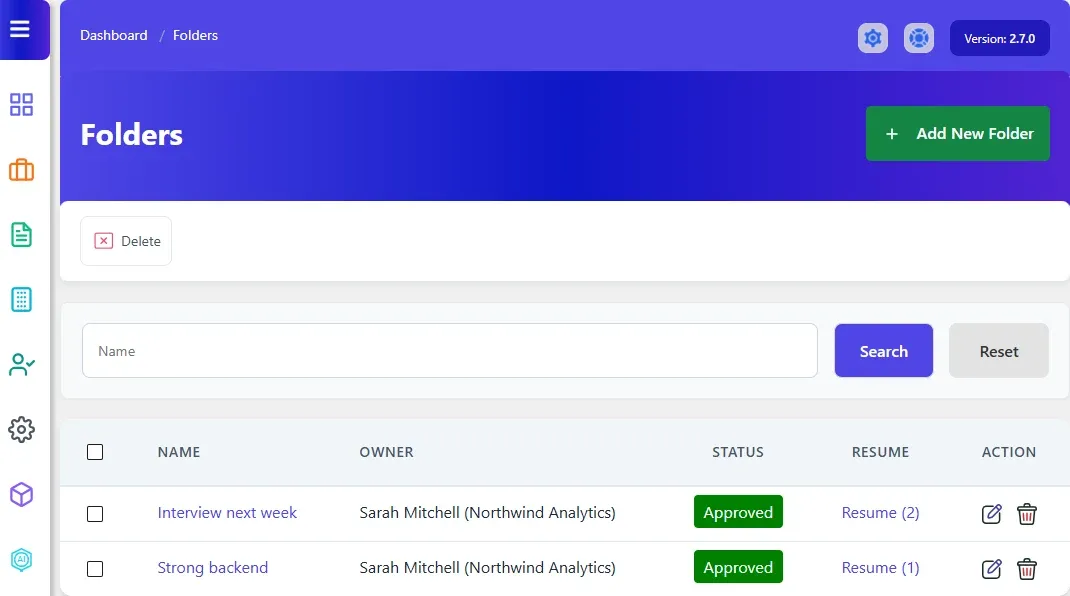
Section titled “Open the folders list”Go to WP Job Portal → Folders. The list shows each folder’s Name, Owner (the employer, with their company), Status and the number of resumes in it.
Folders waiting for approval are not in this list. They are in Folders → Approval Queue.
To find a folder, type part of its name in Name and select Search.
See the resumes in a folder
Section titled “See the resumes in a folder”- In the folders list, select Resume with the count beside it.
- The Folder Resume page lists the resumes in that folder.
- Select View Resume to open one, or Remove Resume From Folder to take it out. Removing it doesn’t delete the resume.
Add or edit a folder
Section titled “Add or edit a folder”- Go to WP Job Portal → Folders → Add New Folder, or select a folder’s name or edit icon in the list.
- Enter the Folder Name and, if you like, a Description.
- Choose a Status: Pending, Approved or Rejected.
- Select Save Folder.
The form has no owner field, so a folder you add here belongs to no employer. Employers don’t see it in My Folders or in their Copy To Folder list, and its Owner column in the list is empty. You can use it yourself: on the Job Applied Resume page in wp-admin, Copy To Folder lists every approved folder on the site, yours and the employers’.
Delete a folder
Section titled “Delete a folder”Select the delete icon on the folder’s row. To delete several, tick them and select Delete at the top.
A folder can’t be deleted while it still holds resumes. Remove them first.
Approve folders
Section titled “Approve folders”- Go to WP Job Portal → Folders → Approval Queue. The page is titled Folders Approval Queue.
- On a folder’s row, select the tick icon (publish) to approve it or the cross icon (Unpublish) to reject it.
To handle several at once, tick them and select Approve or Reject at the top.
Turn auto-approve on or off
Section titled “Turn auto-approve on or off”- Go to WP Job Portal → Configuration and open the Applications tab.
- Under Auto-Approve Rules, set Folder Auto Approve.
- Select Save Changes.
With it on, folders that employers create are approved straight away.