

Automation and notifications
Recruit Suite reminds the team about work that’s slipping, such as overdue tasks, interviews coming up, offers waiting for approval and candidates who haven’t moved. It also tells people when something happens that needs them, and can email candidates when their application changes.
Set up automation
Section titled “Set up automation”- Open WP Job Portal → Recruiting Automation.
- Under Reminder and Delivery Settings, choose the options below.
- Select Save automation settings.
| Option | What it does | Default |
|---|---|---|
| Enable scheduled recruiting reminders | Scans every 15 minutes for overdue tasks, upcoming interviews, waiting approvals and stalled candidates | On |
| Send recruiter reminder emails | Emails each recruiting notification to the team member as well as listing it | Off |
| Send candidate update emails | Emails candidates when requests, interviews, offers, signatures or messages change | Off |
| Automatically email calendar invitations | Emails a calendar invitation to the candidate and the interviewer when an interview is scheduled, updated or cancelled | Off |
| Upcoming interview window | How many hours ahead an interview counts as upcoming. 1 to 168. | 24 |
| Pending approval age | How many hours an offer approval waits before a reminder. 1 to 720. | 24 |
| Stalled application age | How many days without a stage move makes a candidate stalled. 1 to 180. | 7 |
| Legacy Candidate Workspace page ID | Optional link target for older recruiter pages | 0 |
| Candidate dashboard page ID | The page linked from candidate emails. WP Job Portal fills it with the Candidate Portal page it creates. | Filled in automatically |
The e-signature settings on the same form are covered in Integrations.
Emails go through WP Job Portal’s own mail path when it’s available, otherwise through WordPress mail. Make sure your site can send email. See Email & alerts settings.
The scan runs on WordPress’s scheduled tasks. On a site with little traffic, scheduled tasks can run late. See Cron jobs.
Reminders the scan creates
Section titled “Reminders the scan creates”| Reminder | Who gets it | How often |
|---|---|---|
| Overdue task | The task’s assignee, or the job’s team if nobody is assigned | Once a week while it stays overdue |
| Upcoming interview | The interviewer, or the job’s team if nobody is assigned | Once per interview |
| Pending approval | The approver | Once a week while it waits |
| Stalled candidate | The job’s team | Once a week while it stays stalled |
The job’s team means the company admins and recruiters, anyone who owns the job, and the employer who posted it. A candidate counts as stalled when their application is still active, isn’t in Hired, Rejected or Spam, and hasn’t moved for the stalled age.
Each scan creates at most 100 notifications. To run one straight away, select Run scan now at the top of the screen.
Notifications for events
Section titled “Notifications for events”These are sent when something happens, not by the scan:
| Notification | Who gets it |
|---|---|
| Interview assigned | The interviewer |
| Offer approval requested | Each approver |
| Candidate action completed | The job’s team |
| Candidate replied | The job’s team |
Candidate updates
Section titled “Candidate updates”Candidates get updates in their Candidate Portal for new or cancelled requests, scheduled and changed interviews, offers sent, withdrawn, accepted or declined, signature requests and changes, shared rejections, and messages from the team. With Send candidate update emails on, each update is also emailed, with a link to their Recruitment Center.
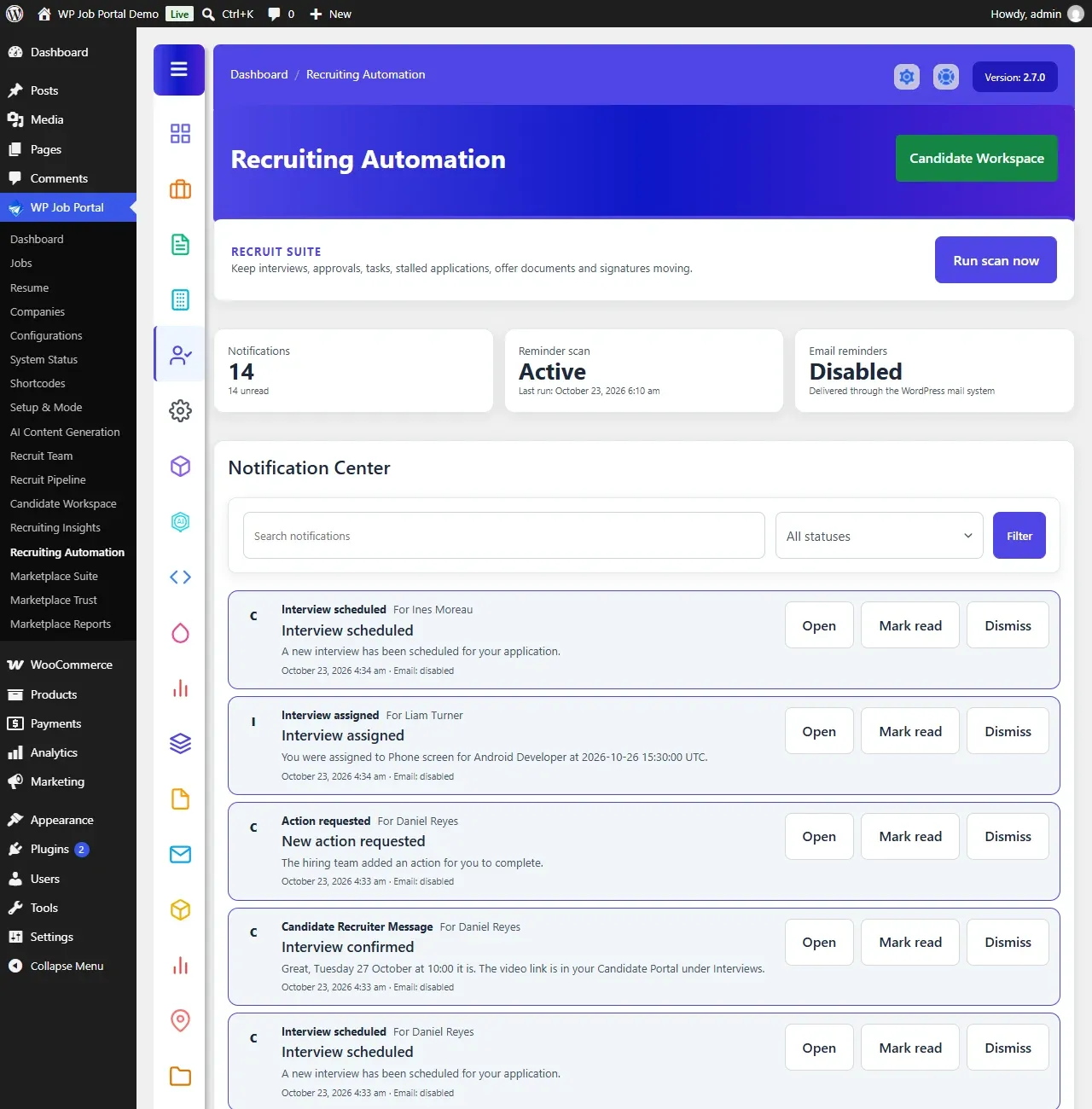
The Notification Center
Section titled “The Notification Center”The Notification Center on WP Job Portal → Recruiting Automation lists every team member’s notifications, with who each is for and whether its email was sent. Team members see their own under Recruiting → Notifications in the employer dashboard, with an unread count on the menu.
- Use Search notifications and the status filter to find one.
- Select Open to go to the candidate.
- Select Mark read or Dismiss on a notification.
- Mark all … read, which shows a count, marks your own unread notifications as read.
- Clear … read notifications removes your own read ones from the list. They’re hidden, not deleted.
The cards at the top show the total notifications and unread count, whether the reminder scan is Active or Paused with its last run, and whether email reminders are enabled.
Automatic stage moves
Section titled “Automatic stage moves”Some actions move a candidate in the pipeline without anyone dragging a card: recording a rejection, sending an offer, an accepted offer, and a signed e-signature when decision syncing is on. See Pipeline and stages.