

Saving jobs
Your shortlist is a list of jobs you want to come back to. You can add a note and a star rating to each one, which helps when you are comparing several jobs before applying.
Add a job to your shortlist
Section titled “Add a job to your shortlist”You need to be signed in as a job seeker.
- Find the job in a job list, or open the job’s page.
- Select Short List.
- In the Short List Job window, write a note under Comments if you want one, such as “Ask about remote days”.
- Select the stars to rate the job, from Very Poor (one star) to Very Good (five stars).
- Select Save.
You see “Job has been Shortlisted”.
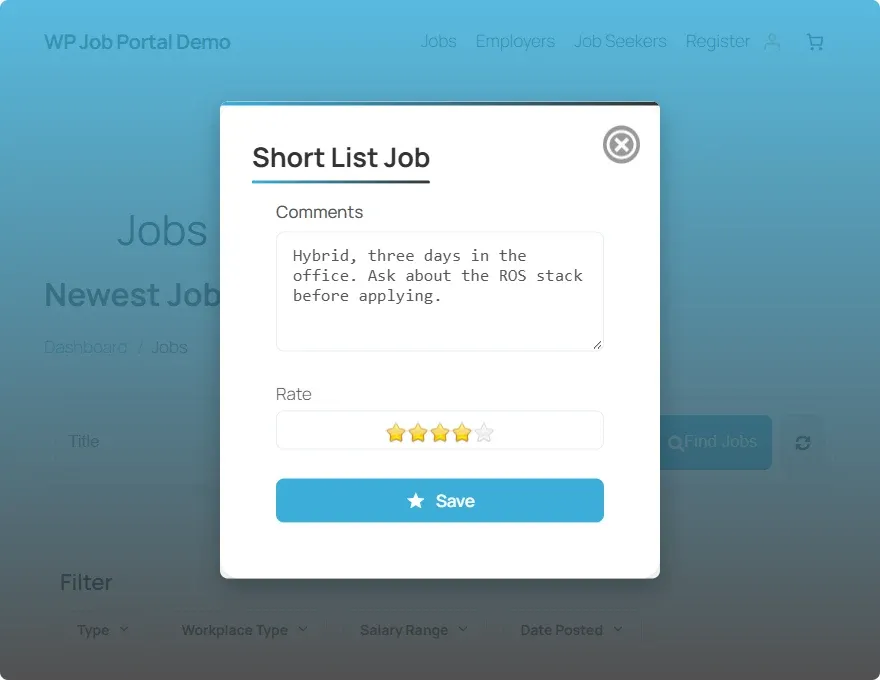
To change the note or rating later, select Short List on the same job again. The window opens with what you saved before.
See your shortlist
Section titled “See your shortlist”- On your dashboard, select Short Listed Jobs in the menu, or View Detail under the Shortlisted Jobs count.
- Each saved job shows its details, your Comments and your rating.
From each job you can:
| Button | What it does |
|---|---|
| Tell A Friend | Email the job to someone. See Telling a friend about a job. Only on sites that have it turned on. |
| Delete Job | Removes the job from your shortlist. The job itself stays on the site. |
To apply, open the job by selecting its title and apply as usual. See Searching and applying.
Shortlist or saved search?
Section titled “Shortlist or saved search?”The shortlist keeps individual jobs. To keep a search you want to run again, such as “remote design jobs”, use a saved search instead. See Save a search and run it again.
To be told about new jobs without checking yourself, set up a job alert.