

Install Pro and the suites
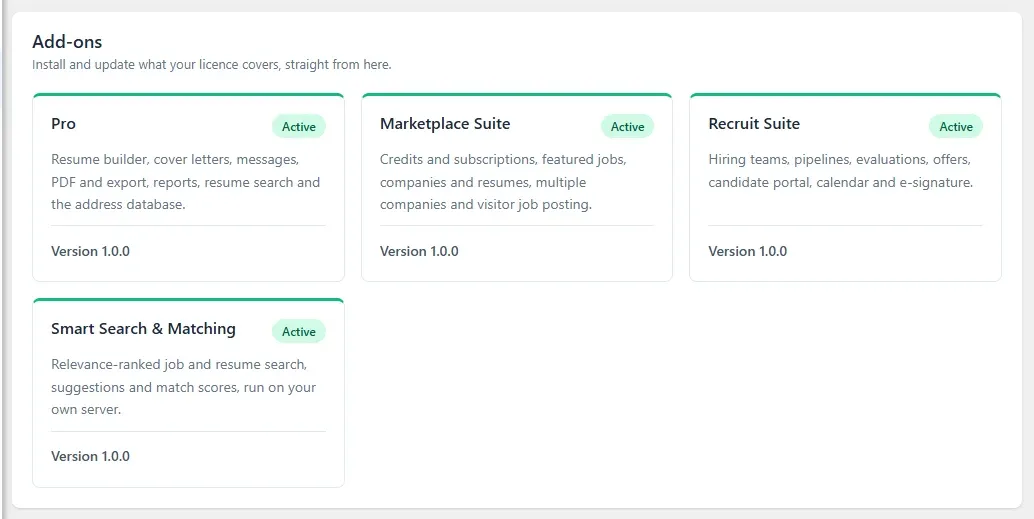
Pro and the three suites are separate WordPress plugins that add to the free WP Job Portal. You install, activate and update them from one screen in your dashboard, Licences and add-ons, using a single licence key.
The products
Section titled “The products”| Product | Plugin folder | For |
|---|---|---|
| Pro | wp-job-portal-pro |
Resume builder, cover letters, messages, PDF and export, reports, resume search and the address database. |
| Marketplace Suite | wp-job-portal-marketplacesuite |
Credits and subscriptions, featured jobs, companies and resumes, multiple companies and visitor job posting. |
| Recruit Suite | wp-job-portal-recruitsuite |
Hiring teams, pipelines, evaluations, offers, candidate portal, calendar and e-signature. |
| Smart Search & Matching | wp-job-portal-matchingsuite |
Relevance-ranked job and resume search, suggestions and match scores, run on your own server. |
Each product needs only the free plugin, version 2.7.0 or later. They do not need each other. See Requirements for the WordPress version each one needs.
One licence key covers every product in the plan you bought.
Open the Licences screen
Section titled “Open the Licences screen”- Go to WP Job Portal → Dashboard.
- In the WP Job Portal side menu, select Licences → Licences and add-ons.
Activate your licence
Section titled “Activate your licence”- Copy the licence key from your account at wpjobportal.com.
- On the Licences screen, paste it into Licence key.
- Select Save and activate.
Your licence then shows the key (partly hidden), the Plan, Valid until and how many sites the licence has used. The badge beside the heading shows its state:
| Badge | Meaning |
|---|---|
| No key | No licence key has been added. |
| Active | The licence is valid for this site. |
| Released | This site was released from the licence. Select Activate this site to use it again. |
| Not checked | The licence server could not be reached. Your products keep working; installs and update checks wait until it answers. |
| Expired | The licence has run out. |
| Not accepted | The licence server did not accept this key for this site. |
Other buttons on the screen:
- Check again asks the licence server for the current state.
- Release this site gives the site’s slot back, for example before you move to a new domain. Installed products keep working, but installs and updates stop until you activate again.
- Replace key swaps in a different key. The current key releases this site first.
Install the products
Section titled “Install the products”Under Add-ons, each product has a card with the one action it needs next.
- On the card for a product your licence covers, select Install. To install everything at once, select Install all.
- Wait for the button to finish. Each product is downloaded, checked and switched on.
| Card shows | What to do |
|---|---|
| In your licence with Install | Select Install. |
| Inactive with Activate | The plugin is installed but switched off. Select Activate. |
| Update to a version number | Select it to update. |
| Not in your licence with See plans | Your plan does not include this product. |
| Up to date. | Nothing to do. |
Installing needs an administrator who can install and activate plugins. If your server asks for FTP details to add plugins, the card says so: download the product from your account and upload it under Plugins → Add New Plugin → Upload Plugin, then activate it.
Every download is checked against the checksum published with its release before it is unpacked. A file that does not match is deleted and nothing is installed.
Updates
Section titled “Updates”Updates for your products appear on this screen and on WordPress’s own Dashboard → Updates, with automatic updates if you switch them on there. The side menu link Licences → WordPress updates opens that screen.
When a licence lapses
Section titled “When a licence lapses”The products you have installed keep working. Installs, updates and support stop until the licence is renewed, and none of your data is removed. An admin notice says Your WP Job Portal licence is not active. with a Check licence link.
Old Address Data and Elegant Design plugins
Section titled “Old Address Data and Elegant Design plugins”Address Data and Elegant Design are now part of Pro. If one of these standalone plugins is still installed, it appears on the Licences screen with a note:
- While it is still active beside Pro, deactivate it from Plugins. Pro takes over with the same look and settings.
- Once it is inactive, you can delete it from Plugins.
See Upgrading to 2.7.0 for the other former add-ons.