

Field manager
The field manager controls the forms on your job board: which fields appear, in what order, which are required, and who sees them. You can also add fields of your own, such as “Security clearance” on jobs or “Notice period” on resumes.
Where the field lists are
Section titled “Where the field lists are”Each form has its own list, under the menu for that kind of record.
| Form | Menu path |
|---|---|
| Company | WP Job Portal → Companies → Fields |
| Job | WP Job Portal → Jobs → Fields |
| Resume | WP Job Portal → Resume → Fields |
| Registration (user fields) | WP Job Portal → Users → Fields |
| Quick apply | WP Job Portal → Resume → Quick Apply Fields |
With Pro, Jobs → Job Alert Fields controls the job alert form in the same way.
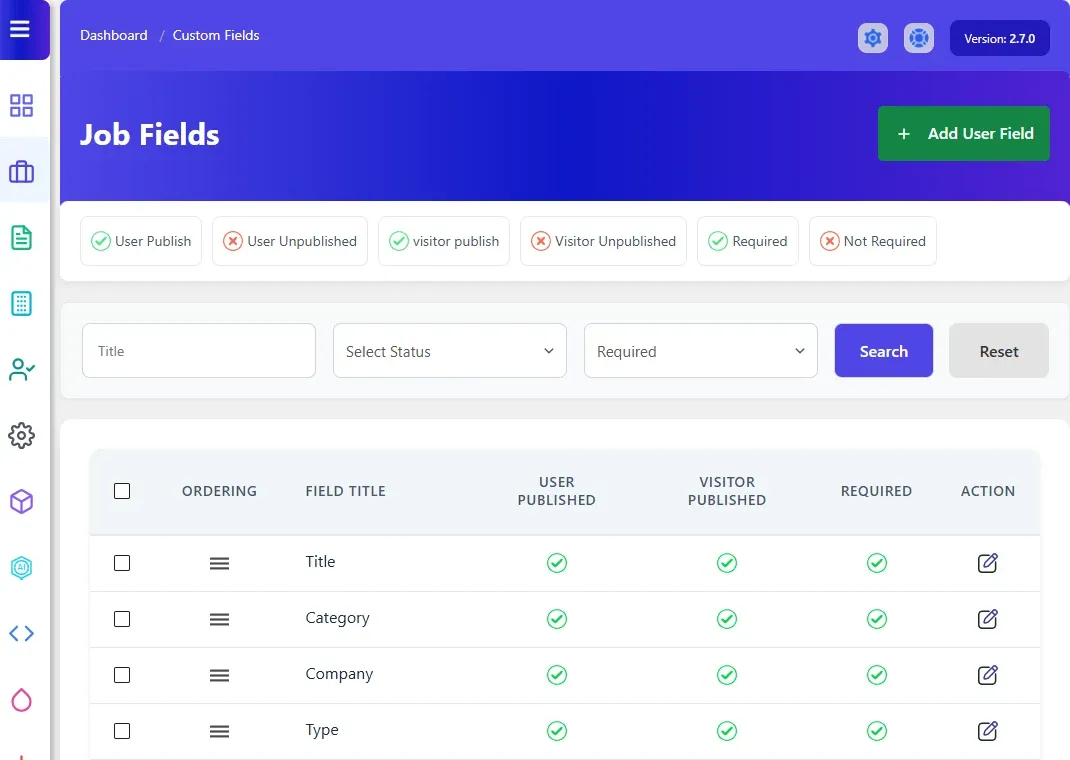
Show, hide or require a field
Section titled “Show, hide or require a field”Each row in the list has three switches. Select the tick or cross to change one.
| Column | What it does |
|---|---|
| User Published | Shows the field to logged-in employers and job seekers. |
| Visitor Published | Shows the field to visitors who aren’t logged in. |
| Required | Makes the field mandatory. |
To change several fields at once, tick their boxes and use the buttons above the list: User Publish, User Unpublished, visitor publish, Visitor Unpublished, Required and Not Required.
Some fields can’t be changed:
- Some built-in fields the system needs are always published, and some are always required.
- File upload fields (resume files, photo, logo, or any custom File Upload field) and text editor fields can’t be made required.
Use Title, Select Status and Required at the top of the list to filter it.
Change the field order
Section titled “Change the field order”- Drag a row by its grab handle in the Ordering column.
- Select Save Ordering, which appears once you have moved something.
Rows shown as headings are section headings. On the resume form they divide the form into sections such as Personal Information, Education, Employer and Skills.
Edit a field
Section titled “Edit a field”- Select the edit icon in the field’s Action column.
- Change the options you need.
- Save.
You can rename any field with Field Title. Not every option is offered for every built-in field.
Add your own field
Section titled “Add your own field”- Open the field list for the form, for example Jobs → Fields.
- Select Add User Field at the top.
- Fill in the form and select Save User Field.
| Option | What it does |
|---|---|
| Field Type | Text Field, Check Box, Date, Drop Down, Email Address, Radio Button, Text Area, Multi Select or File Upload. With Pro, resume fields can also be a whole Resume Section. |
| Field Title | The label people see. |
| Show On Listing | Shows the value on listing pages as well as the detail page. |
| Resume Section | Resume fields only: the section the field goes in. It can’t be changed later. |
| Published | Whether the field is shown. |
| Required | Whether the field must be filled in. |
| Search | Whether the field can be used in search forms. |
| Place Holder | Grey hint text inside the empty field. |
| Description | Help text shown under the field. |
| Options | For drop-downs, radio buttons, check boxes and multi-selects: one option per line. |
| Visible | Shows the field only when another field has a given value. Pick the parent field, the value, and Equal or Not Equal. All three must be set. |
After saving, a text-type field can only be switched to another text type (Text Field, Date, Email Address or Text Area). The type of other fields is fixed.
Quick apply fields don’t have Add User Field: you can only arrange the built-in ones.
Delete a field you added
Section titled “Delete a field you added”Select the delete icon in the field’s Action column and confirm. Only fields you added can be deleted. Deleting a resume section you added also deletes all the fields in it.
Search fields
Section titled “Search fields”Search fields decide what appears on the search forms.
- Open WP Job Portal → Jobs → Search Fields. With Pro, resumes have Resume → Search Fields too.
- Select the edit icon on a field.
- Set User Search and Visitor Search to Enabled or Disabled, then Save.
- To change the order, drag the rows and select Save Ordering.
The Search Fields / All Fields filter at the top switches between fields already on the search form and every field.