

Pipeline and stages
The pipeline shows every application to a job as a card in a stage, from Inbox to Hired. Stages belong to the company, so every job the company posts uses the same workflow, and every recruiter on the team sees the same columns.
The default stages
Section titled “The default stages”Each company gets these stages automatically. You can’t delete them.
| Stage | Classic status it matches | Ends the workflow |
|---|---|---|
| Inbox | Inbox | No |
| Shortlisted | Short listed | No |
| Interviewing | none | No |
| Offer | none | No |
| Hired | Hired | Yes |
| Rejected | Rejected | Yes |
| Spam | Spam | Yes |
The classic statuses are the ones set with the resume action buttons on an applicant list. Moving a card updates the classic status, and changing the classic status moves the card, so both views agree. The exception is a structured rejection, which moves the card to Rejected but leaves the classic status as Inbox (see Candidates and pools). A card in Interviewing, Offer or a stage you added shows as Inbox in the classic tabs. See Resume actions and ratings.
Existing applications are put into stages in the background after you activate Recruit Suite. New applications land in Inbox as they arrive.
Open a job’s pipeline
Section titled “Open a job’s pipeline”On the front end:
- In the employer dashboard, open Recruiting → Candidate Pipeline.
- Type part of a job or company name in Find a job, if the job isn’t in the list.
- Choose the job in Job.
- Select Open pipeline.
You can also select Open Pipeline on a job under Recruiting → Assigned Jobs.
In wp-admin, open WP Job Portal → Recruit Pipeline and follow the same steps.
The screen remembers the job you last opened and starts there next time.
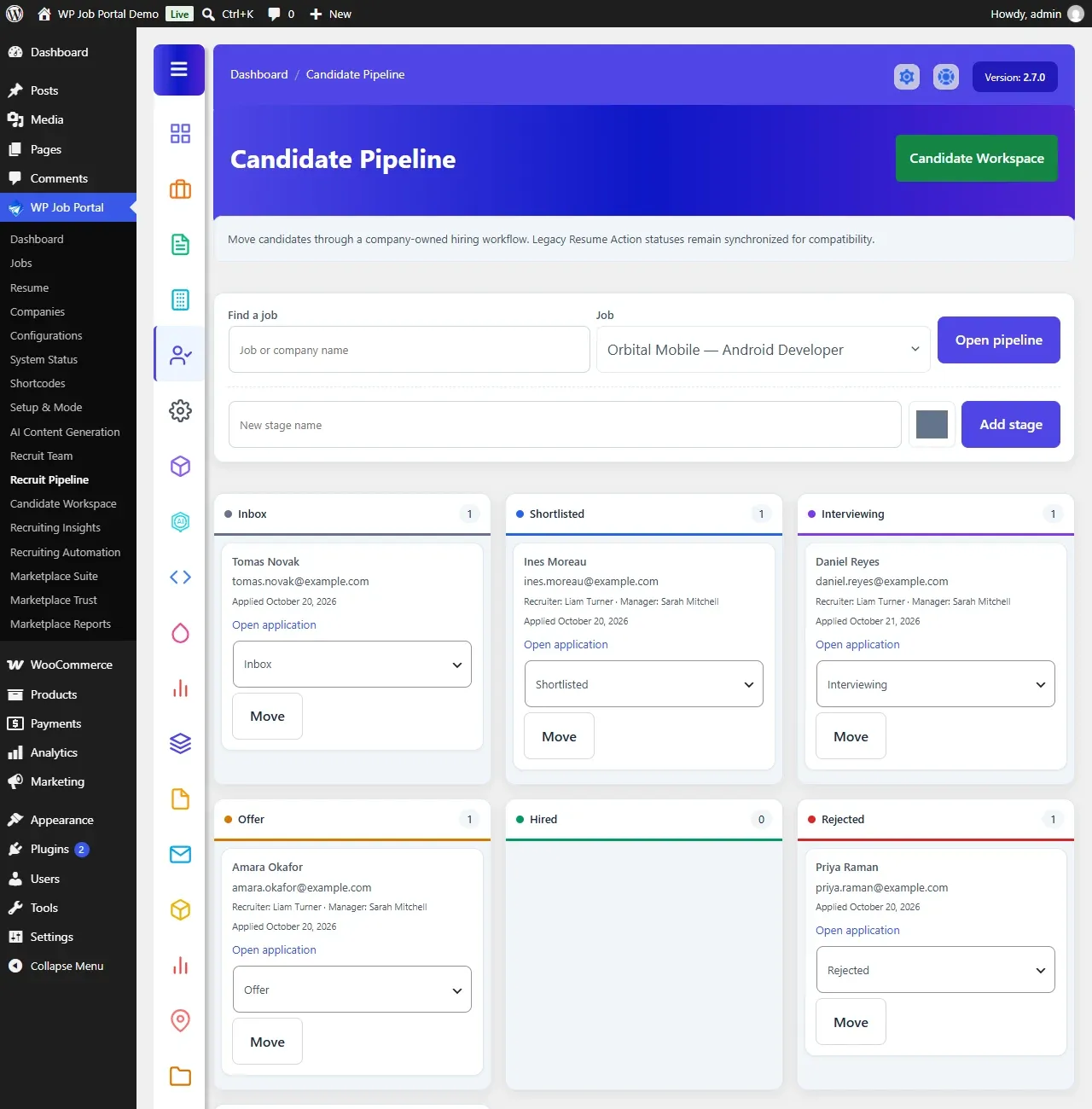
Each card shows the candidate’s name and email, their assigned recruiter and hiring manager, the date they applied, and an Open application link. A stage shows 25 cards at first. Select the Show more button at the bottom of a stage to load the next ones; it says how many it will add.
Move a candidate
Section titled “Move a candidate”- On the candidate’s card, choose the new stage in Move to stage.
- Select Move.
In wp-admin you can also drag a card onto another stage. On the front end, use the Move control.
From a candidate’s Recruitment details, use Move to… next to the current stage at the top of the page.
You can move a candidate if you’re a company admin or recruiter on the company’s team, if you were given the job, or if you posted the job.
Stages that move by themselves
Section titled “Stages that move by themselves”Some actions elsewhere move the candidate for you:
| When this happens | The candidate moves to |
|---|---|
| A structured rejection is recorded | Rejected |
| An offer is marked Send to candidate, or sent for e-signature | Offer |
| An offer is recorded as accepted, by the team or by the candidate | Hired |
| A signed e-signature callback arrives, with decision syncing turned on | Hired |
Add a stage
Section titled “Add a stage”Only a company admin, or a site administrator, can add stages, because a new stage appears on every job’s board for that company.
- Open the pipeline for any job of the company.
- Type a name in New stage name.
- Pick a colour in Stage color.
- Select Add stage.
The new stage is added at the end of the board. Recruiters see Pipeline stages are set by your company admin with the admin’s name in place of these fields.
Stage names must be unique within a company. The screen has no control to rename or reorder stages.
Delete a stage
Section titled “Delete a stage”You can delete a stage you added once it has no candidates in it.
- Move every candidate out of the stage.
- Select Delete empty stage under the stage.
The seven default stages can’t be deleted.