

Activity log
The activity log records changes made on your job board: a job posted, a company edited, a resume deleted, an application sent. Use it to see who did what and when, or to trace how a record came to be the way it is.
Open it from WP Job Portal → Dashboard → Activity Log.
What is logged
Section titled “What is logged”A log entry is written when one of these is added, edited or deleted, by anyone: an administrator, an employer, a job seeker or a visitor.
- Jobs, companies and resumes
- Job applications
- Categories, job types, job status, career levels, highest education, currencies and salary range types
- Countries, states and cities
- Custom fields and email templates
- Saved job searches
- With Pro: cover letters, departments, folders and saved resume searches
Each entry reads like a sentence, for example “Admin added a new Job ( PHP Developer )” or “name Applied for job ( … ) With Resume ( … )”. The record’s name links to its edit screen, and the user’s name links to their user details.
Not everything is logged. Tags, user accounts and configuration changes don’t appear in the activity log.
Read the log
Section titled “Read the log”The log is a table with these columns:
| Column | What it shows |
|---|---|
| ID | The entry number. |
| User Name | Who made the change. Visitors show as “guest”. |
| Description | What was done, with links to the record. |
| Reference For | The kind of record, for example “Jobs” or “Companies”. |
| Created | When it happened. |
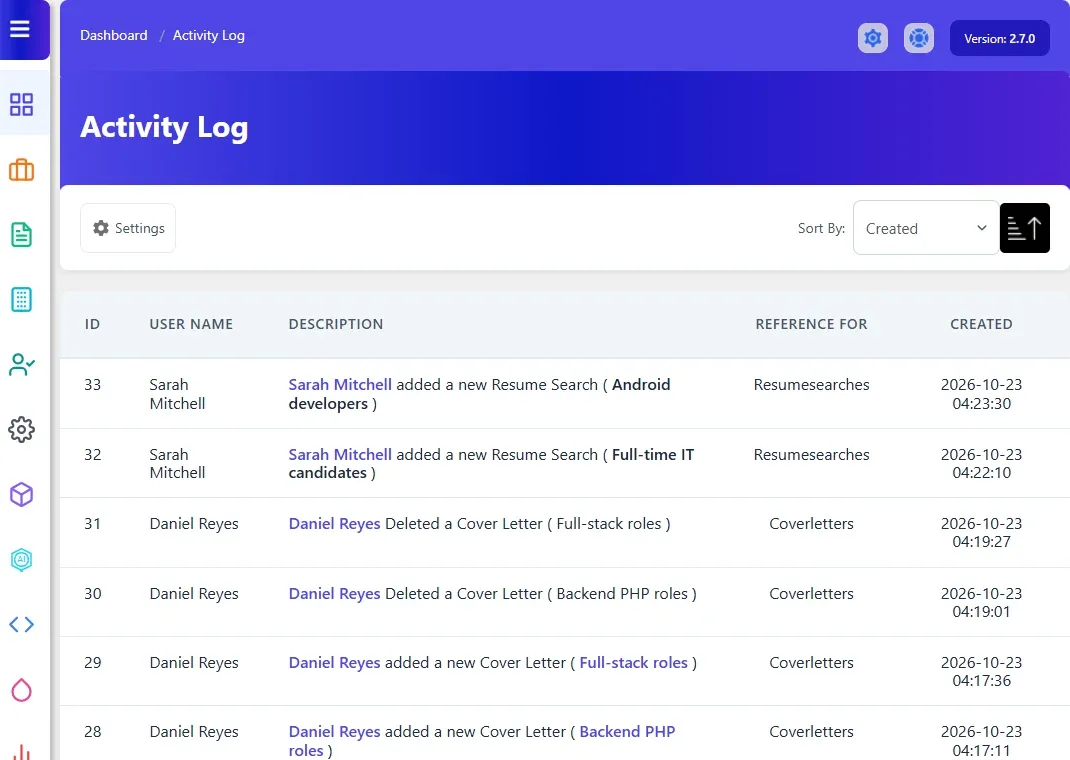
Sort the log
Section titled “Sort the log”Use Sort By above the table to sort by ID, User Name, Reference For or Created. The arrow button next to it switches between ascending and descending.
Show only some kinds of record
Section titled “Show only some kinds of record”- Select Settings above the table.
- Tick the kinds of record you want to see, for example Jobs, Company and Job Apply.
- Select Submit.
The log then only lists changes to those records.
How long entries are kept
Section titled “How long entries are kept”Entries are deleted automatically after a number of days, 365 by default. To change it:
- Open WP Job Portal → System Status.
- Under Privacy retention controls, set Activity history (days). The maximum is 3650.
- Select Save retention settings.
Set it to 0 to keep entries until an administrator or a WordPress privacy erasure request removes them. The clean-up runs once a day.
When a user’s personal data is exported or erased with the WordPress privacy tools, their activity history is included.