

Telling a friend about a job
Tell A Friend sends a job to someone you know by email, with a link back to the job. You don’t need an account to use it.
Send a job to a friend
Section titled “Send a job to a friend”-
Find the job in a job list, on its own page, or in your shortlist.
-
Select Tell A Friend.
-
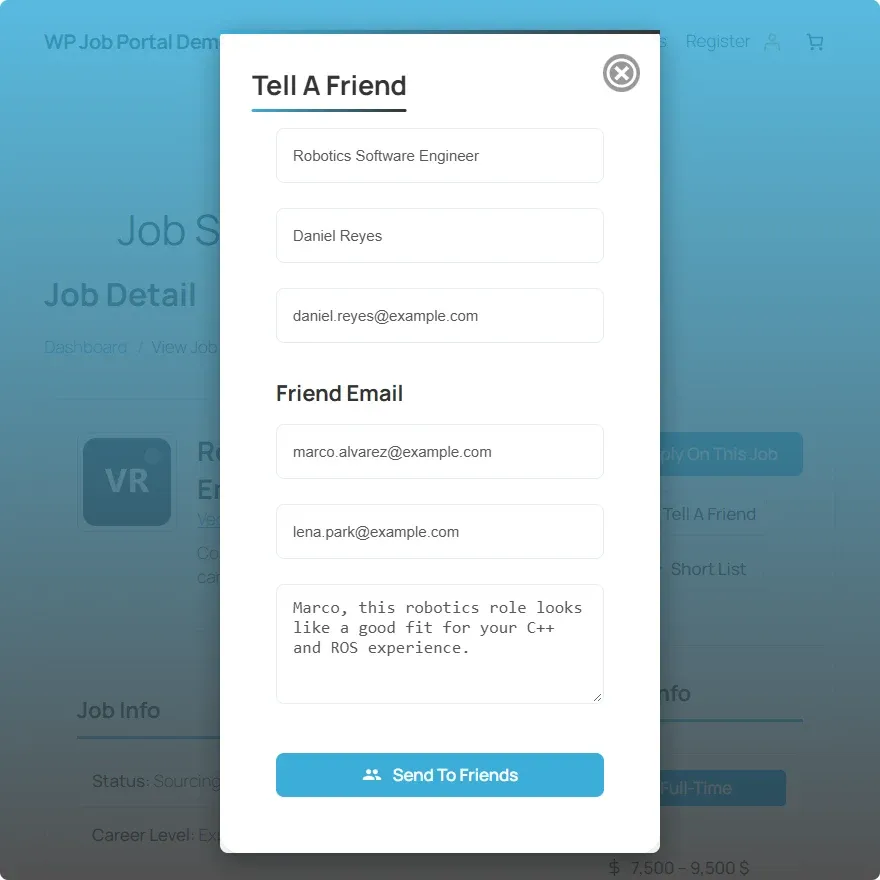
In the Tell A Friend window, fill in:
Field What to enter Your Name Your name, so your friend knows who sent it. Required. Your Email Your email address. The email is sent from this address. Required. Friend Email Your friend’s email address. Required. Friend Email (second box) A second friend’s address. Optional. Message A short note to your friend. Required, but see What your friend receives. -
If you are not signed in, complete the captcha if the window shows one.
-
Select Send To Friends.
You see “Email has been sent to friend[s]”. Select Close to return to the job.
What your friend receives
Section titled “What your friend receives”Your friend gets an email from your name and address. It says you sent it through the site, gives the job title and category, and has a View Job Detail button that opens the job on the site. The exact wording comes from the site’s email template.
In 2.7.0, the text you type under Message is not included in the email: the email shows your email address in its place. If you want to add a personal note, send it to your friend separately.