

Posting a job
Posting a job puts it in the job board’s listings, where job seekers can find it and apply. You need a company first; if you have none, the form tells you so and links you to add one.
Post a job
Section titled “Post a job”- On your employer dashboard, select Add Job.
- If the job board sells listings, check the package box at the top. It shows your Total Jobs, Remaining Job and when the package Ends On. Use Change Package to pick another.
- Fill in the form. Fields marked with
*are required. - If the form shows a terms and conditions box, tick it.
- Select Save Job.
If you see A job belongs to a company, and you have not added one yet, add your company first.
The job form
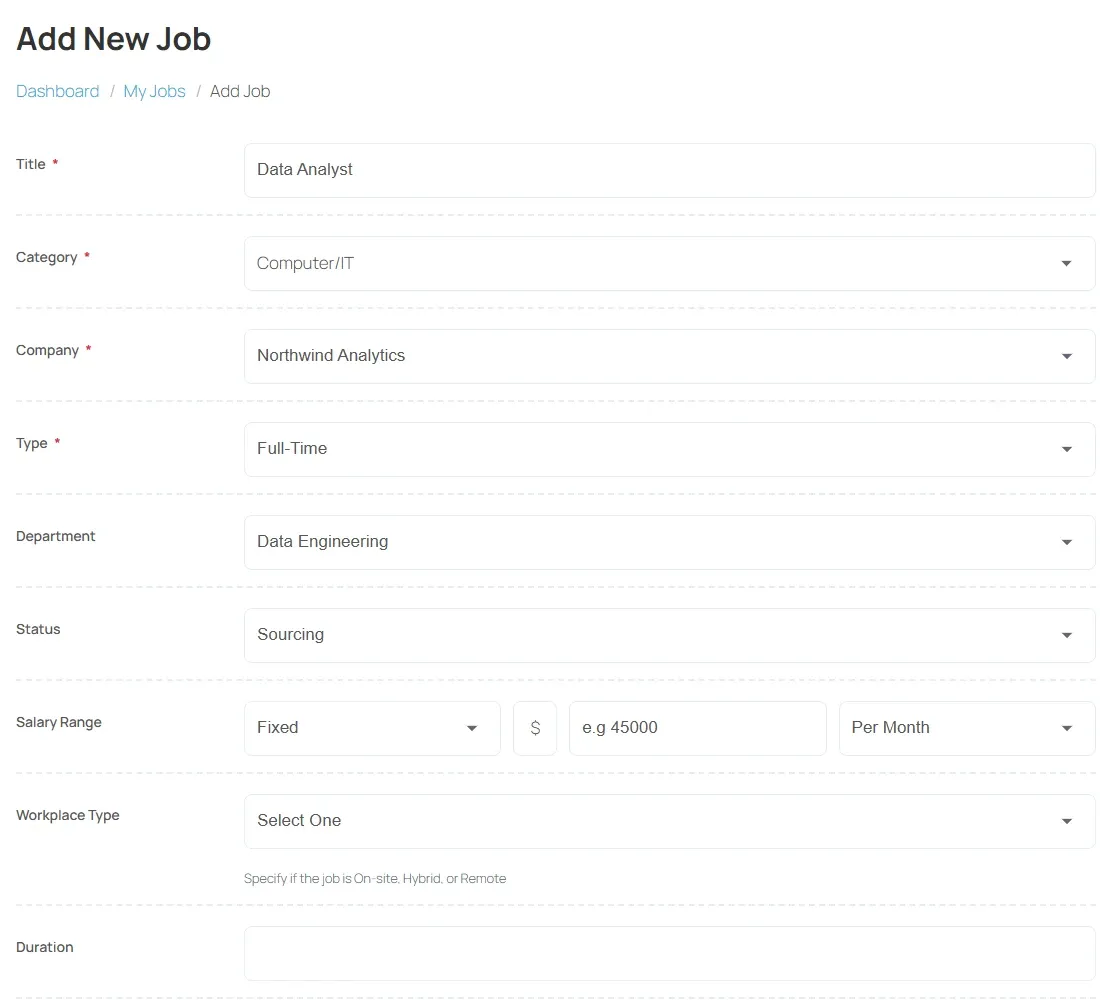
Section titled “The job form”The job board chooses which fields appear and which are required. A typical form has:
| Field | What to enter |
|---|---|
| Title | The job title job seekers search for. |
| Category | The field of work. |
| Company | Which of your companies is hiring. |
| Type | For example full-time or part-time. |
| Department | The department inside the company, on job boards with departments. |
| Status | The hiring stage, for example Sourcing, Interviewing or Closed to New Applicants. Job seekers see it on the job. |
| Salary Range | Pay, as a single figure or a range, with its period. |
| Duration | How long the job lasts, if it is not permanent. |
| Experience | Experience needed. Use Specify range for a minimum and maximum. |
| Career Level | For example Entry Level or Manager. |
| Is Urgent | Marks the job as urgent. |
| Number of Jobs | How many people you are hiring. |
| City | Where the job is. |
| Workplace type | On-site, Remote or Hybrid, where offered. |
| Tags | Keywords that help job seekers find the job. |
| Start Publishing | The first day the job is shown. |
| Stop Publishing | The last day the job is shown. |
| Description | What the job is. |
| Qualifications, Prefered Skills | What you are looking for. |
| Map | Where the job is, on job boards with maps: click the map or type Longitude and Latitude. |
Approval
Section titled “Approval”Some job boards publish a job as soon as you save it; others check it first. Open My Jobs to see where your job stands:
| What you see | What it means |
|---|---|
| Edit Job button | The job is approved. |
| Waiting For Approval | The job board is reviewing it. You cannot edit it until it is approved. |
| Rejected | The job board did not approve it. Contact the job board to ask why. |
| Make Payment | The job board charges per job. Pay to publish it. |
When a job shows and when it expires
Section titled “When a job shows and when it expires”An approved job is shown in the listings from its Start Publishing date to its Stop Publishing date. After the Stop Publishing date it drops out of the listings. To keep it running, edit the job and move Stop Publishing to a later date.
Manage your jobs
Section titled “Manage your jobs”My Jobs lists every job with its Job Title, Company Name, Category, Job Type, Location, Salary, Status and Created date. Each job has:
| Button | What it does |
|---|---|
| Edit Job | Opens the form again. |
| Delete Job | Deletes the job after you confirm. |
| Copy Job | Starts a new job from this one, so you do not type everything again. |
| Resume (n) | Shows the people who applied, with their number. See Reviewing applicants. |
| Add Featured | Makes the job featured, on job boards that sell featured listings. |
| Suggested Resumes | Resumes that match this job, on job boards that offer suggestions. |