

Categories and lists
Most choices on job and resume forms come from lists you control: categories, job types, career levels and so on. Each list has its own screen in the WP Job Portal menu, and they all work the same way.
The lists
Section titled “The lists”| List | Menu path | What it holds |
|---|---|---|
| Categories | WP Job Portal → Categories | Job and resume categories. A category can have a parent category. |
| Tags | WP Job Portal → Tags | Keywords added to jobs. |
| Job types | WP Job Portal → Job Types | Full-time, part-time and so on. Each type has a colour. |
| Job status | WP Job Portal → Job Status | The status values a job can have. |
| Career levels | WP Job Portal → Career Levels | Seniority levels. |
| Highest education | WP Job Portal → Highest Educations | Education levels. |
| Currency | WP Job Portal → Currency | Currencies for salaries, with symbol and code. |
| Salary range type | WP Job Portal → Salary Range → Salary Range Type | The period a salary is paid per, such as per month. |
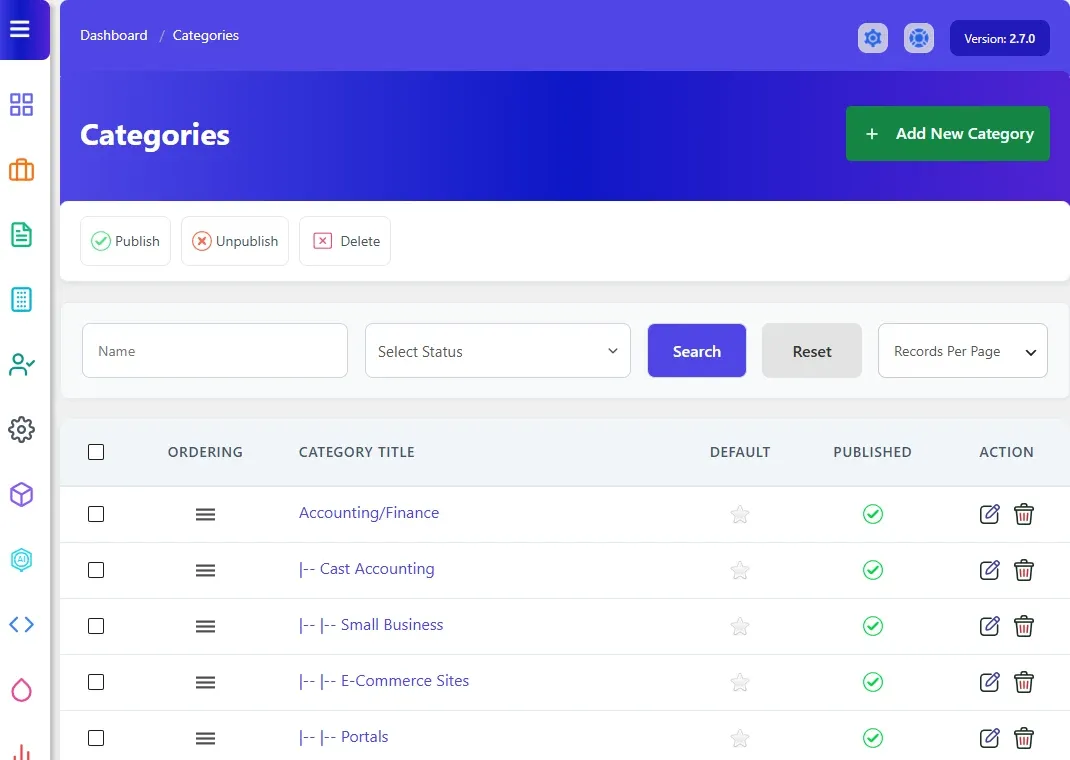
Add an entry
Section titled “Add an entry”- Open the list, for example WP Job Portal → Job Types.
- Select the Add New button at the top, for example Add New Job Type.
- Fill in the form.
- Select Save.
Most forms have the same fields:
| Field | What it does |
|---|---|
| Title | The name people see. On categories this is Category Title. |
| Published | No hides the entry from the forms without deleting it. |
| Default | Yes makes this the entry that is selected when a form opens. Only one entry in a list is the default. |
Some lists have extra fields:
| List | Extra fields |
|---|---|
| Categories | Parent Category, to put a category under another one. |
| Job types | Color, used for the job type label. |
| Currency | Currency Symbol and Code, for example $ and USD. |
| Tags | Tag For: Employer, Job seeker or Both. Tags have no Default. |
Edit, publish or delete entries
Section titled “Edit, publish or delete entries”- Select the edit icon on a row to change it.
- To publish or unpublish several entries, tick them and use Publish or Unpublish above the list.
- Select the delete icon, or tick entries and select Delete, to remove them.
To find an entry, use the Title and Select Status filters at the top of the list.
WP Job Portal refuses to delete or unpublish the default entry. It also refuses to delete an entry that jobs or resumes still use, for example a category or job type that a job is filed under. Move those records to another entry first, or just unpublish the old one.
Change the order
Section titled “Change the order”Every list except tags has a grab handle on each row. Drag the rows into the order you want, then select Save Ordering.
Category and tag display settings
Section titled “Category and tag display settings”A few settings for categories and tags are in WP Job Portal → Configuration → Content & Display, under Taxonomy & Categories:
- Show All Categories Even if Empty lists categories that have no jobs or resumes.
- Categories Per Row and Sub-categories Limit control the category listing pages.
- User Can Add New Tags lets employers create new tags while posting a job.
The currency symbol’s position (left or right of the amount) is the Currency Symbol Position setting on the Monetization tab.