

Design and colours
The Colors screen sets the colours and font sizes of the job board pages, so they match the rest of your site. With Pro, the same screen also lets you switch the whole job board to the Elegant Design look.
Open it from WP Job Portal → Colors.
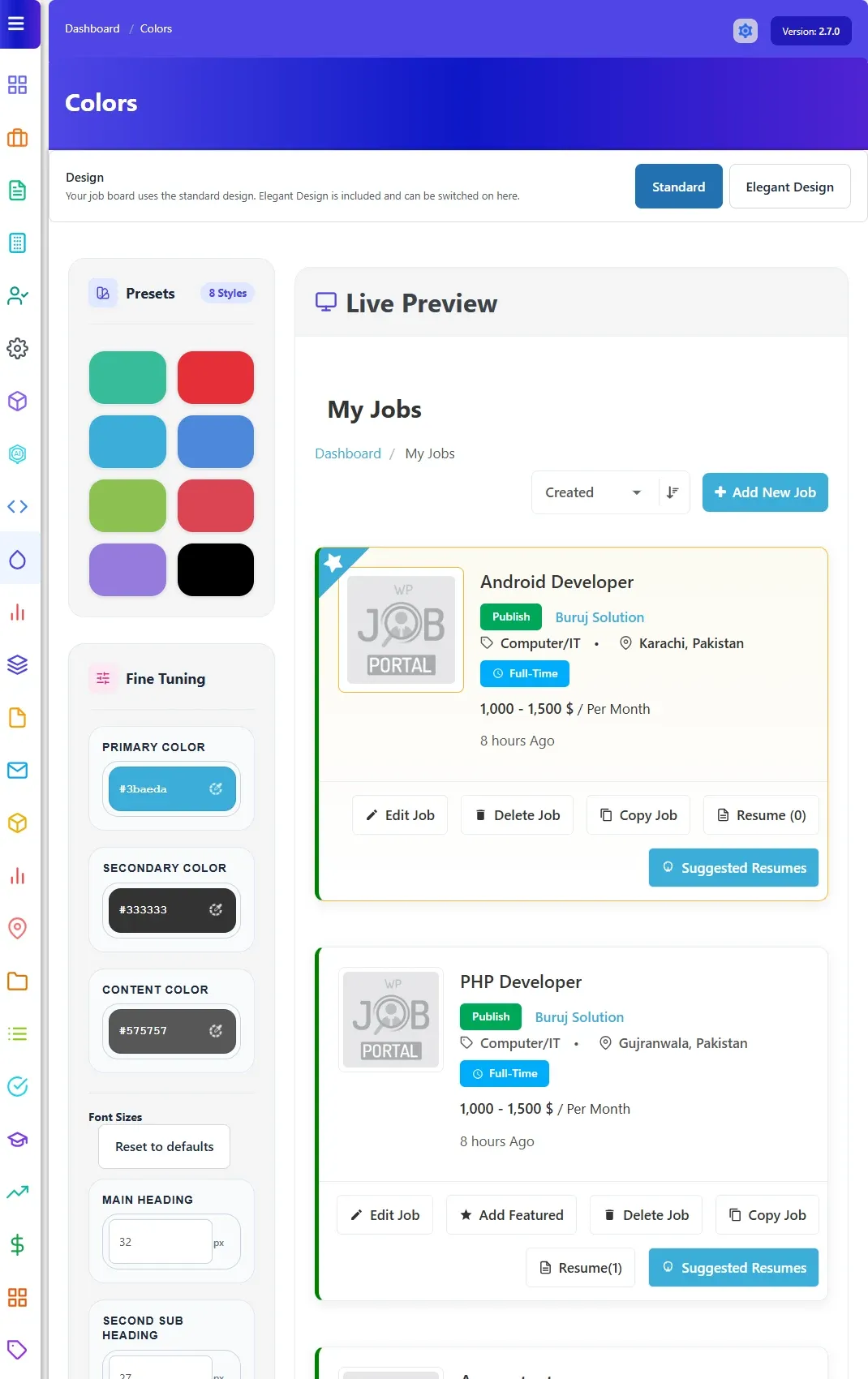
Pick a preset
Section titled “Pick a preset”The Presets panel has eight ready-made colour schemes: Teal Slate, Ruby Red, Ocean Cyan, Royal Azure, Forest Lime, Rose Berry, Deep Amethyst and Midnight Mode.
- Select a preset. The Live Preview updates.
- Select Save Colors.
Set your own colours
Section titled “Set your own colours”- Under Fine Tuning, set the three colours:
- Primary Color
- Secondary Color
- Content Color
- Check the result in Live Preview.
- Select Save Colors.
You can start from a preset and then fine-tune it.
Set font sizes
Section titled “Set font sizes”Under Font Sizes, set the size in pixels of four kinds of text.
| Option | Default | Allowed range |
|---|---|---|
| Main Heading | 32 | 18–64 |
| Second Sub Heading | 27 | 16–48 |
| Sub Heading | 22 | 14–36 |
| Body Text | 17 | 12–24 |
A value outside the range is saved as the nearest allowed size. Reset to defaults puts back the four default sizes. Select Save Colors to save.
Elegant Design
Section titled “Elegant Design”Elegant Design is an alternative look for the whole job board. It is part of Pro since version 2.7.0. It used to be a separate plugin, which is no longer sold.
Switch it on or off
Section titled “Switch it on or off”With Pro active, a Design box appears at the top of the Colors screen.
- Open WP Job Portal → Colors.
- In Design, select Elegant Design to switch it on, or Standard to go back.
Your saved colours are kept when you switch. Updating to Pro does not switch a site to Elegant Design on its own: a site keeps the look it already had.
While Elegant Design is on, the Colors screen shows its own presets and the three colours, with a preview in the Elegant style. It has no Font Sizes section.
If you still have the old Elegant Design plugin
Section titled “If you still have the old Elegant Design plugin”While the standalone Elegant Design plugin is active, it keeps providing the look and the Design buttons are locked, with a note saying so. Deactivate the old plugin in Plugins: Pro takes over on the next page load, with the same look and colours. You can then use the switch.
Going further
Section titled “Going further”For changes the Colors screen can’t make, such as your own CSS or template overrides, see Styling and templates.