

Email templates and notifications
WP Job Portal sends emails when things happen on the job board: a new job, a status change, an application. You decide which of those emails go out and to whom, and you can rewrite each one. Everything is under WP Job Portal → Email Templates.
Set the sender and the admin address
Section titled “Set the sender and the admin address”Before editing templates, check who emails come from and where admin notices go.
- Open WP Job Portal → Configuration and the Email & Alerts tab.
- Under Email Sender Identity, set:
- Admin Email Address: where admin notifications are sent.
- Sender Email Address: the From address of every email.
- Sender Name: the From name.
- Save the settings.
Turn notifications on and off
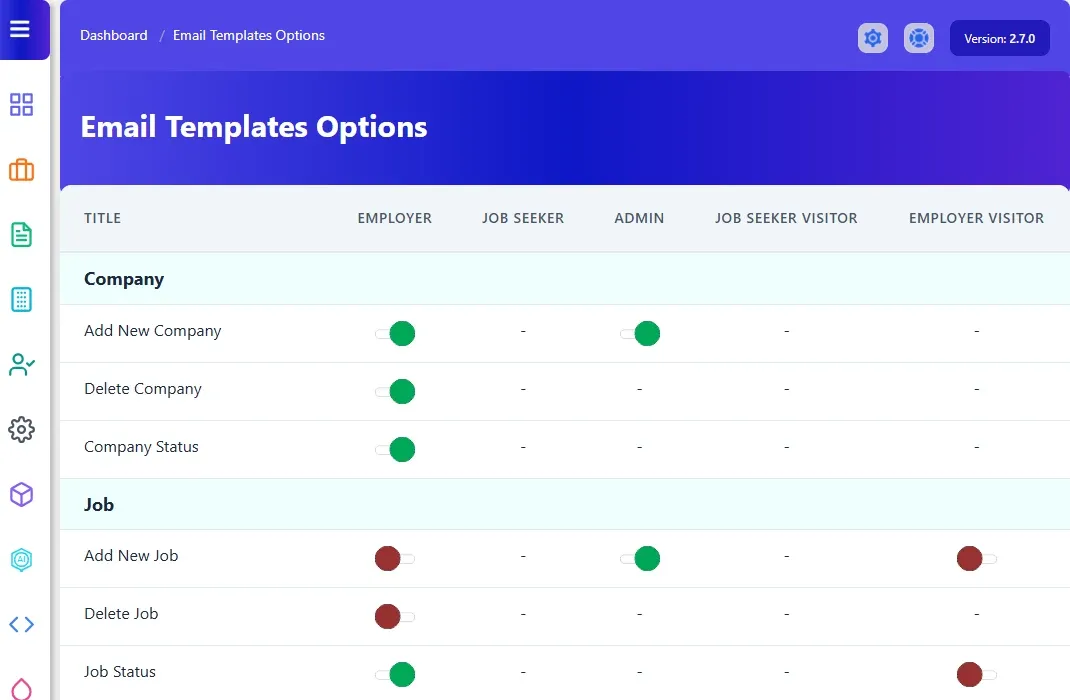
Section titled “Turn notifications on and off”- Open WP Job Portal → Email Templates → Options.
- Find the email in the table. Rows are grouped under Company, Job, Resume and Miscellaneous.
- In the column for the recipient, select the icon to switch between Send email and Do not send email.
The columns are the possible recipients: Employer, Job Seeker, Admin, Job Seeker Visitor and Employer Visitor. A row only has switches for the recipients that email can go to. For example, Add New Job can go to the employer, the admin and a visitor who posted the job, while Delete Company only goes to the employer.
Edit a template
Section titled “Edit a template”- Open WP Job Portal → Email Templates and select the email in the menu, for example New Job.
- Change the Subject.
- Change the Body in the editor.
- Use the placeholders listed under Parameters to insert details. For example,
{JOB_TITLE},{COMPANY_NAME}and{JOB_LINK}in the New Job email. - Select Save.
Each template lists only the placeholders it supports. Type them exactly as shown, braces included.
The templates
Section titled “The templates”| Template | Sent when |
|---|---|
| New Company | A company is added. |
| Delete Company | A company is deleted. |
| Company Status | A company is approved or rejected. |
| New Job | A job is posted. |
| Job Status | A job is approved or rejected. |
| Job Delete | A job is deleted. |
| New Resume | A resume is added. |
| New Visitor Resume | A visitor adds a resume. |
| Resume Status | A resume is approved or rejected. |
| Delete Resume | A resume is deleted. |
| New Employer | Someone registers as an employer. |
| New Job Seeker | Someone registers as a job seeker. |
| Job Apply Admin | A job seeker applies; the notice to the admin. |
| Job Apply Employer | A job seeker applies; the notice to the employer. |
| Job Apply Job Seeker | A job seeker applies; the confirmation to the job seeker. |
| Job Alert | A job alert is delivered. See Job alerts. |
| Tell A Friend | Someone emails a job to a friend. |
| System Email | Used for system messages such as the job alert report to the admin. |
Some templates only appear when the feature that sends them is installed:
- New Visitor Job, when visitors can post jobs (Marketplace Suite).
- New Message Alert, for employer and job seeker messaging (Pro).
- Applied Resume Status Change, for resume actions (Recruit Suite).
- Purchase Package Admin, Purchase Package and Purchase Status, for packages (Marketplace Suite).
If emails don’t arrive
Section titled “If emails don’t arrive”WP Job Portal hands each email to WordPress’s mail function. Whether it is delivered depends on your server’s mail setup. WP Job Portal → System Status shows how many emails were accepted or rejected and the most recent mail error, and lets you turn on a reliable queue that retries failed emails. See System status and errors.