

Searching resumes
Resume search lets you look for candidates yourself instead of waiting for them to apply. You search by the details job seekers put on their resumes, and you can save a search to run it again later.
Search for resumes
Section titled “Search for resumes”- On your employer dashboard, open Short Links → Resume Search.
- Fill in any of the search fields. Leave a field empty to ignore it.
- Select Resume Search.
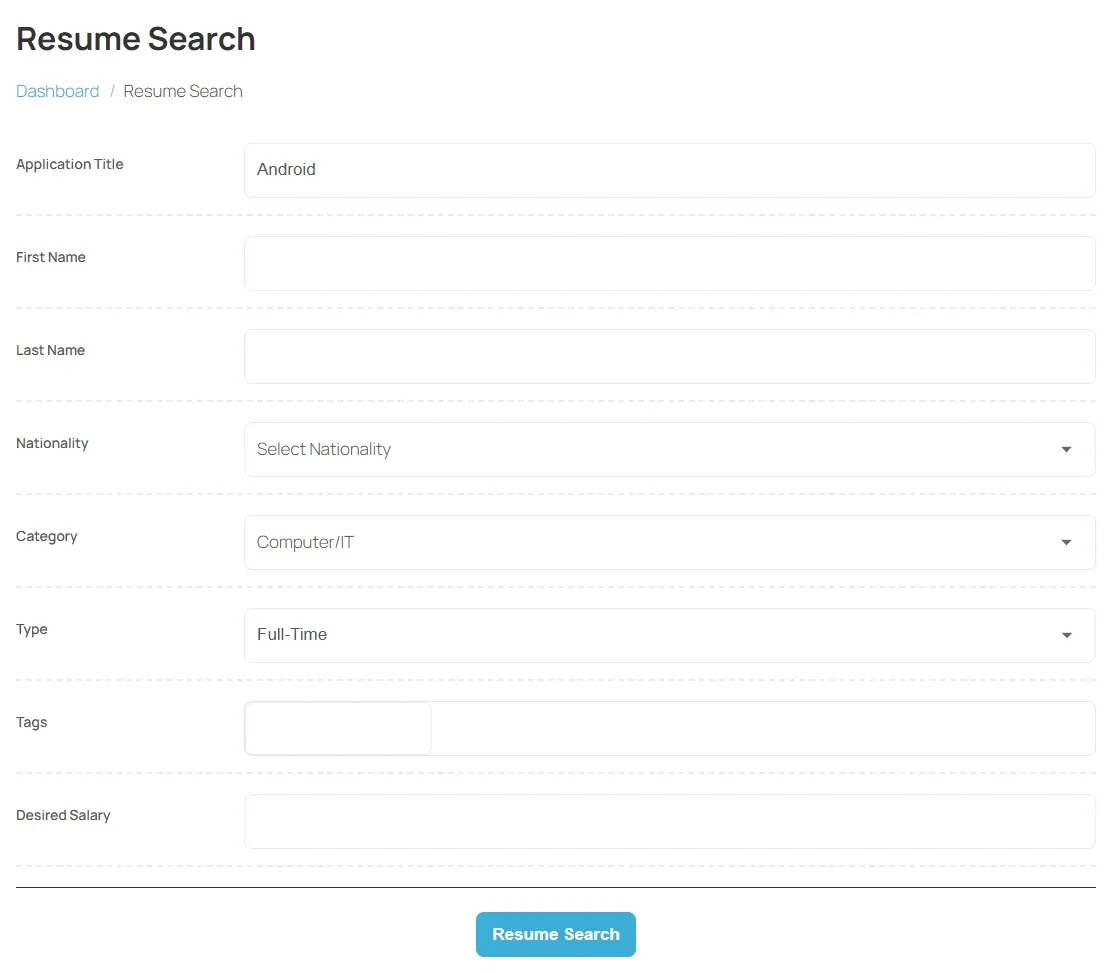
The fields depend on the job board. They can include the application title, first and last name, Nationality, Category, Job Type, Salary Range, Highest Education, Experience, city, zip code, keywords and tags.
Work with the results
Section titled “Work with the results”The Resume List page lists the matching resumes.
- Sort them with the sort list at the top: Application Title, First Name, Job Type, Location or Created.
- Narrow them with the filter: Title, Name, Nationality, Gender, Job Category, Job Type and Highest Education, then Search. Reset clears the filter.
- Open a resume to see it in full.
On job boards that charge for contact details, a resume may show Show Resume Contact instead of the person’s email and phone. See Buying a package.
Save a search
Section titled “Save a search”If the job board allows it, the results page shows a box for saving the search.
- Run a search.
- In Search Name, type a name you will recognise, for example
Accountants in Leeds. - Select Save Search.
Run or delete a saved search
Section titled “Run or delete a saved search”- On your dashboard, open Short Links → Saved Searches. The Resume Save Search box on the dashboard also shows how many you have.
- On the search, select View Saved Search to run it again, or Delete to remove it.
Browse resumes by category
Section titled “Browse resumes by category”To browse instead of search, open Short Links → Resumes By Categories and pick a category. This is available on every job board, with or without resume search.