

Setup wizard
The setup wizard gets a new job board running in four short steps. It asks only what the site cannot work without; every other setting keeps a working default and stays under Configurations.
Open the wizard
Section titled “Open the wizard”The wizard opens by itself the first time you activate WP Job Portal. To open it later, go to WP Job Portal → Setup & Mode.
The steps are listed down the left side: Choose Mode, Essentials, Sample Data and Setup Complete. You can select a step to go back to it. The close button (×) at the top right leaves the wizard and opens the WP Job Portal dashboard.
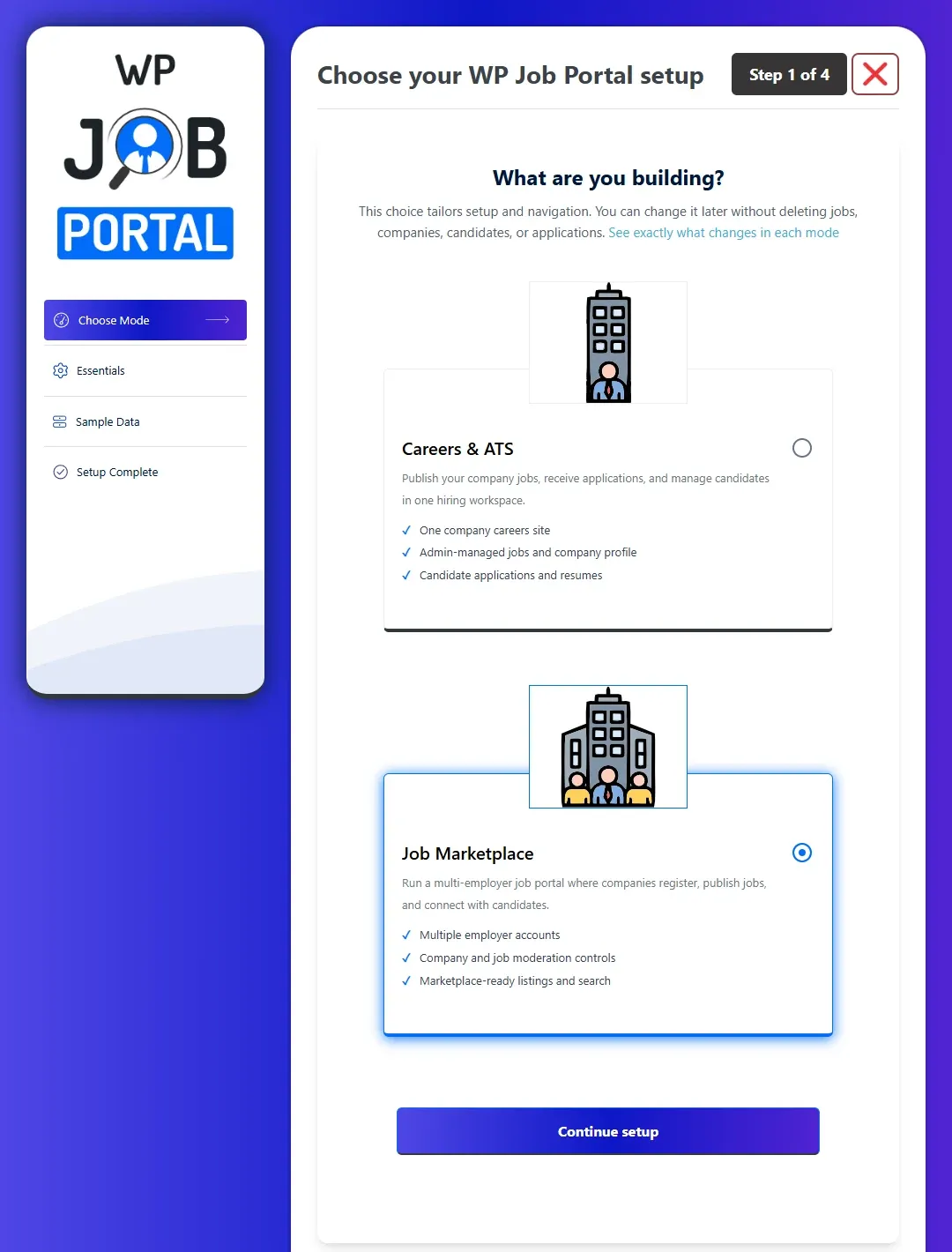
Step 1: choose a mode
Section titled “Step 1: choose a mode”The first screen asks What are you building?
| Mode | What it is for |
|---|---|
| Careers & ATS | One company careers site. You publish your own jobs from the admin, receive applications and manage candidates. |
| Job Marketplace | A multi-employer job portal. Employers register, add companies and publish jobs, and you moderate them. |
- Select Careers & ATS or Job Marketplace.
- Select Continue setup.
The mode tailors the admin to the site you are running. In Careers & ATS, four features are not used, so their menu entries are hidden and their settings are fixed and marked Set by mode:
| Feature | In Careers & ATS |
|---|---|
| Job approval queue | Hidden. Jobs are approved automatically. |
| Company approval queue | Hidden. You manage the one company profile yourself. |
| Employer accounts | Off. Employer sign-up and visitor job posting are switched off. |
| Credits and paid submissions | Off. Submissions stay free. |
In Job Marketplace all four are available and employer registration is switched on.
To see the full comparison, select See exactly what changes in each mode on this step, or open How Modes Work from the Dashboard group in the WP Job Portal side menu.
Step 2: Essentials
Section titled “Step 2: Essentials”This step asks a few things your job board needs to know.
| Option | What it does |
|---|---|
| Account Sign-Up | Whether employers and job seekers can create their own accounts on your registration page: Open - anyone can create an account, Closed - only accounts you add, or Follow WordPress “Anyone can register”. This is WP Job Portal’s own setting; WordPress’s Anyone can register is not changed. |
| Send Notifications To | The address that receives notices of new registrations, jobs, companies and applications. It starts as your WordPress admin email. |
| Publish New Companies | Yes: a company an employer adds is live at once. No: you approve it first, under Companies. |
| Publish New Jobs | Yes: a job is live as soon as it is posted. No: you approve each one first, under Jobs. |
| Publish New Resumes | Yes: a job seeker’s resume is visible at once. No: you approve it first, under Resume. |
| Visitors Can Apply | Lets someone apply to a job without creating an account first. |
Options the chosen mode has already fixed are not shown. In Careers & ATS, for example, you do not see Publish New Companies or Publish New Jobs.
- Set each option.
- Select Next.
Site title, email sender, date format, user roles and every other setting are under WP Job Portal → Configurations whenever you need them.
Step 3: Sample Data
Section titled “Step 3: Sample Data”This step can fill the site with example companies, jobs, resumes and applications so you can see the job board working, and can create the main pages.
- Set Insert Sample Data to Yes or No.
- If you chose Yes, pick a Sample Employer and a Sample Job Seeker from your users. They must be two different accounts. Select Add new user to create one in a new tab; it appears in the list when you come back.
- Under Menu, choose which pages to create:
- Job Seeker Menu creates the job seeker dashboard page.
- Employer Menu creates the employer dashboard page. It is offered on Job Marketplace sites.
- Jobs Listing Menu creates a job listing page. It is offered on Careers & ATS sites.
- Select Next Step.
The Menu options are not shown when the Job Portal Theme is active; the theme brings its own demo pages. See Import demo data for what the sample data contains and how to remove it.
Step 4: Setup Complete
Section titled “Step 4: Setup Complete”The last screen confirms the mode and that your settings are saved. If you added sample data, it names the two owners and links to See the sample jobs, Employer dashboard and Job seeker dashboard.
Select Open WP Job Portal Dashboard to finish.
Charging for listings
Section titled “Charging for listings”The wizard does not ask how employers pay. Whether submissions are free, paid per listing or covered by a membership is the Submission Type setting on the Monetization tab of Configurations. In Careers & ATS it is fixed to free. See Monetization settings and, for selling listings, Marketplace overview.
The onboarding checklist
Section titled “The onboarding checklist”WP Job Portal → Setup & Mode also shows an Onboarding checklist, worked out from your saved settings and content rather than ticked by hand. It covers choosing a mode, employer registration (on Job Marketplace sites), loading the city list, the company profile, the main portal page, publishing the first job and the application workflow. Each item has a button that opens the right screen.
Select Hide checklist for my account to hide it, and Reopen checklist to bring it back.