

Managing jobs
The jobs list in wp-admin shows every approved and rejected job on the site, whoever posted it. From here you add jobs yourself, edit any job, see its applications and delete jobs you no longer need.
Open the jobs list
Section titled “Open the jobs list”Go to WP Job Portal → Jobs.
Each row shows the job title, its status and, for approved jobs, whether it is live:
| Badge | Meaning |
|---|---|
| Approved / Rejected | The job’s status |
| Pending Payment | The employer hasn’t paid for the listing yet (Marketplace Suite) |
| Publish | Approved, and today is inside its publishing dates |
| Not Published | Approved, but its start date is still to come |
| Expired | Approved, but its Stop Publishing date has passed |
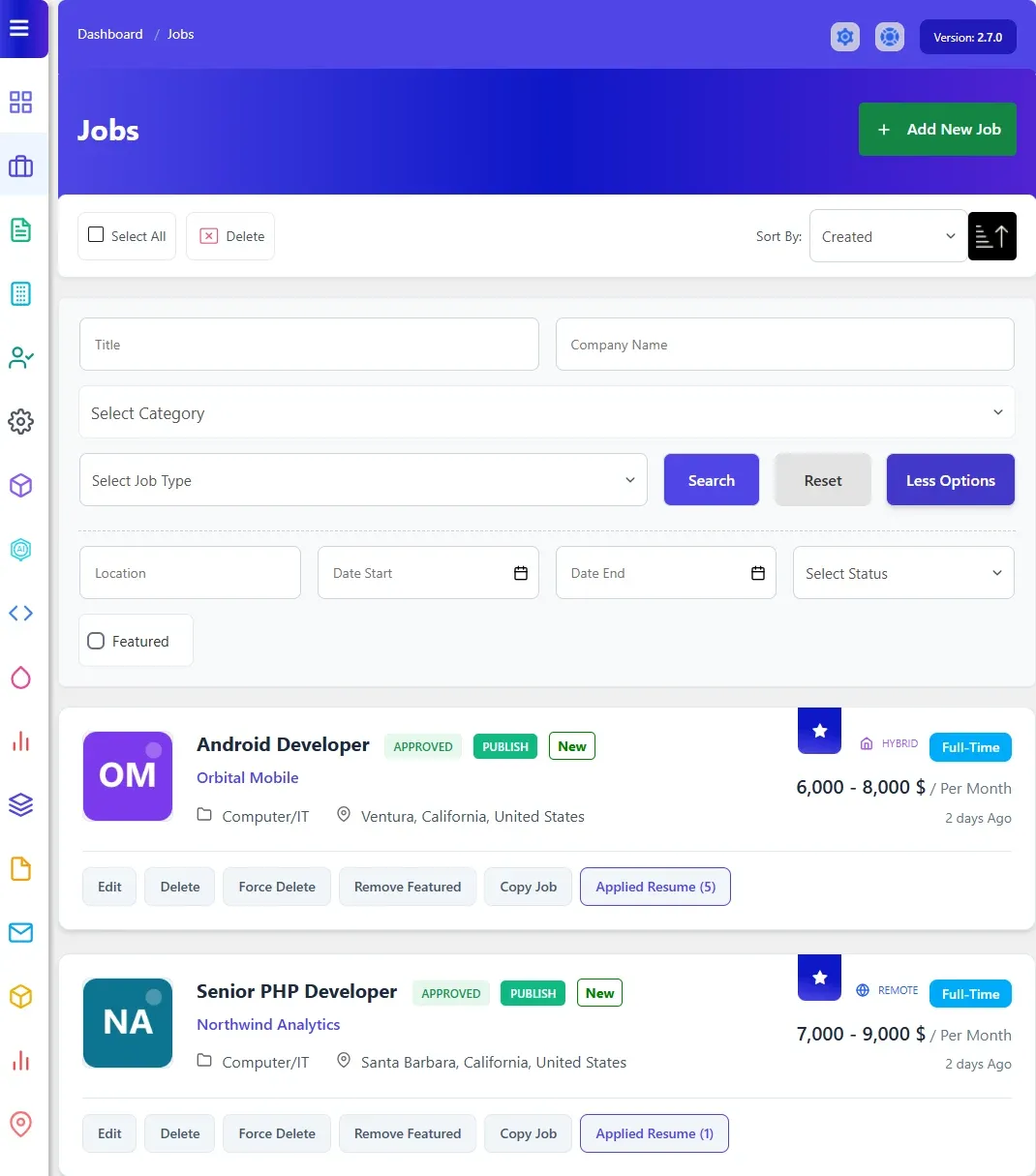
Find a job
Section titled “Find a job”- Type in Title or Company Name, or pick a Category or Job Type.
- For more filters, select Advanced Search. This adds Location, Date Start, Date End and a status filter (Approved or Rejected). With Marketplace Suite there is also a Featured checkbox.
- Select Search.
Select Reset to clear the filters. To change the order, pick a field next to Sort By (Job Title, Company Name, Category, Location, Status, Job Type or Created) and use the arrow beside it to switch between ascending and descending.
Add a job
Section titled “Add a job”- Go to WP Job Portal → Jobs → Add New Job.
- Fill in the form. Which fields appear, their order and which are required are set in Jobs → Fields. See Field manager.
- Choose a Status. New jobs you add are Approved unless you pick something else.
- Select Save Job.
Edit a job
Section titled “Edit a job”- In the jobs list, select the job title or Edit.
- Change what you need. You can also change the Status here.
- Select Save Job.
See a job’s applications
Section titled “See a job’s applications”Each row has an Applied Resume button with the number of applications in brackets. Select it to open the applications for that job. See Handling applications.
Expire a job
Section titled “Expire a job”A job stops showing on the site after its Stop Publishing date. To take a job down early, edit it and set Stop Publishing to an earlier date.
How long employer-posted jobs run by default is set by the Job Expiry Days settings. See Jobs settings.
Delete a job
Section titled “Delete a job”Each row has two delete buttons.
| Button | What it does |
|---|---|
| Delete | Deletes the job, its locations and its shortlist entries, and sends the Job Delete email. It refuses if the job has applications |
| Force Delete | Deletes the job together with all of its applications, locations and, where those features are on, its messages and shortlist entries |
To delete several jobs at once, tick them (or Select All) and select Delete at the top of the list. Jobs that have applications are skipped.