

Registering as a job seeker
You need a job seeker account to add a resume, apply for jobs and come back to your applications later. Registering takes one form, and you are signed in as soon as it is done.
Create your account
Section titled “Create your account”-
Open the job board and select Register. You find it in the “Welcome, Visitor!” banner on the dashboard, and under System in the dashboard menu.
-
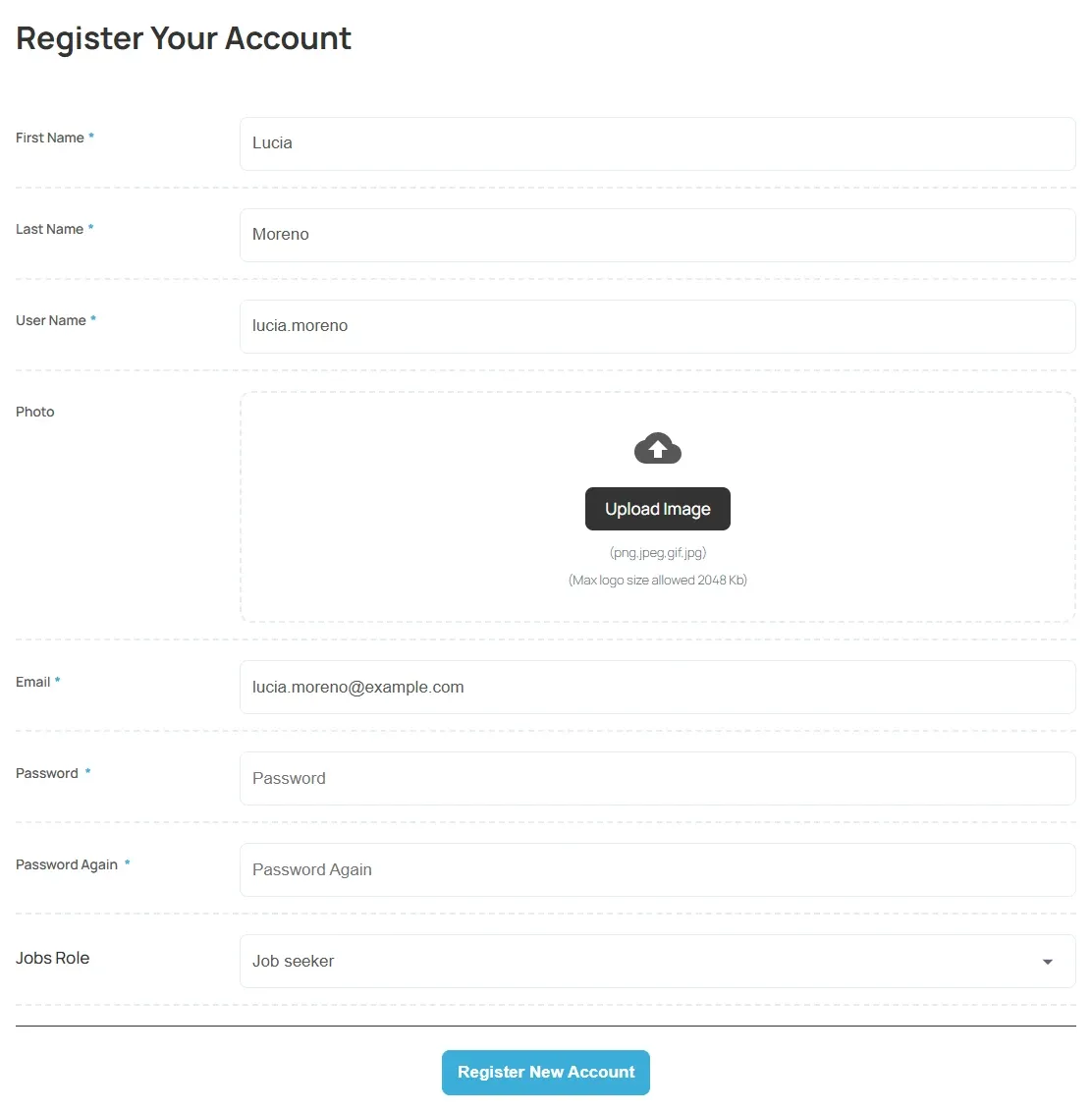
On Register Your Account, fill in the form. The usual fields are:
Field What to enter First Name Your first name. Last Name Your last name. User Name The name you sign in with. Nobody else can be using it. Photo Optional. Select Upload Image to add a profile picture. Email Your email address. It can’t belong to another account. Password The password you want to use. Password Again The same password again. -
Under Jobs Role, choose Job seeker. If the site only takes job seekers, it already shows Job seeker and there is nothing to choose.
-
If the form shows a captcha, complete it.
-
Select Register New Account.
You are signed in straight away and see “User has been successfully created”. Most sites then take you to your dashboard; some send you to a page of their own.
If the form shows an error
Section titled “If the form shows an error”| Message | What to do |
|---|---|
| “Passwords do not match” | Type the same password in Password and Password Again. |
| Your user name “already taken”, or your email “already registered” | You may have an account already. Sign in instead, or use a different user name or email. |
| “Invalid captcha” | Try the captcha again. |
| “Registration is disabled by admin, please contact to system administrator !…” | The site is not taking new accounts. Contact the site owner. |
Choose a role for an existing account
Section titled “Choose a role for an existing account”If you already have an account on the website but have never used the job board, the job board asks for your role the first time you open one of its pages.
- Under Please select your role, choose Job seeker.
- Select Submit.
Change your profile later
Section titled “Change your profile later”- On your dashboard, select Edit Profile.
- Change your First Name, Last Name or Photo.
- Select Update.
Your user name and email are not on this form.