

Recruit Suite overview
Recruit Suite turns WP Job Portal into a hiring workflow for a company’s own team: a candidate pipeline, notes and tasks, interviews and scorecards, offers with approvals, reminders and reports. Use it when people inside a company need to track and decide on candidates together, rather than just receive applications.
Recruit Suite needs only the free WP Job Portal plugin, version 2.7.0 or later. It doesn’t need Pro or Marketplace.
What Recruit Suite adds
Section titled “What Recruit Suite adds”| Feature | What it does | Page |
|---|---|---|
| Recruiting teams | Company admins, recruiters and hiring managers per company, plus job ownership | Team and collaboration |
| Pipeline | A stage board per job: Inbox, Shortlisted, Interviewing, Offer, Hired, Rejected, Spam | Pipeline and stages |
| Candidate records | Assignment, source, talent pools, structured rejection, duplicate review | Candidates and pools |
| Interviews and scorecards | Scheduled interviews and 1–5 ratings on fixed competencies | Scorecards and evaluation |
| Offers | Offer drafts, team approval, PDF, e-signature, candidate decision | Offers |
| Messages | Write to candidates and read their replies, with templates | Message templates |
| Bulk actions | Move, reject, pool or message many candidates at once | Bulk actions |
| Automation | Reminders, notifications, candidate update emails, calendar invitations | Automation |
| Insights | Hiring metrics per company and job, with CSV export | Recruiting insights |
| Resume actions | Inbox, Short List, Spam, Hired and Rejected buttons, ratings and notes on applicants | Resume actions and ratings |
Where people do the work
Section titled “Where people do the work”Recruiters work on the front end, inside the existing employer dashboard. Site administrators also get screens in wp-admin.
The Recruiting menu in the employer dashboard
Section titled “The Recruiting menu in the employer dashboard”Anyone on a recruiting team, and any employer whose company has a team, sees a Recruiting section in the employer dashboard menu:
| Menu item | What it shows |
|---|---|
| Recruiting Overview | Counts for Assigned Jobs, assigned or active candidates, Open Tasks and Upcoming Interviews, plus candidates needing attention |
| Assigned Jobs | Jobs you own or may recruit for, each with an Open Pipeline link |
| Assigned Candidates | Applications you may work on, with search, scope and bulk actions |
| Candidate Pipeline | The stage board for one job |
| Tasks & Reminders | Open and overdue team tasks |
| Interviews | Upcoming interviews |
| Scorecards | Submitted evaluations |
| Offers | Drafts, approvals, sent offers and decisions |
| Notifications | Your recruiting alerts and reminders |
| Recruiting Insights | Reports for your companies and jobs |
| Talent Pools | Pools, duplicate review, message templates and rejection reasons |
| Recruiting Team | Team members and job ownership. Shown to company admins only. |
Each candidate opens in the existing application detail. Select Recruitment details on an applicant to open the Recruitment Workflow section, with Overview, Notes, Messages, Team Tasks, Candidate Requests, Interviews, Scorecards, Offers and Activity.
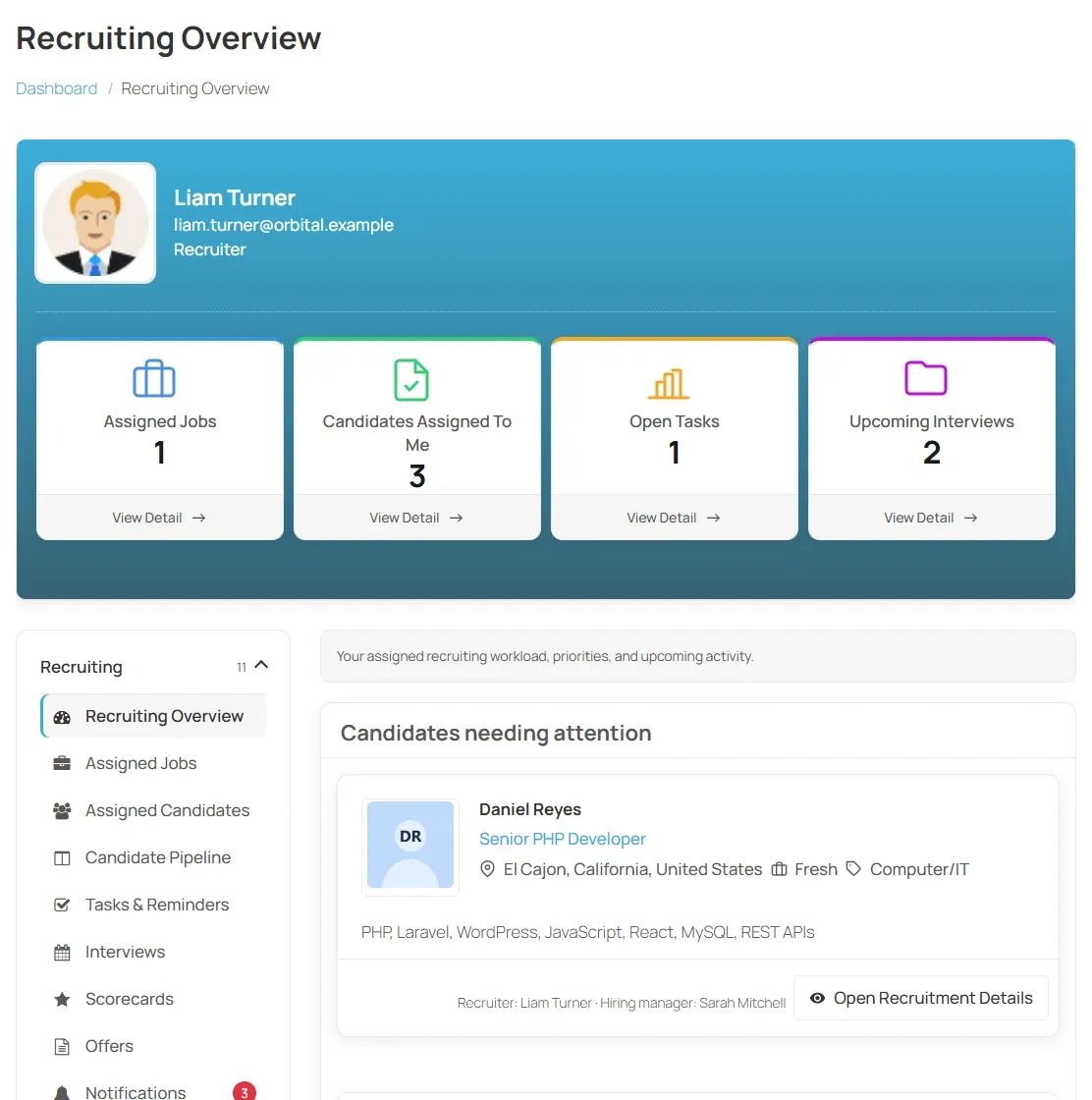
An employer who hasn’t added a company yet sees Add a company to start recruiting instead of the menu.
The Recruiting Center
Section titled “The Recruiting Center”The employer dashboard also shows a Recruiting Center panel with Open tasks, Upcoming interviews, Pending approvals and Unread alerts, and links to Pipeline, Workspace, Notifications and Insights.
Older sites may have a page with the [wpjobportal_recruit_center] shortcode. That page still works, with tabs for Pipeline, Candidate workspace, Candidates & pools, Notifications & reminders, Insights and Team. When the site has an employer dashboard page, signed-in team members who open it are sent to the matching Recruiting view in the dashboard instead.
wp-admin screens
Section titled “wp-admin screens”Administrators get a Recruitment group in the WP Job Portal admin menu:
- WP Job Portal → Recruit Team
- WP Job Portal → Recruit Pipeline
- WP Job Portal → Candidate Workspace
- WP Job Portal → Recruiting Insights
- WP Job Portal → Recruiting Automation
These screens are for site administrators only. Talent pools, duplicate review, message templates and rejection reasons have no wp-admin screen. Administrators manage them from Recruiting → Talent Pools in the employer dashboard, like everyone else.
The Candidate Portal
Section titled “The Candidate Portal”Candidates see what the hiring team shares with them in the Candidate Portal: action requests, upcoming interviews, offers they can accept or decline, signature requests, messages and updates. Job seekers reach it from Recruitment → Recruitment Center in their dashboard, which also shows a Recruitment updates panel.
Internal notes, team tasks, scorecards and approval comments are never shown in the portal.
Pages Recruit Suite creates
Section titled “Pages Recruit Suite creates”When Recruit Suite is active, WP Job Portal creates two published pages the first time it checks, unless a page already carries the shortcode:
| Page | Shortcode |
|---|---|
| Candidate Portal | [wpjobportal_candidate_portal] |
| Recruiting Team | [wpjobportal_recruit_team] |
Each shortcode is considered once. If you delete one of these pages, it isn’t created again.
The other shortcodes, [wpjobportal_recruit_center], [wpjobportal_recruit_workspace], [wpjobportal_recruit_pipeline], [wpjobportal_recruit_automation] and [wpjobportal_recruit_insights], are kept for existing pages and custom layouts. Normal use doesn’t need them. They’re listed under Shortcodes.
Installing and licensing
Section titled “Installing and licensing”- Install and activate WP Job Portal 2.7.0 or later.
- Install and activate WP Job Portal Recruit Suite.
- Enter your activation key on the Plugins screen to get updates.
If WP Job Portal is older than 2.7.0, Recruit Suite stays inactive and shows a notice saying WP Job Portal needs updating. Nothing runs and no database change is made until you update.
Your licence controls updates, downloads and support only. Features keep working if it lapses. Deactivating Recruit Suite stops its scheduled tasks but keeps all recruiting data.