

Departments
Departments divide a company into teams, such as Sales or Engineering. Employers create them under their company, and a job can then be assigned to a department. You manage all departments, for every company, in wp-admin.
Departments need Pro. Without it, the Department menu entry is greyed out.
Open the departments list
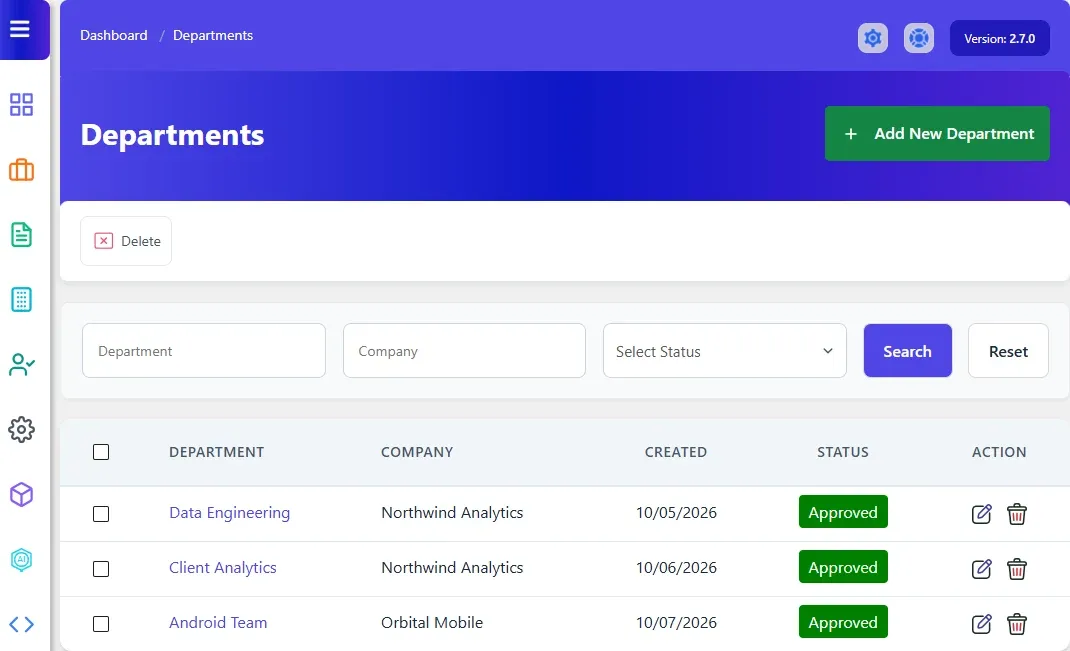
Section titled “Open the departments list”Go to WP Job Portal → Departments. The list shows each department’s name, company, created date and status.
To see one company’s departments, go to Companies and select Departments on that company’s row.
Departments waiting for approval are not in this list. They are in Departments → Approval Queue.
To narrow the list, type in Department or Company, or pick a status, then select Search.
Add a department
Section titled “Add a department”- Go to WP Job Portal → Departments → Add New Department.
- Choose the Company.
- Enter the Department Name and, if you like, a Description.
- Choose a Status: Pending, Approve or Reject. With Marketplace Suite there is also Pending Payment.
- Select Save Department.
Edit or delete a department
Section titled “Edit or delete a department”- To edit, select the department name or the edit icon on its row, make your changes and select Save Department.
- To delete, select the delete icon on its row. To delete several, tick them and select Delete at the top.
A department can’t be deleted while any job is assigned to it. Move those jobs to another department, or delete them, first.
Approve departments
Section titled “Approve departments”- Go to WP Job Portal → Departments → Approval Queue. The page is titled Departments Approval Queue.
- Select the approve (tick) or reject (cross) icon on a department’s row.
To handle several at once, tick them and select Approve or Reject at the top. Use Department Name and Company Name to narrow the queue.
Turn auto-approve on or off
Section titled “Turn auto-approve on or off”- Go to WP Job Portal → Configuration and open the Applications tab.
- Under Auto-Approve Rules, set Department Auto Approve.
- Select Save Changes.
With it on, departments that employers create are approved straight away.
Assign a job to a department
Section titled “Assign a job to a department”With Pro, the job form has a Department field. Pick the department when you add or edit the job. If the field is missing, check that it is published in Jobs → Fields. See Field manager.