

Folders
Folders let you keep resumes you are interested in together, for example Interview next week or Good for future roles. A resume stays in a folder after the job closes, so you can come back to it.
Create a folder
Section titled “Create a folder”- On your employer dashboard, open Short Links → Add Folder.
- In Folder, type the folder’s name.
- Add a Description if it helps you remember what the folder is for.
- Select Save Folder.
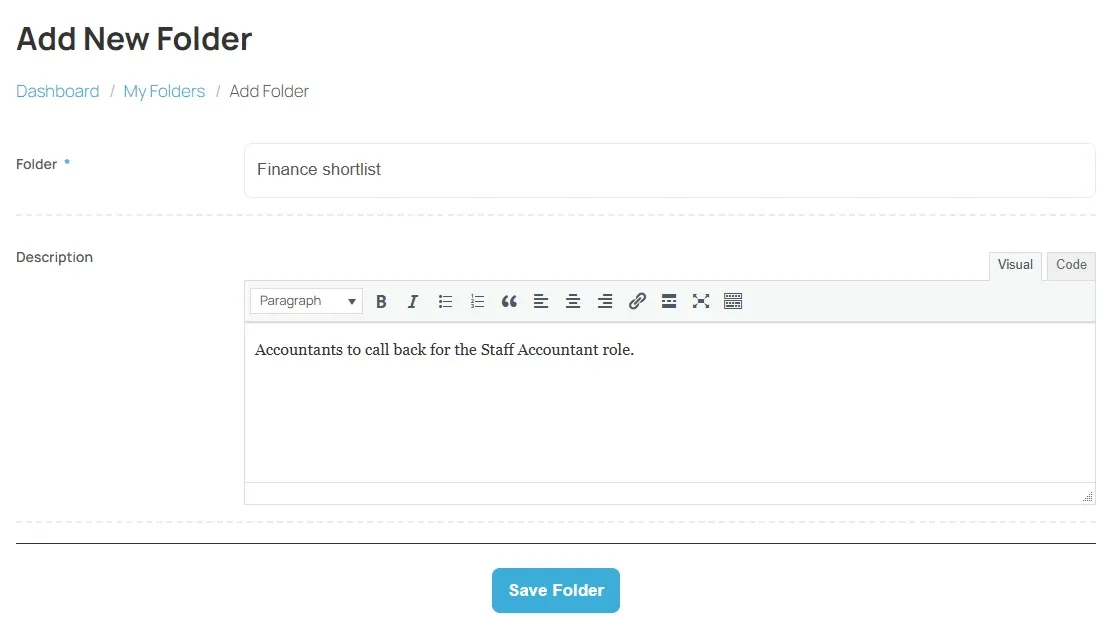
Some job boards check new folders before you can use them. Until then the folder shows Pending; once accepted it shows Approved.
Copy a resume to a folder
Section titled “Copy a resume to a folder”You file resumes from a job’s applicant list.
- Open My Jobs, then Resume (n) on the job.
- On the applicant, select Copy To Folder. On some job boards it is inside the More Actions list.
- Under Folders, pick the folder.
- Select Add.
Copy To Folder is not offered for applicants who applied with quick apply.
Open, edit or delete a folder
Section titled “Open, edit or delete a folder”Open Short Links → My Folders. Each folder has:
| Button | What it does |
|---|---|
| Edit | Changes the folder’s name or description. |
| View | Shows the folder’s details. |
| Delete | Deletes the folder after you confirm. |
| Resumes (n) | Lists the resumes in the folder, with their number. |
In the folder’s resume list, select Resume to open a resume, or Remove Resume From Folder to take it out. Removing a resume from a folder does not delete the resume or the application.