

PayPal
PayPal takes payments on PayPal’s own approval page. Buyers leave your site, approve the payment with PayPal, and come back. One-off payments use PayPal Orders, and subscriptions use PayPal billing plans.
What you need from PayPal
Section titled “What you need from PayPal”In the PayPal Developer Dashboard, create a REST API app. You need:
- the app’s Client ID and Secret
- a webhook on that app, and its Webhook ID
Sandbox and live apps have different credentials. Use the sandbox app while you set up.
Enter your credentials
Section titled “Enter your credentials”- Open WP Job Portal → Configurations → Payment Gateways.
- In the PayPal group, turn on Enable PayPal.
- Paste the app’s Client ID into Username and its Secret into Password.
- Turn on Test Mode Sandbox while you use sandbox credentials. Turn it off for live credentials.
- Select Save.
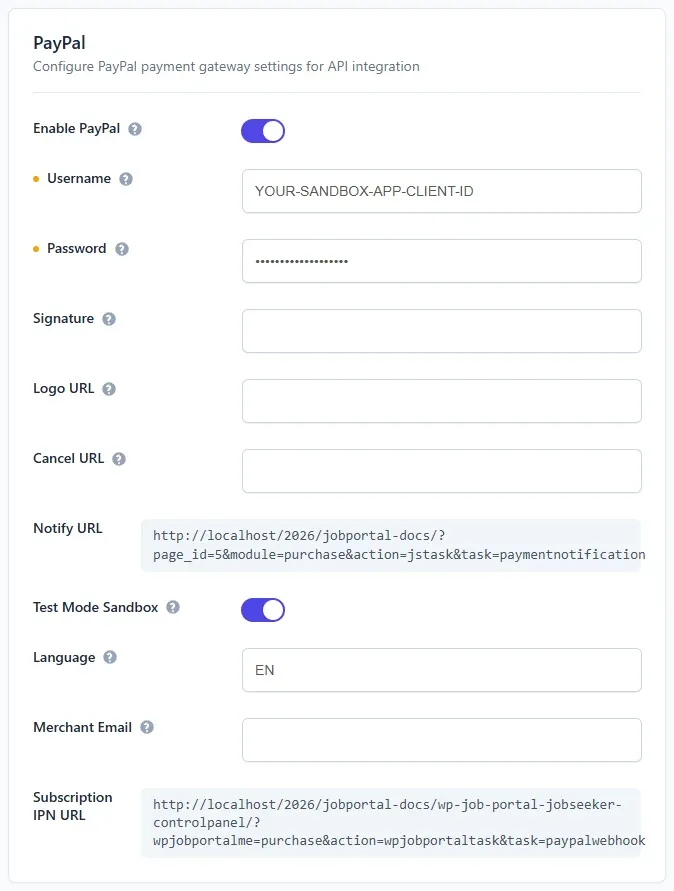
Test Mode Sandbox decides which PayPal environment is used: the sandbox when it is on, live PayPal when it is off. The credentials must match it.
Add the webhook
Section titled “Add the webhook”The webhook tells your site when a subscription starts, renews, or is cancelled.
- On the Payment Gateways tab, copy the Subscription IPN URL. It contains
task=paypalwebhook. - Change
task=paypalwebhookin it totask=paypalresthook. This is the address for PayPal’s REST webhooks. It is not shown anywhere on the settings screens. - In your PayPal app, add a webhook with that URL and these events:
BILLING.SUBSCRIPTION.ACTIVATEDPAYMENT.SALE.COMPLETEDBILLING.SUBSCRIPTION.CANCELLEDBILLING.SUBSCRIPTION.SUSPENDEDBILLING.SUBSCRIPTION.EXPIRED
- Copy the webhook’s Webhook ID.
- Open the Payment Method Configurations screen (
admin.php?page=wpjobportal_paymentmethodconfiguration). Paste it into Webhook ID and select Save Configuration.
Webhook ID is only on the Payment Method Configurations screen. Until it is set, every PayPal webhook is refused and subscription renewals are not recorded.
Each webhook is checked with PayPal before anything in it is used. A webhook that PayPal does not confirm is refused.
One-off payments
Section titled “One-off payments”Packages without a subscription and every per-listing purchase are charged once. The amount and currency come from the package or from your per-listing settings.
The payment is captured when the buyer comes back to your site from PayPal. If they approve it but never come back, the payment is not captured.
Subscriptions
Section titled “Subscriptions”- Edit the package in Packages.
- Set Paypal Subscription to Yes.
- Select Save Package.
You don’t create a plan in PayPal yourself. The first time someone subscribes, a PayPal product and billing plan are created from the package:
- The price is the package Price after its Discount, in the package currency.
- The billing period is the package’s Package Expiry: days, weeks, months or years.
If you later change the price, a new plan is created for the next subscriber.
Each PAYMENT.SALE.COMPLETED renewal grants the package again and creates an invoice. It is only recorded if PayPal charged the package’s current price after discount, in its currency. Cancelled, suspended and expired subscriptions are marked inactive.
Older settings
Section titled “Older settings”Merchant Email and the Subscription IPN URL belong to PayPal’s older IPN notifications, from the billing agreements of earlier versions. The hosted checkout does not use them: one-off payments are captured when the buyer returns, and subscriptions are reported by the webhook above. You don’t need to set up an IPN listener or fill in Merchant Email.