

System status and errors
System Status is a health check for your job board: server and WordPress versions, database, scheduled tasks, email delivery and security checks, each marked as fine or needing attention. The Error Log lists database and import errors WP Job Portal has recorded. Start here when something isn’t working, and when support asks for system information.
Open System Status
Section titled “Open System Status”Open WP Job Portal → System Status. It is also under Dashboard in the plugin’s own menu.
The report is support-safe: it doesn’t show passwords, API keys, request contents or candidate email addresses.
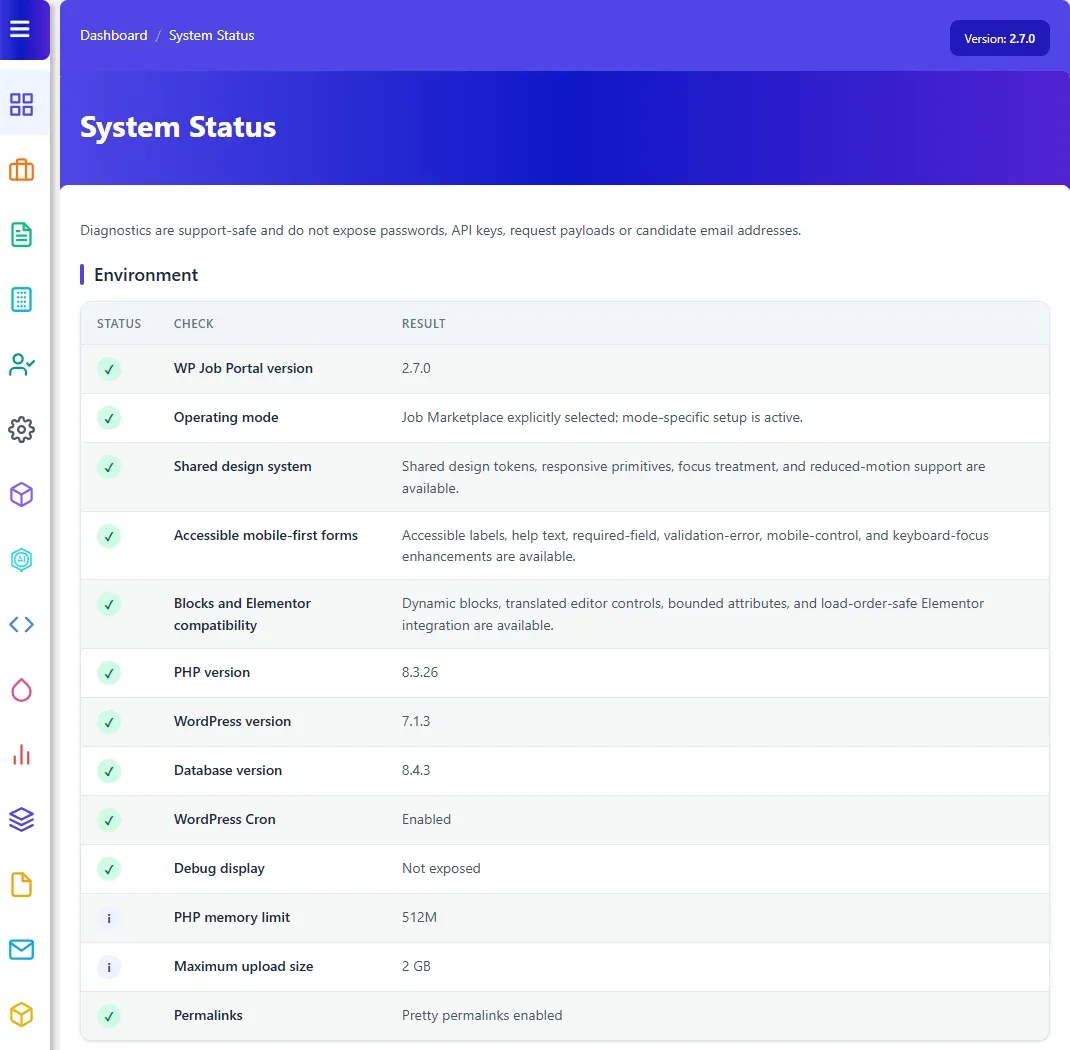
Read the checks
Section titled “Read the checks”The checks are grouped in tables. Each row has a Status symbol, the Check and its Result.
| Symbol | Meaning |
|---|---|
| ✓ | Good. |
| ! | Warning: worth looking at. |
| × | Critical: something is broken. |
| i | Information only. |
| Group | What it covers |
|---|---|
| Environment | WP Job Portal, PHP, WordPress and database versions, operating mode, WordPress Cron, debug display, memory limit, maximum upload size and permalinks. |
| Mode and workflow readiness | Setup progress for the chosen mode, the Default portal page, the upload directory, sample data and add-on compatibility. |
| Database readiness | WP Job Portal tables, migrations, storage engines and indexes. |
| Request security | How requests, downloads and uploads are protected, and any denied attempts. |
| Privacy and payments | WordPress privacy tools, retention clean-up and payment processing. |
| Scheduled tasks and mail | When Session cleanup and Job Alert delivery run next, and how email is being sent and delivered. |
Common warnings and what to do:
- WordPress Cron “Disabled; a real server cron is required.”: set up a server cron. See Cron jobs.
- Debug display “Enabled; disable on production sites.”: turn off
WP_DEBUG_DISPLAYinwp-config.php. - Default portal page not published: choose the main job board page in System & Site settings.
- Upload directory not writable: fix the folder permissions with your host before accepting resumes and logos.
Send a report to support
Section titled “Send a report to support”- Scroll to Support-safe report.
- Select Copy system status.
- Paste the text into your support request.
Sensitive values are removed from the report automatically. See Getting support.
Privacy retention controls
Section titled “Privacy retention controls”WP Job Portal deletes some old records automatically. Set how many days to keep each kind:
| Option | Default | Maximum |
|---|---|---|
| Activity history (days) | 365 | 3650 |
| User messages (days) | 730 | 3650 |
| Operational audit (days) | 90 | 365 |
Change the numbers and select Save retention settings. 0 keeps those records until an administrator or a WordPress privacy erasure request removes them. The clean-up runs once a day.
Reliable notification queue
Section titled “Reliable notification queue”By default, each email is handed straight to WordPress’s mail function (Direct mail). The reliable queue instead stores emails and sends them in batches in the background, retrying ones that fail.
- Enable reliable queue turns it on. Disable queue for new mail turns it off; emails already in the queue are still sent.
- Process next batch now sends waiting emails straight away.
- Retry failed notifications tries failed emails again. Failed emails are kept for up to seven days.
The panel shows how many emails are pending, retrying, processing, failed and completed, and lifetime totals. Queued email content is stored encrypted and is never shown here. Emails with attachments always use direct mail.
InnoDB conversion
Section titled “InnoDB conversion”This panel only appears when some WP Job Portal tables don’t use the InnoDB storage engine. It shows how many tables are converted and lets you Start InnoDB conversion, Pause conversion or Retry InnoDB conversion. Conversion runs one table at a time in the background and stops at the first database error.
Operational audit and migration history
Section titled “Operational audit and migration history”Operational audit lists recent background events, with Event, Outcome and the time recorded (UTC). It stores event names and outcomes only, never email contents or personal data.
Migration history lists the database updates that have run, with their Component, Status and Attempts. Support may ask about these after an update.
The error log
Section titled “The error log”Open WP Job Portal → Dashboard → System Errors. The screen is titled Error Log.
Each entry shows the Error message, the URL where it happened and the Date. Database errors also have View Query & Trace, which opens the file path and the database query that failed. Sensitive values are removed before errors are stored.
Entries are added when something fails in the background, for example a database query or an address data import. The list is newest first, and can’t be cleared from this screen.