

Registration and login
Employers and job seekers create their own accounts on your site’s registration page and sign in on its login page. These settings decide whether sign-up is open, which pages the job board links to, and where people go next.
Open or close sign-up
Section titled “Open or close sign-up”WP Job Portal has its own sign-up setting. It does not change WordPress’s own Anyone can register option.
- Open WP Job Portal → Configuration and the System & Site tab.
- In Registration & Login, choose an Account Sign-Up option.
- Save the settings.
| Option | What it does |
|---|---|
| Open - anyone can create an account | The registration form is shown, whatever WordPress’s setting says. |
| Closed - only accounts you add | The registration page shows a “Registration is disabled” message. |
| Follow WordPress “Anyone can register” | The form is shown only when WordPress’s own Anyone can register is on. |
The setup wizard asks this question too. Sites upgraded from an earlier version start on Follow WordPress “Anyone can register”, so nothing changes until you choose otherwise.
The registration form
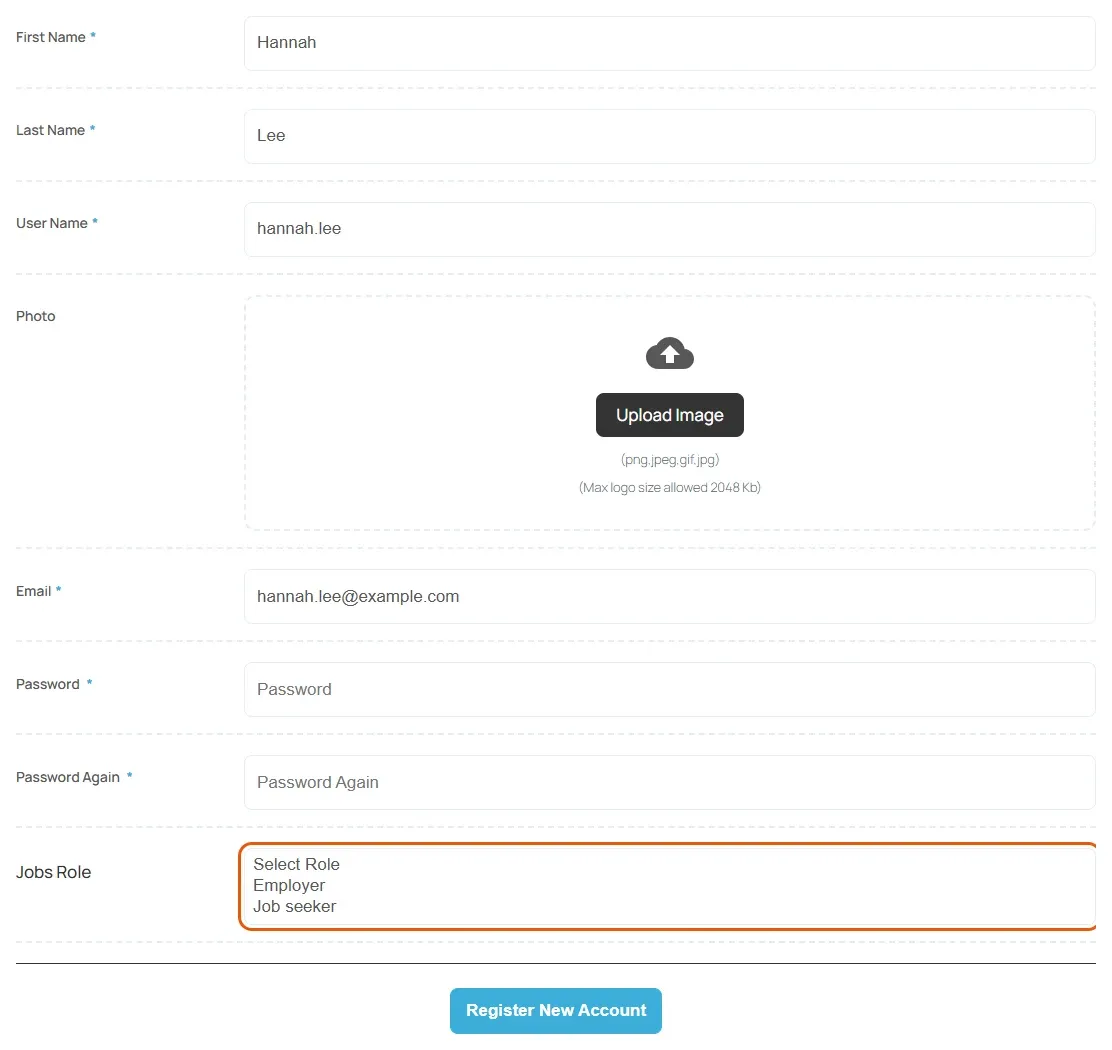
Section titled “The registration form”The form shows the user fields set in WP Job Portal → Users → Fields, then Password and Password Again, then a Jobs Role choice between Employer and Job seeker.
- The role choice only lists Employer when Enable Employer Area and Allow Registration as Employer are both on (Configuration → Employers). Otherwise the form registers job seekers only.
- To add a captcha, turn on Captcha on Registration Form in Security & Captcha.
After a successful registration the new user is signed in, gets the New Employer or New Job Seeker email, and is given the WordPress role set in Employer Default Role or Job Seeker Default Role.
Separate employer and job seeker forms
Section titled “Separate employer and job seeker forms”Besides the general [wpjobportal_registration] shortcode, there are [wpjobportal_employer_registration] and [wpjobportal_jobseeker_registration]. They preselect the role, and their attributes can hide the role choice, change the button text or send people to a page of your choice after they register. The shortcode reference lists the attributes.
Choose which pages the links use
Section titled “Choose which pages the links use”The job board shows login and registration links in several places. These settings decide where those links go.
- Open WP Job Portal → Configuration → System & Site.
- In Registration & Login, set Set Register Link and Set Login Link.
- If you chose Custom, enter the address in Custom Register Redirect Link or Custom Login Redirect Link.
- Save the settings.
| Choice | Where the link goes |
|---|---|
| WP Job Portal Register Page / WP Job Portal Login Page | The job board’s own form. |
| WordPress Default Register Page / WordPress Default Login Page | The standard WordPress page. |
| Custom | The address you enter in the matching Custom … Link box. |
The job board’s own login form is added with the [wpjobportal_login_page] shortcode. It has a Register an account link that follows Set Register Link.
Where people go after they register
Section titled “Where people go after they register”Set this separately for each role.
- Open WP Job Portal → Configuration.
- On the Employers tab, set Set Employer After-Register Link:
- Default sends new employers to the page chosen in Employer After-Registration Page.
- Custom sends them to the address in Employer Custom After-Registration Link.
- On the Job Seekers tab, set the matching job seeker options: Set Job Seeker After-Register Link, Job Seeker After-Registration Page and Job Seeker Custom After-Registration Link.
- Save the settings.
A redirect_url on one of the role-specific registration shortcodes takes priority over these settings.
Where people go after they log in
Section titled “Where people go after they log in”When an employer or job seeker logs in through the WordPress login form, WP Job Portal sends them to their own dashboard: the employer or the job seeker control panel. Administrators go wherever WordPress would normally send them.
For WordPress users with no WP Job Portal role, set Redirect Link For Non-Portal WP User in System & Site → Registration & Login. The job board’s login form sends them to that address after they log in.
Login and logout buttons on the dashboards
Section titled “Login and logout buttons on the dashboards”Show Log In/Out Button For Employer and Show Log In/Out Button For Job Seeker, in the same group, show or hide a login/logout button on each control panel.