

Messages
Employers can send you a message, usually about a job you applied for. You read and answer it on the job board, and the whole conversation stays in one place.
How a conversation starts
Section titled “How a conversation starts”An employer starts the conversation, either from the list of people who applied for their job or from your resume. You can’t start one yourself: the Messages page only holds conversations someone has opened with you. Once you have a message, you can reply as often as you need.
The site may also email you when an employer sends you a message.
Read your messages
Section titled “Read your messages”- On your dashboard, select Messages under Account & Billing.
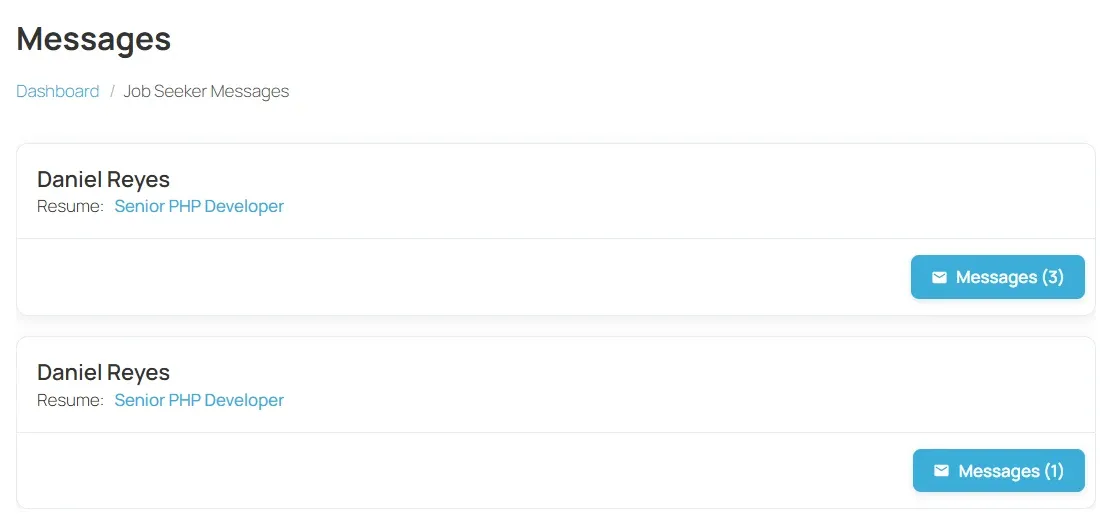
- Each conversation shows your name and, under Resume, the resume the employer wrote to you about. Select the resume title to open it. The job the conversation is about appears at the top once you open it.
- Select Messages (3) (the number is how many messages the conversation has) to open it.
Reply to a message
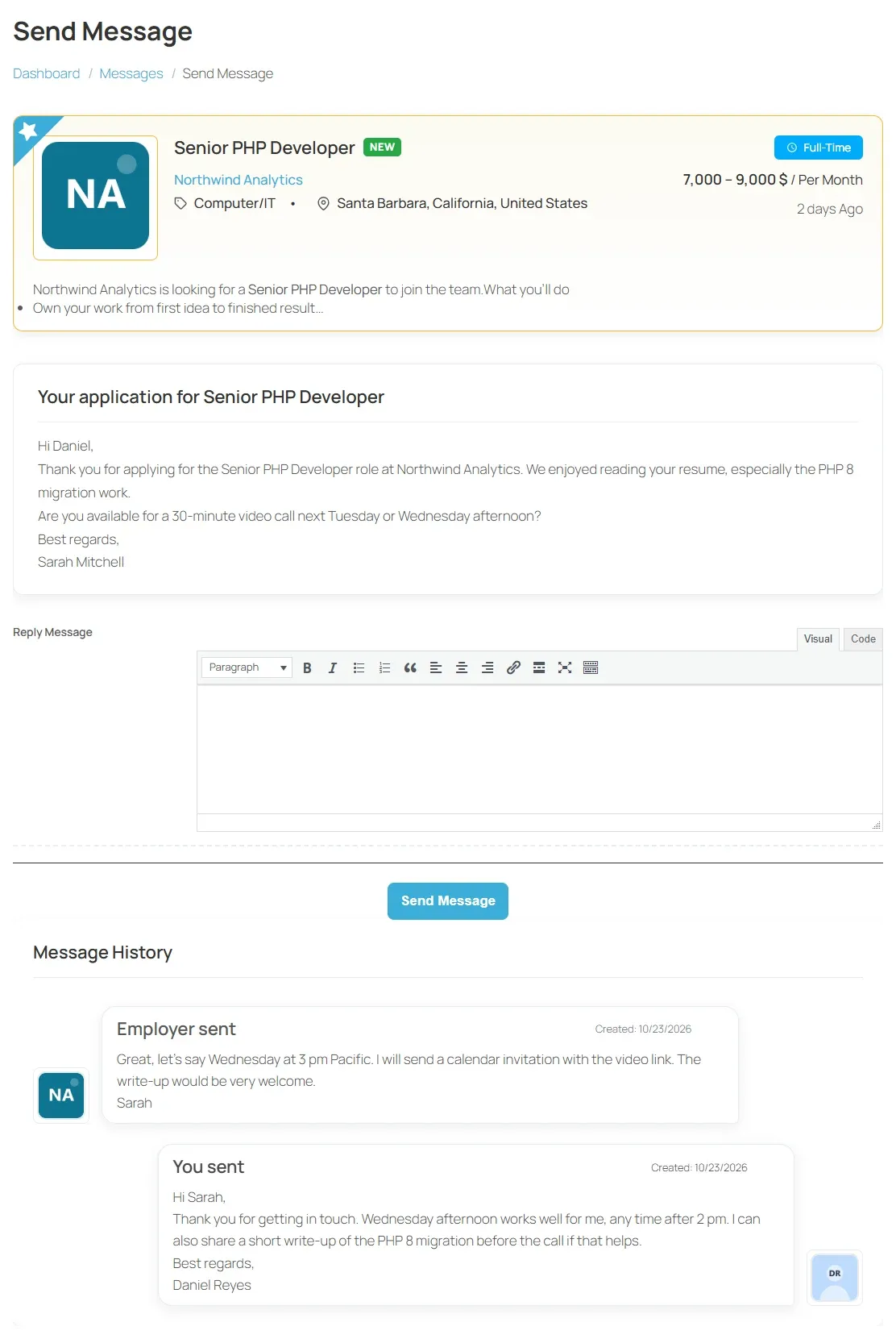
Section titled “Reply to a message”- Open the conversation. The top of the page shows the job, then the subject and text of the first message.
- Write your answer under Reply Message.
- Select Send Message.
Below the form, Message History lists the conversation, each message marked You sent, Employer sent or Admin sent, with the date it was sent.
Approval
Section titled “Approval”Some sites check messages before passing them on. Until a message is approved, the other person does not see it.
- Your own messages that are waiting show pending in your history.
- Messages that were not accepted show rejected. The employer never receives them.
Messages from the employer only appear once they are approved.