

Candidates and pools
Recruit Suite keeps a record for each candidate alongside their application: who on the team is responsible, where they came from, which talent pools they’re in, and why they were turned down. Use it to divide the work across the team and to keep candidates worth contacting again.
Find your candidates
Section titled “Find your candidates”- In the employer dashboard, open Recruiting → Assigned Candidates.
- Choose a scope:
- Assigned to me: candidates where you’re the primary recruiter or hiring manager.
- All authorized candidates: every application you’re allowed to work on.
- Unassigned candidates: applications nobody has been assigned to.
- Type in Search candidate, email, job, or application number if needed.
- Select Search.
Recruiters and hiring managers start on Assigned to me, and everyone else on All authorized candidates. If nobody has assigned you a candidate yet, the list opens on All authorized candidates instead.
Select Open Recruitment Details on a candidate to open their record. From this list you can also act on several candidates at once. See Bulk actions.
The candidate record
Section titled “The candidate record”Recruitment details opens the candidate’s application with a Recruitment Workflow section. The top shows the current stage and these facts: Recruiter, Hiring manager, Source, Applied, Next interview and Scorecards. The Overview section holds the Candidate Management panel described below.
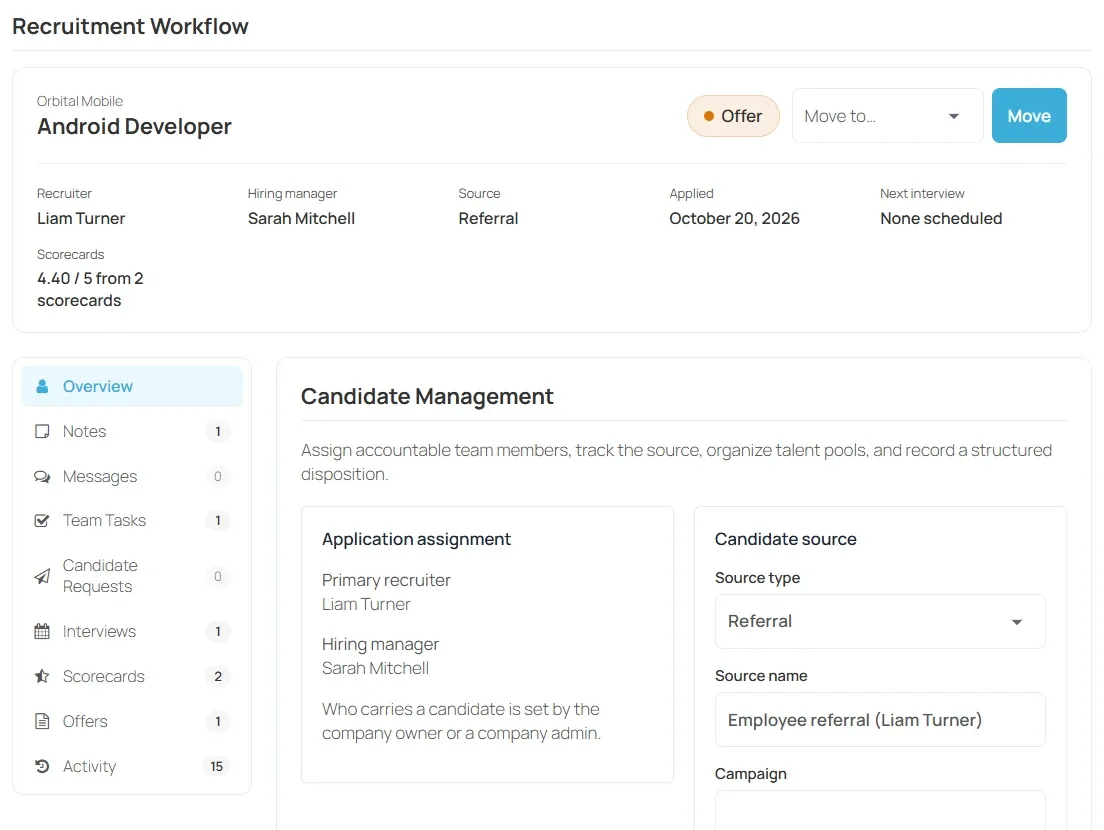
Administrators can open the same record in wp-admin under WP Job Portal → Candidate Workspace: choose an application and select Open workspace. The Candidate tab there is the Overview.
Assign a recruiter and hiring manager
Section titled “Assign a recruiter and hiring manager”Only the company owner, a company admin or a site administrator can change the assignment.
- Open the candidate’s Overview.
- Under Application assignment, choose a Primary recruiter and a Hiring manager.
- Select Save assignment.
Primary recruiters are chosen from company admins and recruiters. Hiring managers are chosen from company admins and hiring managers.
Record the source
Section titled “Record the source”Recruit Suite records a source when someone applies. A link with utm_source is recorded as Campaign, with the UTM source, campaign and medium. A visit from another site is recorded as Referral. Anything else is Direct.
To correct it:
- Under Candidate source, choose the Source type: Direct, Job board, Referral, Social, Agency, Campaign, Career site or Other.
- Fill in Source name, Campaign and Medium if they help.
- Select Save source.
Sources feed the Candidate Sources and Hires report in Recruiting insights.
Reject with a reason
Section titled “Reject with a reason”- In the candidate’s Overview, under Structured rejection, select Reject candidate.
- Choose a Rejection reason.
- Add an Internal note for the team, if needed.
- To tell the candidate, tick Show this disposition in the Candidate Portal when the selected reason permits it and write a Candidate message.
- Select Record rejection.
The candidate moves to the Rejected stage. If you shared the reason and the reason allows it, the candidate sees it under Application update in their Candidate Portal and gets an update.
Talent pools
Section titled “Talent pools”A talent pool is a named list of candidates a company wants to keep, for example people to contact for future roles.
Create a pool
Section titled “Create a pool”Company admins and site administrators can create pools.
- In the employer dashboard, open Recruiting → Talent Pools.
- Under Create Talent Pool, choose the Company.
- Enter a Pool name and, if you like, a Description.
- Select Create pool.
Active Talent Pools lists each pool with its number of candidates. Recruiters can see pools but can’t create them.
Add a candidate to a pool
Section titled “Add a candidate to a pool”- Open the candidate’s Overview.
- Under Talent pools, find the pool.
- Add Tags (comma separated) and a Private pool note if useful.
- Select Add to pool.
Select Remove next to a pool to take the candidate out.
Rejection reasons
Section titled “Rejection reasons”Every company starts with these reasons:
| Reason | Can be shared with candidates |
|---|---|
| Not selected | Yes |
| Skills mismatch | No |
| Experience mismatch | No |
| Compensation mismatch | No |
| Location or availability | No |
| Candidate withdrew | Yes |
| Position closed | Yes |
| Duplicate application | No |
| Other | No |
To add a reason for one company:
- Open Recruiting → Talent Pools.
- If you manage more than one company, choose it in Settings for and select Show this company (see the caution under Create a template).
- Under Rejection Reasons, enter a Reason title.
- Tick Allow recruiters to share this reason with candidates if candidates may see it.
- Select Add reason.
Allowing a reason to be shared doesn’t share it automatically. The recruiter still chooses each time.
Duplicate candidates
Section titled “Duplicate candidates”Recruit Suite suggests duplicates when two candidate records in the same company share an email address or phone number. Company admins review them under Duplicate Candidate Review in Recruiting → Talent Pools.
- Link as one candidate links the applications to one candidate.
- Not a duplicate dismisses the suggestion.
Linking never deletes a resume or application. To reverse it, select Undo merge under Recent Reversible Merges. The applications and pool memberships are restored.
Send a candidate request
Section titled “Send a candidate request”A candidate request asks the candidate to do something, such as send a document. It appears in their Candidate Portal. Use Team Tasks for internal work instead.
- Open the candidate’s Candidate Requests section.
- Select New request.
- Enter the Request, the Candidate instructions and an optional Due date.
- Select Send action request.
The candidate can mark it complete in the portal, and the team gets a notification. Select Cancel request to withdraw it. The application must be linked to a job seeker account.