

System & Site
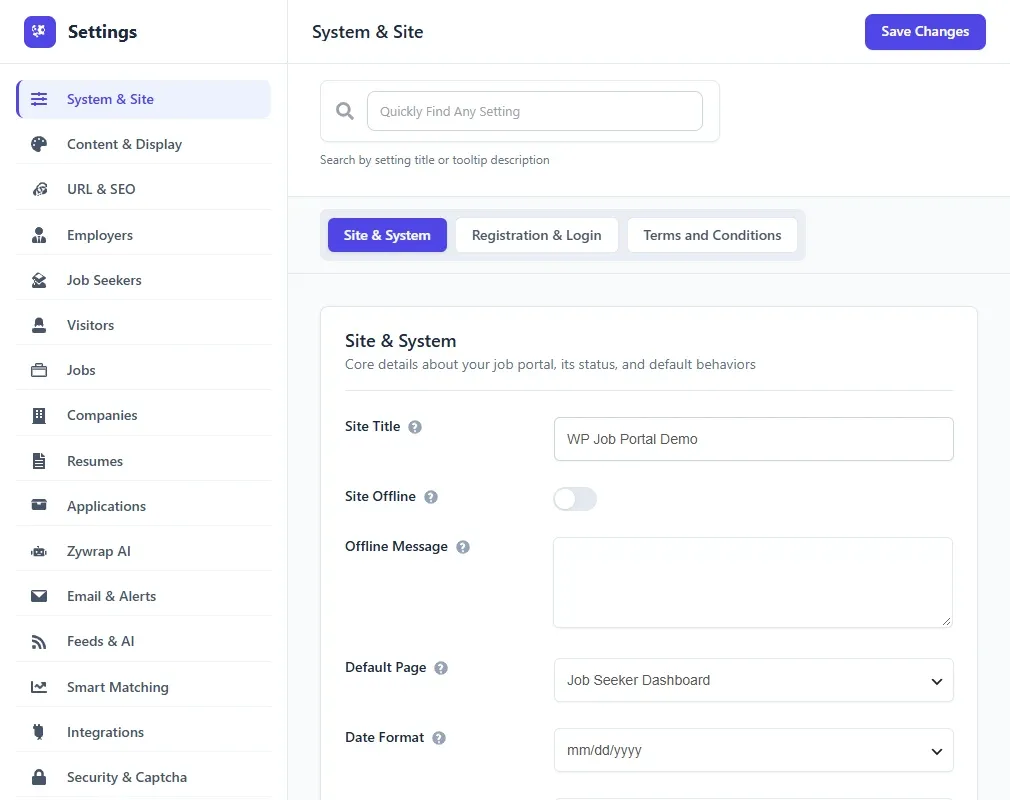
The System & Site tab holds the basics of your job board: its name, whether it is online, the main page, the date format, where people register and log in, and which pages hold your terms and conditions. This page also explains how the whole Settings screen works, so read it first.
Open the settings screen
Section titled “Open the settings screen”- In the WordPress admin menu, go to WP Job Portal → Configurations.
- The Settings screen opens on the System & Site tab.
You can also reach it from the WP Job Portal side menu: Configuration → Configuration.
How the settings screen works
Section titled “How the settings screen works”Tabs and sections
Section titled “Tabs and sections”The tabs run down the left of the screen. Each tab is split into sections, and a row of links under the search box jumps to each section of the open tab. The tabs are:
| Tab | Reference page |
|---|---|
| System & Site | This page |
| Content & Display | Content & Display |
| URL & SEO | URL & SEO |
| Employers | Employers |
| Job Seekers | Job Seekers |
| Visitors | Visitors |
| Jobs | Jobs |
| Companies | Companies |
| Resumes | Resumes |
| Applications | Applications |
| Zywrap AI | Zywrap AI |
| Email & Alerts | Email & Alerts |
| Feeds & AI | Feeds & AI |
| Smart Matching | Smart Matching |
| Integrations | Integrations |
| Security & Captcha | Security & Captcha |
| Monetization | Monetization |
| Payment Gateways | Payment Gateways. This tab only appears when Marketplace Suite is active. |
Hover over the question-mark icon next to an option to read a short description of it.
Find a setting
Section titled “Find a setting”Type in the Quickly Find Any Setting box at the top. The screen searches every tab at once, matching your words against each option’s label and its description. Only matching options stay visible. If nothing matches, you see “No settings found for your search”. Clear the box, or select a tab, to go back to the normal view.
Save or discard your changes
Section titled “Save or discard your changes”- Change one or more options. The label of each option you change is highlighted.
- Select Save Changes at the top of the screen. The button stays disabled until you change something.
- To throw your changes away instead, select Discard. It appears once you have changed something, and reloads the screen with the saved values.
Changes on every tab are saved together, so you can change options on several tabs and save once.
Options that need a paid product
Section titled “Options that need a paid product”Some options belong to a paid product. When that product isn’t active, the option is greyed out with an Unlock with … button and the text “This feature is part of a premium addon”. A whole section can be locked the same way: it shows an Unlock box with an Upgrade Now button, and its options are dimmed.
The button names the old add-on the option came from, not the product you buy today. This is where each one now lives:
| Button says | Product |
|---|---|
| Departments, Folder, Message, Cover Letter, Resume Search, Visitor Apply Job, Advanced Resume Builder, Address Data | Pro |
| Credits, Featured Job, Featured Company, Featured Resume, Multi Company, Visitor Can Add Job, Marketplace Suite | Marketplace Suite |
| Resume Action, Recruit Suite | Recruit Suite |
| AI Job Search, AI Resume Search, AI Suggested Jobs, AI Suggested Resumes, Smart Matching Addon | Smart Search & Matching |
Options from features that are now part of free Core (Tag, Shortlist, Tell A Friend, RSS Feedback, Job Alert, Social Share, Job Listing Enhancer) are never locked.
When an option needs a paid product, each reference page says which one. See Products and licences.
Options set by your mode
Section titled “Options set by your mode”If you chose a mode in the setup wizard, a few options are fixed by that mode. They show a Set by mode badge, a read-only control with the value the mode enforces, the note “This setting is controlled by the selected WP Job Portal mode”, and a Compare the two modes link. The mode’s value is also re-applied every time you save, so these can’t be changed from this screen.
| Option | Tab | Careers & ATS | Job Marketplace |
|---|---|---|---|
| Job Auto Approve | Jobs | Always on | Free |
| Company Auto Approve | Companies | Always on | Free |
| Allow Registration as Employer | Employers | Always off | Always on |
| Visitor Can Post Job | Visitors | Always off | Free |
| Submission Type | Monetization | Always Free | Free |
A site that hasn’t chosen a mode (“Existing-site compatibility”) has no locked options.
Site & System
Section titled “Site & System”Core details about your job portal, its status, and default behaviours.
| Option | What it does | Default |
|---|---|---|
| Site Title | The name of your job board. It fills the {SITETITLE} placeholder in emails and is used as a fallback sender name. |
WP JOB PORTAL |
| Site Offline | Takes the job board offline. Every WP Job Portal page shows the offline message instead of its content. The rest of your WordPress site is not affected. | Off |
| Offline Message | The text shown on job board pages while Site Offline is on. It appears above a standard “system is offline for a bit of maintenance” line. | Empty |
| Default Page | The WordPress page that acts as the job board’s main page. Links in emails are built from it, so they may not work if it isn’t set. | The “Jobseeker” page the installer creates |
| Date Format | How dates are shown and entered across the plugin: dd-mm-yyyy, mm/dd/yyyy or yyyy-mm-dd. |
mm/dd/yyyy |
| Default Address Display Style | How a location is written out on listings and detail pages: City, State, Country, City, State, City, Country or City. | City, State, Country |
Registration & Login
Section titled “Registration & Login”Controls who can sign up, and where the register and login links point.
| Option | What it does | Default |
|---|---|---|
| Account Sign-Up | Whether employers and job seekers can create their own accounts on the WP Job Portal registration page. Open - anyone can create an account, Closed - only accounts you add, or Follow WordPress “Anyone can register”. It doesn’t change the WordPress setting itself. | Follow WordPress “Anyone can register” |
| Set Register Link | Where the plugin’s register links go: WP Job Portal Register Page, WordPress Default Register Page, or Custom. | WP Job Portal Register Page |
| Custom Register Redirect Link | The URL register links use when Set Register Link is Custom. If it’s empty, the WP Job Portal page is used. | Empty |
| Set Login Link | Where the plugin’s login links go: WP Job Portal Login Page, WordPress Default Login Page, or Custom. | WP Job Portal Login Page |
| Custom Login Redirect Link | The URL login links use when Set Login Link is Custom. If it’s empty, the WP Job Portal page is used. | Empty |
| Redirect Link For Non-Portal WP User | Where a WordPress user who has no employer or job seeker role is sent after logging in on the WP Job Portal login page. Leave empty to use the normal redirect. | Empty |
| Show Log In/Out Button For Employer | Shows a log in or log out button in the employer dashboard menu. | On |
| Show Log In/Out Button For Job Seeker | Shows a log in or log out button in the job seeker dashboard menu. | On |
For the sign-up flow itself, see Registration and login.
Terms and Conditions
Section titled “Terms and Conditions”Assign a terms and conditions page for each kind of submission.
| Option | What it does | Default |
|---|---|---|
| Company Terms Page | The page the terms checkbox links to on the add company form. | None |
| Job Terms Page | The page the terms checkbox links to on the add job form. | None |
| Resume Terms Page | The page the terms checkbox links to on the add resume form. | None |
These options only choose the page. The checkbox itself appears on a new submission when the form’s terms and conditions field is published in the field manager.