

Elementor
If you build pages with Elementor, you can place WP Job Portal screens without typing shortcodes. The free plugin adds one Job Portal widget that drops in a whole WP Job Portal page; Pro adds three listing widgets for jobs, resumes and companies.
All of them sit in the WP Job Portal category of Elementor’s widget panel.
Add a WP Job Portal page with Elementor
Section titled “Add a WP Job Portal page with Elementor”- Open the page in Elementor.
- In the widget panel, search for
Job Portal, or open the WP Job Portal category. - Drag the Job Portal widget onto the page.
- In Select Page To Show, choose the page.
- Select Publish or Update.
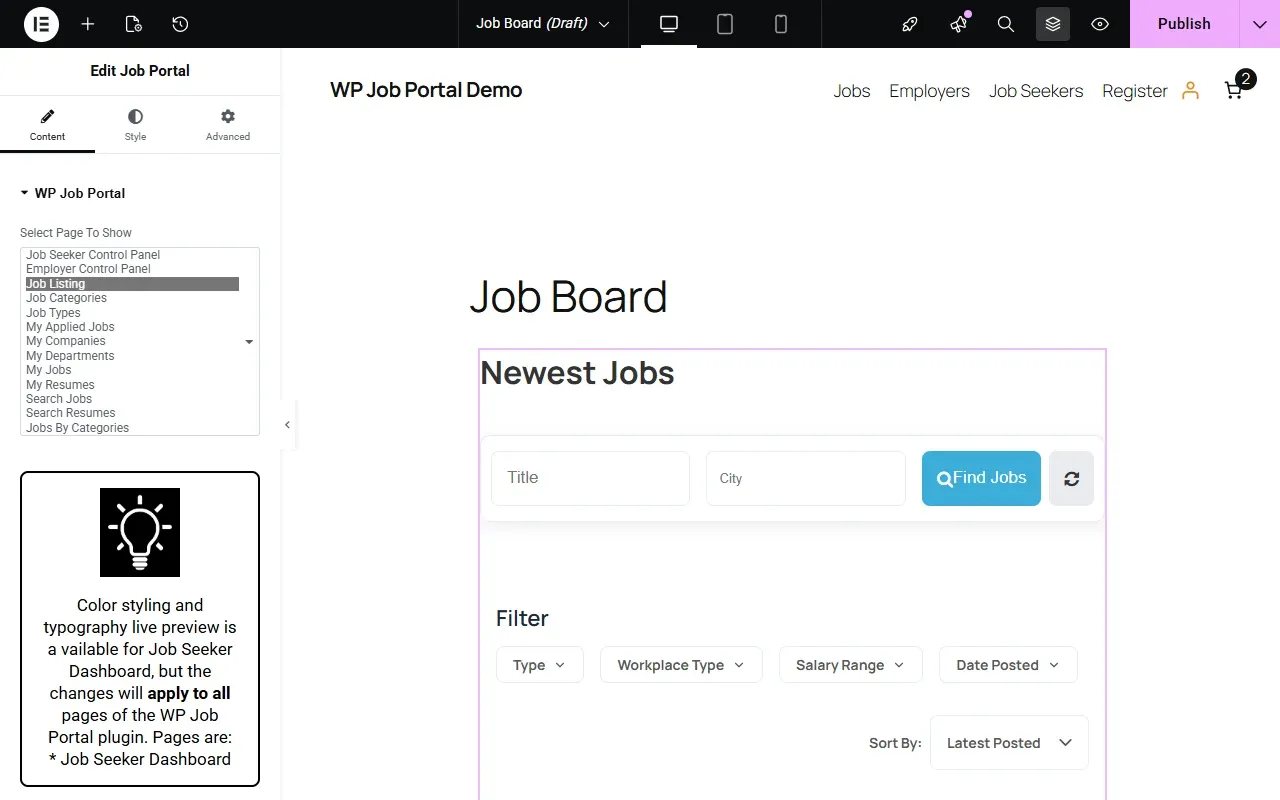
Select Page To Show offers these pages. Each is the same as its shortcode in the shortcode reference.
| Choice | Shortcode |
|---|---|
| Job Seeker Control Panel | [wpjobportal_jobseeker_controlpanel] |
| Employer Control Panel | [wpjobportal_employer_controlpanel] |
| Job Listing | [wpjobportal_job] (the default) |
| Job Categories | [wpjobportal_job_categories] |
| Job Types | [wpjobportal_job_types] |
| My Applied Jobs | [wpjobportal_my_appliedjobs] |
| My Companies | [wpjobportal_my_companies] |
| My Departments | [wpjobportal_my_departments] (needs Pro) |
| My Jobs | [wpjobportal_my_jobs] |
| My Resumes | [wpjobportal_my_resumes] |
| Search Jobs | [wpjobportal_searchjob] |
| Search Resumes | [wpjobportal_searchresume] (needs Pro) |
| Jobs By Categories | [wpjobportal_jobbycategory] |
The widget always uses the shortcode’s defaults; it has no attribute fields. If you need attributes, use Elementor’s own Shortcode widget and paste the shortcode instead.
Colours and fonts
Section titled “Colours and fonts”When Select Page To Show is Job Seeker Control Panel, the widget’s Style tab offers:
| Section | What it sets |
|---|---|
| Colors | Primary Color, Secondary Color and Content Color. |
| Content Styling | Font family, size, weight, text transform, style, line height and letter spacing for body text. |
| Section Title Styling | The same font settings for section titles. |
| Buttons Styling | The same font settings for buttons. |
These settings are saved when you publish the page and apply to every WP Job Portal page on the site, not only this one. The live preview works only for the job seeker dashboard. For the other choices, the panel shows a note saying so.
Pro listing widgets
Section titled “Pro listing widgets”With Pro, three more widgets appear in the WP Job Portal category.
| Widget | Main options |
|---|---|
| Job Listing Widget | Title. Job Type: Newest Jobs, Top Jobs, Hot Jobs or Featured Jobs. Number Of Jobs. Layout: List or Card. Columns per Row. Enable Carousel. Labels For Values. Show View All Jobs Button. Display fields, carousel settings and a Style section. |
| Resume Listing Widget | Title. Type of Resume: Newest Resumes, Top Resumes or Featured Resumes. Number Of Resumes. Display Style: List or Card. Columns per Row. Enable Carousel. Labels For Values. Show All Resumes Button. Display fields. |
| Company Listing Widget | Show Title and Title. Company Type: Latest Companies, Featured Companies or Choose Companies (then Select Companies). Number Of Companies. Layout: List or Grid. Columns per Row. Enable Carousel. Labels For Values. Display fields. |
Featured jobs, resumes and companies come from Marketplace Suite.