

Users and roles
Every person on your job board is a WordPress user with one WP Job Portal role: Employer or Job seeker. The role decides which dashboard they see and what they can post. You manage these users from WP Job Portal → Users.
The two roles
Section titled “The two roles”| Role | What they do |
|---|---|
| Employer | Adds companies and jobs, and searches for candidates. |
| Job seeker | Adds a resume and cover letters, searches jobs and applies to them. |
A WordPress user who has no WP Job Portal role yet (an existing site member, for example) is asked to choose one the first time they open a job board dashboard, on a screen that says Please select your role.
The Employer role is only offered when Enable Employer Area and Allow Registration as Employer are both on in WP Job Portal → Configuration → Employers. With either one off, new users can only be job seekers. See Employers settings.
Each role is also given a WordPress role when someone registers. Set these with Employer Default Role on the Employers tab and Job Seeker Default Role on the Job Seekers tab.
Find a user
Section titled “Find a user”- Open WP Job Portal → Users → Users.
- Type in Name or WordPress User Login, or choose a role in Select Role.
- Select Search. Reset clears the filters.
The filter also has Company and Resume boxes, to find a user by what they posted.
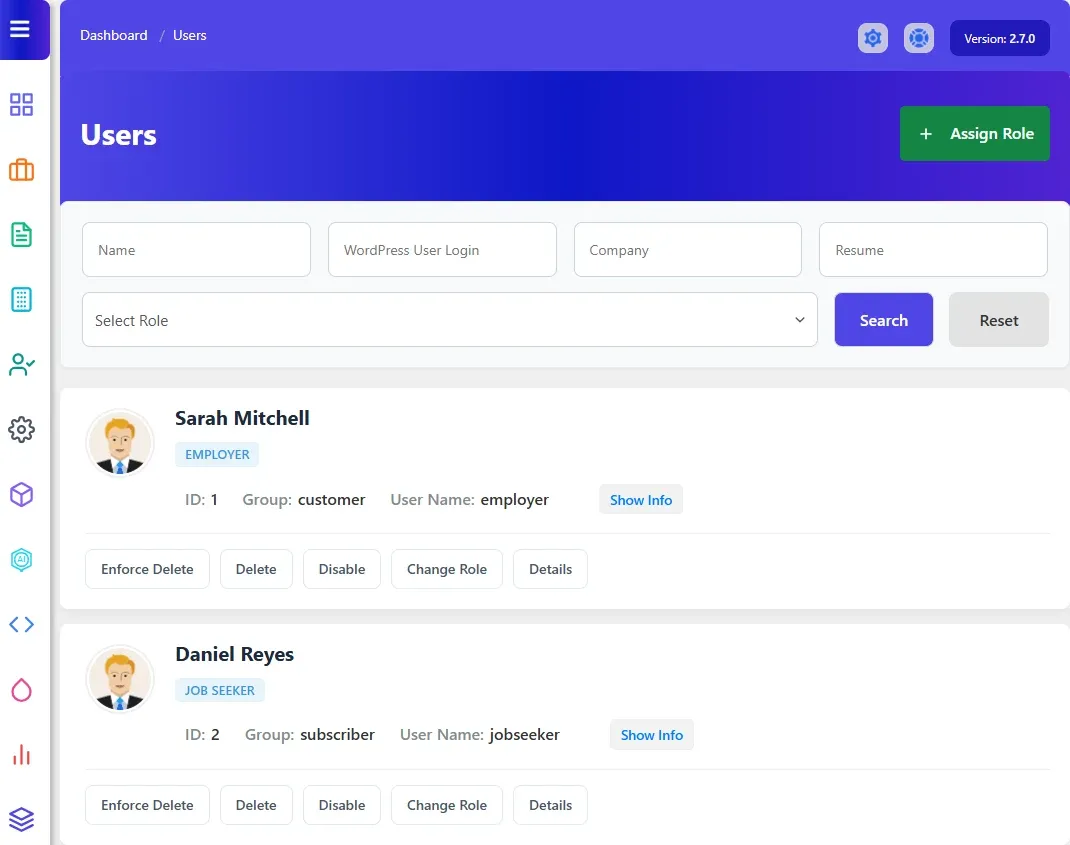
Each user card shows the user’s name, job board role, ID, WordPress role (Group) and User Name, and has these buttons:
| Button | What it does |
|---|---|
| Details | Opens User Details, with the user’s stats: companies, jobs, departments, job applies and resumes. |
| Change Role | Switches the user between employer and job seeker. Not shown for WordPress administrators. |
| Disable / Enable | Blocks or restores the user’s access to the job board. |
| Delete | Deletes the user, but only if they own nothing. |
| Enforce Delete | Deletes the user and everything they own. |
Assign a role to an existing user
Section titled “Assign a role to an existing user”Use this for WordPress users who don’t have a WP Job Portal role yet.
- Open WP Job Portal → Users → Assign Role.
- Under Select User, select User Name. A popup lists the users without a role.
- If the list is long, search by Username, Name or Email Address, then select the user.
- Choose Employer or Job seeker in Role.
- Select Assign Role.
The user is saved as approved.
Change a user’s role
Section titled “Change a user’s role”- In WP Job Portal → Users → Users, find the user.
- Select Change Role.
- Choose the new role and save.
Disable a user
Section titled “Disable a user”Select Disable on the user’s card. The card then shows Rejected, and the user sees a “disabled” message instead of the job board pages. Select Enable to give access back.
Delete a user
Section titled “Delete a user”Delete only works when the user owns nothing: no jobs or companies for an employer (and no departments, with Pro), and no resumes for a job seeker. Otherwise WP Job Portal refuses and the user stays.
Enforce Delete removes the user together with their records:
- For an employer: their jobs, companies and the job and company locations, plus departments, folders and messages where those features are installed.
- For a job seeker: their resumes and resume sections, job applications and job alerts, plus saved resume searches and messages where installed.
- With Marketplace Suite, the user’s packages, transaction log, subscriptions and invoices are removed as well.
User fields
Section titled “User fields”The registration form has its own set of fields. To add, hide or reorder them, open WP Job Portal → Users → Fields. See Field manager.