

The WP Job Portal theme
The Job Portal Theme is a WordPress theme made for WP Job Portal. When it is active, WP Job Portal switches its front-end screens to layouts built for the theme, and the setup wizard offers the theme’s ready-made demos in place of the plain sample pages.
Install the theme
Section titled “Install the theme”- Download the theme and its companion plugin, Job Portal Theme Options.
- Open Appearance → Themes → Add New Theme → Upload Theme, upload the theme and activate it.
- Open Plugins → Add New Plugin → Upload Plugin, upload Job Portal Theme Options and activate it.
WP Job Portal recognises the theme by its folder name, job-portal-theme. A renamed copy or a child theme with another folder name is not recognised.
What changes while the theme is active
Section titled “What changes while the theme is active”- WP Job Portal’s screens use the theme’s layouts instead of the plugin’s own.
- In the setup wizard’s Sample Data step, the Menu questions (Job Seeker Menu, Employer Menu) are not shown. The theme’s demo builds the pages and menus instead.
- After the Sample Data step, the wizard opens the demo importer instead of the finished screen.
- WP Job Portal elements are added to WPBakery Page Builder under WP JOB PORTAL Pages, if you use that builder.
Import a theme demo
Section titled “Import a theme demo”- Run the setup wizard to the end of the Sample Data step. The demo importer opens.
- In Select demo, choose a demo. Its preview and description appear.
- If you imported a demo before, choose What to do with previous demo data:
- Ignore and insert keeps the earlier demo and adds the new one.
- Remove and insert deletes the earlier demo first.
- Select Get Demo.
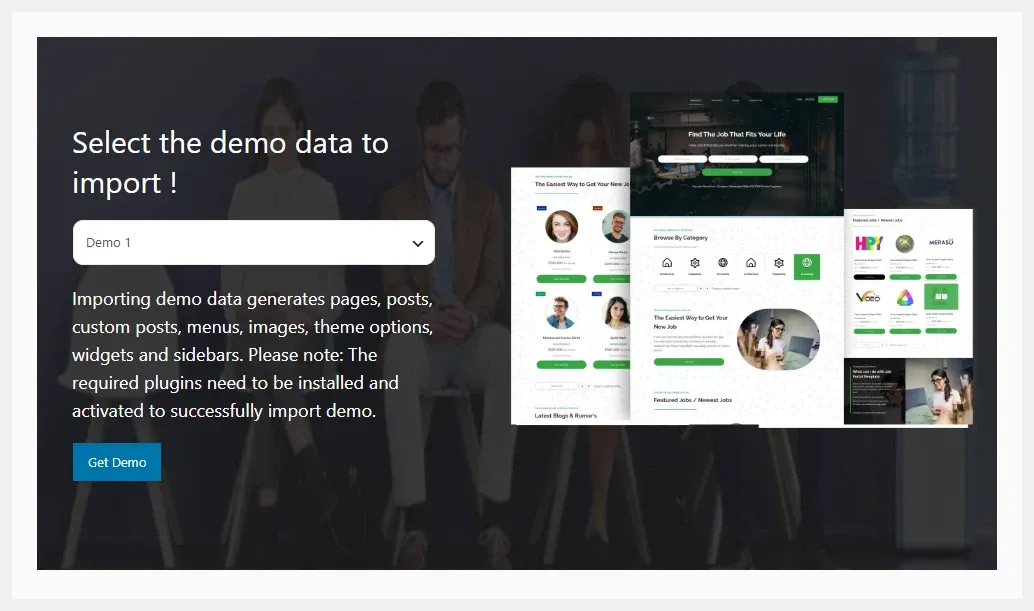
To come back to the importer later, open wp-admin/admin.php?page=wpjobportal_postinstallation&wpjobportallt=demoimporter.
The list of demos is fetched from wpjobportal.com through the companion plugin. If the importer says Demo data comes with the Job Portal Theme, activate Job Portal Theme Options. If it says the list could not be loaded from wpjobportal.com, check that your site can reach the internet, then reload the page.