

Offers
Offers record what you’re offering a candidate and take it through team approval before it reaches them. Once an offer is sent, the candidate can accept or decline it in their Candidate Portal, or sign it through an e-signature service.
How an offer moves
Section titled “How an offer moves”| Status | Meaning | What you can do next |
|---|---|---|
| Draft | Created, not yet reviewed | Request approval, or delete |
| Pending approval | Waiting for the chosen approvers | Approvers approve or reject |
| Approval rejected | An approver said no | Request approval again, or delete |
| Approved | Every approver agreed | Send to candidate, send for e-signature, or withdraw |
| Sent | The candidate can see it | Record accepted, record declined, or withdraw |
| Accepted | The candidate accepted | Nothing. This is final. |
| Declined | The candidate declined | Nothing. This is final. |
| Withdrawn | You took the offer back | Nothing. This is final. |
Create an offer draft
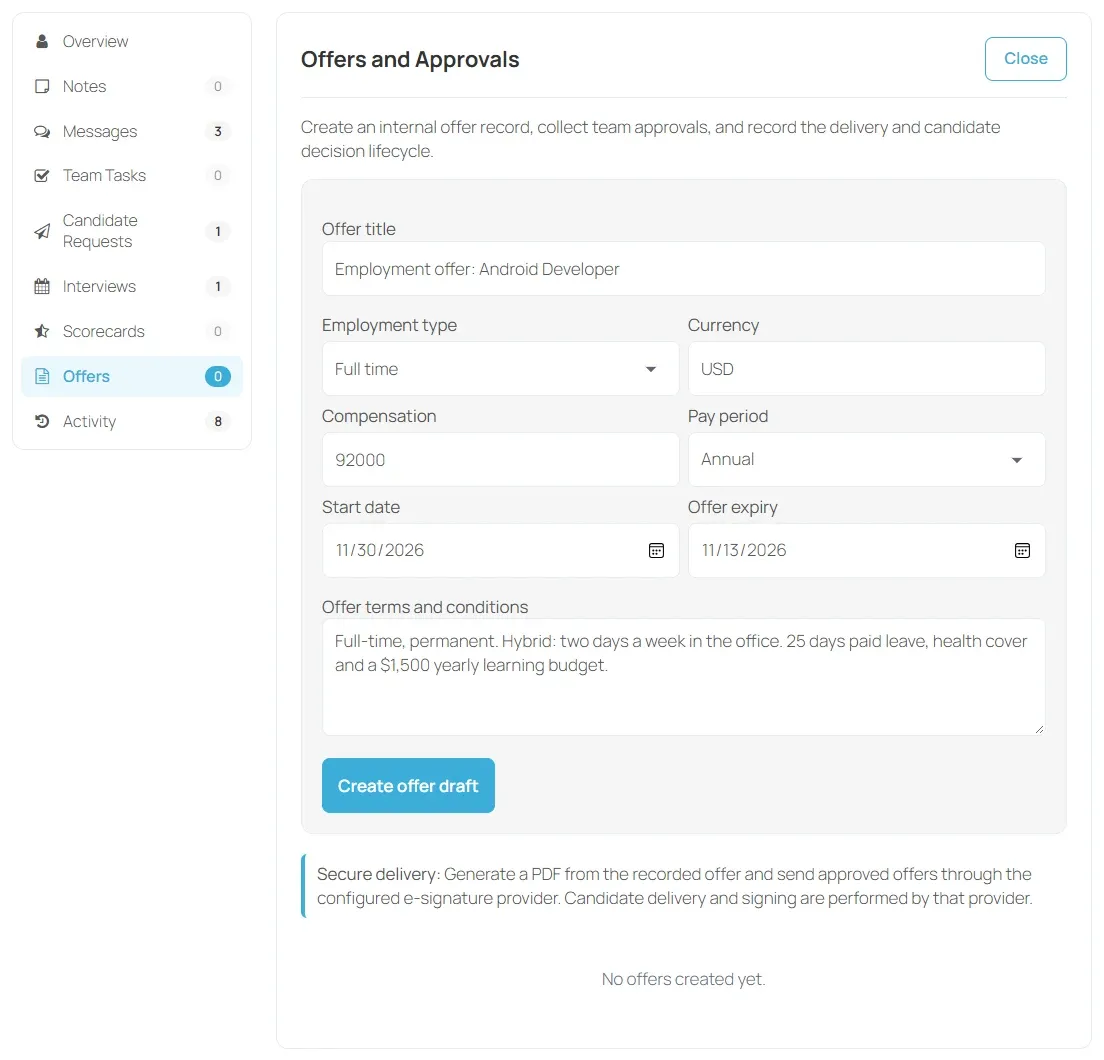
Section titled “Create an offer draft”- Open the candidate’s Recruitment details and go to Offers.
- Select New offer.
- Enter an Offer title, for example “Employment offer”.
- Choose the Employment type: Full time, Part time, Contract, Temporary, Internship or Other.
- Enter the Currency as a three-letter code, such as
USD. - Enter the Compensation amount and choose the Pay period: Annual, Monthly, Weekly, Daily, Hourly or Per project.
- Set a Start date and Offer expiry if you have them.
- Add the Offer terms and conditions.
- Select Create offer draft.
Get the offer approved
Section titled “Get the offer approved”- Under the draft, tick one or more Approvers.
- Select Request approval.
Only company admins and hiring managers on the company’s team are offered as approvers. Each approver gets an Offer approval requested notification, and a reminder if it waits longer than the time set in Automation.
To decide, the approver opens the candidate’s Offers section, adds an optional comment and selects Approve or Reject. Only the person asked can decide their own approval.
The offer becomes Approved when every approver has approved. One rejection makes it Approval rejected and cancels the approvals still pending. You can then change approvers and request approval again.
Send the offer
Section titled “Send the offer”When an offer is approved, you have two ways to send it.
- Select Send to candidate. The offer becomes Sent and the candidate sees it in their Candidate Portal.
- Select Send for e-signature to send it through your e-signature provider. This needs the provider set up first. See Integrations.
Either way, the candidate moves to the Offer stage of the pipeline and gets an update.
Select Download offer PDF to get a letter generated from the offer record, with the company name, candidate name, job, employment type, compensation, start date, expiry and terms. The button appears once the offer is approved.
Record the decision
Section titled “Record the decision”The candidate can select Accept offer or Decline offer in their Candidate Portal. The hiring team is told either way.
If they tell you another way, open the offer and select Record accepted or Record declined. Select Withdraw to take back an approved or sent offer.
An accepted offer moves the candidate to Hired in the pipeline.
Delete an offer
Section titled “Delete an offer”You can delete an offer in Draft or Approval rejected. Select Delete offer. Only the person who created it, or a site administrator, can delete it. Offers that were approved or sent can’t be deleted.
See all offers
Section titled “See all offers”Recruiting → Offers in the employer dashboard lists drafts, approvals, sent offers and decisions across your jobs. Recruiting insights shows offer acceptance rates.
Approval comments are internal. Candidates see only offers that have been sent, and their outcome.