

Job alerts
A job alert emails a job seeker the new jobs that match what they are looking for: a category, a job type, a city, keywords and so on. Job alerts are part of the free plugin, with a weekly email. Pro adds daily, monthly and instant alerts, and admin screens for managing alerts.
How job alerts work
Section titled “How job alerts work”- A job seeker opens Job Alert from their dashboard, fills in the form and selects Save Job Alert. Each job seeker has one alert, which they can edit or cancel with Unsubscribe. See Job alerts in the job seeker guide.
- Visitors can sign up too, if you allow it. They give an Email Address instead of logging in.
- Once a day, WordPress runs the job alert task. It sends each subscriber whose alert is due an email listing the jobs published since their last email that match their alert.
Only approved alerts are sent.
Frequencies
Section titled “Frequencies”| Frequency | Free | With Pro |
|---|---|---|
| Weekly | Yes | Yes |
| Daily | No | Yes |
| Monthly | No | Yes |
| Instant (As soon as job is posted) | No | Yes |
Instant alerts are sent in the background as soon as a matching job is published, not by the daily task.
If a site moves from Pro back to the free plugin, existing alerts with another frequency are kept and switched to weekly when they are next saved.
Job alert settings
Section titled “Job alert settings”- Open WP Job Portal → Configuration and the Email & Alerts tab.
- Set the options under Job Alerts.
- Save the settings.
| Option | What it does |
|---|---|
| Show Job Alert Link | Shows the Job Alert link in the job seeker control panel. |
| Enable Job Alerts for Visitors | Lets visitors who aren’t logged in sign up for alerts. |
| Job Alert Auto Approve | Approves new alerts straight away. When off, new alerts wait as Pending. |
| Captcha on Visitor Job Alert Form | Adds a captcha to the visitors’ sign-up form. |
| Admin Email Report on Job Alerts | Sends the admin a summary each time alerts go out. |
| Allowed Job Alert Types | The frequencies people can choose. Only the frequencies your products include are listed. |
See Email & Alerts settings for the full tab.
The job alert email
Section titled “The job alert email”Edit the email in WP Job Portal → Email Templates → Job Alert. The admin report uses the System Email template. See Email templates and notifications.
Make sure alerts go out on time
Section titled “Make sure alerts go out on time”The daily task relies on WordPress Cron, which only runs when someone visits your site. On a quiet site, or one where WordPress Cron is turned off, set up a real server cron. See Cron jobs.
WP Job Portal → System Status shows when the next job alert run is scheduled, under Scheduled tasks and mail.
Manage alerts with Pro
Section titled “Manage alerts with Pro”With Pro, three items appear under WP Job Portal → Jobs:
| Menu item | What it does |
|---|---|
| Job Alert | Lists every alert, with Name, Contact Email, Job Category, Status and Created. Filter by Name, Email, Category or Status, open an alert by its name to edit it, or unsubscribe it. |
| Add New Job Alert | Creates an alert on someone’s behalf. Status sets it to Approved, Pending or Rejected. |
| Job Alert Fields | Shows, hides, requires and reorders the fields on the job alert form, like the other field lists. |
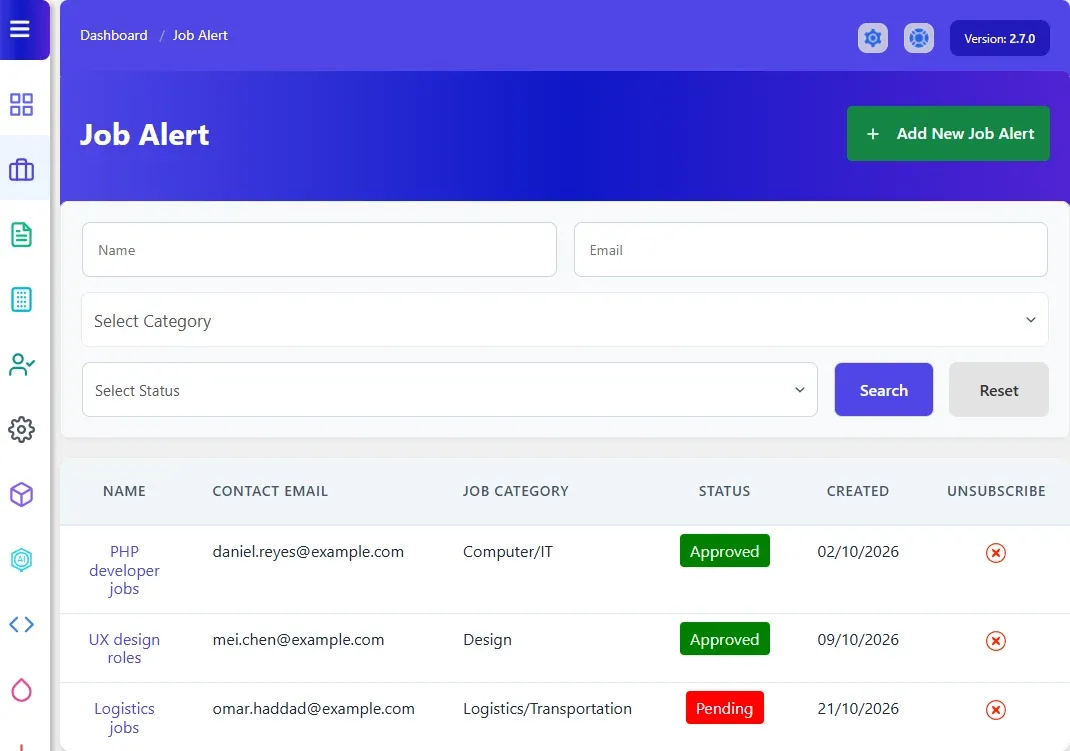
To approve pending alerts, open each one from Job Alert and set Status to Approved.