

WooCommerce
With WooCommerce as the gateway, buyers pay through your WooCommerce checkout. They can use any payment method, coupon or tax setting you have set up in WooCommerce. Each WooCommerce product is mapped to a WP Job Portal package or per-listing item, and paid orders grant it automatically.
You need WooCommerce installed and active. For recurring packages you also need the WooCommerce Subscriptions plugin.
Turn on WooCommerce payments
Section titled “Turn on WooCommerce payments”- Open WP Job Portal → Configurations → Payment Gateways.
- In the WooCommerce group, turn on Enable WooCommerce.
- Select Save.
Buyers now see WooCommerce as a payment option next to any other gateways you have enabled.
Sell a package
Section titled “Sell a package”Create one WooCommerce product for each paid package.
- In WooCommerce, add a new product.
- In Product data, set the type to WP JOB PORTAL Package.
- Tick Virtual.
- On the General tab, choose the package in WP Job Portal package. Only paid, published packages are listed.
- Publish the product.
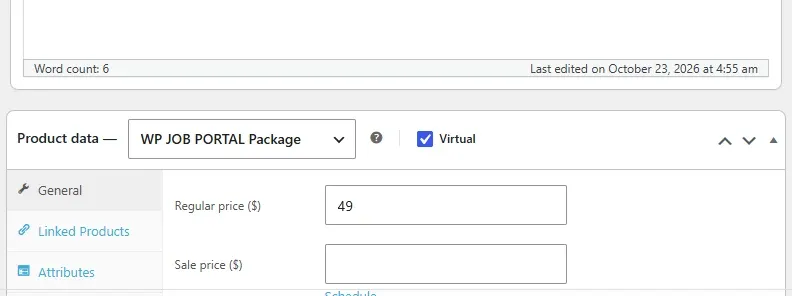
The price fields are filled in from the package and locked. In the cart, the product is charged at the package price after its Discount, as long as the package currency is your shop currency.
When a buyer chooses WooCommerce for a package, the mapped product is added to their cart and they go straight to checkout. If no product is mapped, the buyer sees a message saying the item has no WooCommerce product yet, and can pick another payment method.
When a package is granted
Section titled “When a package is granted”A package is granted when its order is paid and reaches Processing or Completed. Each unit in the order grants one package, so a quantity of 2 grants it twice. The order gets a note saying the package was granted.
- The buyer must have an account. A guest order grants nothing and gets the note WP Job Portal packages require a registered customer account; no package was granted. Turn off guest checkout in WooCommerce, or require an account for these products.
- The package must suit the buyer. A package sold only to employers cannot be added to a job seeker’s cart, and the other way round.
Refunds, cancellations and failed orders
Section titled “Refunds, cancellations and failed orders”When an order is Refunded, Cancelled or Failed, Marketplace Suite revokes each package from that order that has not been used, and voids its invoice. A package the buyer has already used is kept, and the order gets a note asking you to review it.
Coupons and taxes
Section titled “Coupons and taxes”WooCommerce handles coupons, taxes and refunds as it does for any product. Coupon uses on package orders appear in Marketplace Reports.
Sell a subscription
Section titled “Sell a subscription”- Create a product of type Simple subscription or Variable subscription.
- Set the recurring price and billing period in WooCommerce.
- On the General tab, choose the package in WP Job Portal package.
- Publish the product.
A subscription product’s price is not taken from the package. You set it in WooCommerce. Every renewal order that is paid grants the package again.
Users see these subscriptions under My Subscriptions marked Managed in WooCommerce. They manage and cancel them in their WooCommerce account.
Sell a per-listing item
Section titled “Sell a per-listing item”For the Per Listing submission type, create one product for each priced action you want to sell through WooCommerce.
- Add a new product and set the type to WP JOB PORTAL Per Listing.
- Tick Virtual.
- In Package combo, choose the action, such as Add Job or Featured Job.
- Publish the product.
The price is filled in from the matching per-listing price and locked.