

Handling applications
Applications are listed per job. For any job on the site you can see every candidate who applied, open their resume and take action on it. Employers see the same list for their own jobs on the site.
Open a job’s applications
Section titled “Open a job’s applications”- Go to WP Job Portal → Jobs.
- On the job’s row, select Applied Resume. The number in brackets is how many applications it has.
You can also start from the dashboard: in Latest Job Applies, select View Apply next to an application.
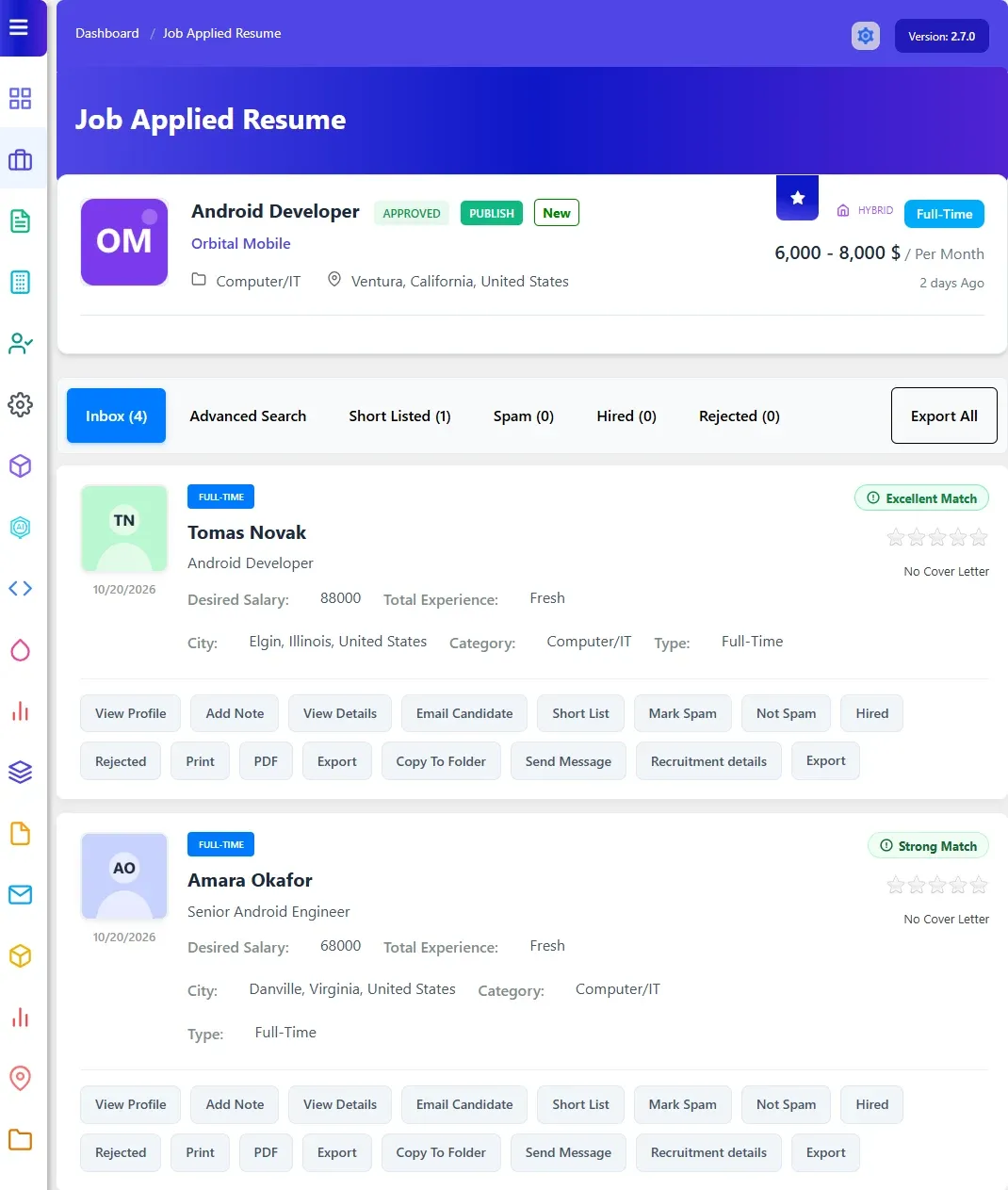
The page is titled Job Applied Resume. The job is shown at the top, with the applicants below it.
What each application shows
Section titled “What each application shows”Each applicant shows their name, the resume’s title and details such as job type and salary. Which details appear follows the listing settings in Resume → Fields.
Applications sent with Quick Apply show less, because they carry only the name, email, phone, message and file the candidate typed in. See Quick apply and visitor apply.
Actions on an application
Section titled “Actions on an application”| Button | What it does | Needs |
|---|---|---|
| View Profile | Opens the candidate’s resume in the Edit Resume form | Core |
| Prints the page | Core | |
| View Cover Letter | Shows the cover letter sent with the application, or No Cover Letter | Pro |
| Copy To Folder | Saves the resume into one of the employer’s folders. Not shown for Quick Apply applications | Pro |
| Send Message | Opens a message to the candidate | Pro |
| Export | Exports this applicant’s resume. Export All at the top exports every resume sent to the job. See Data export | Pro |
With Pro, the list also shows each candidate’s total experience when the resume builder is on.
Sort applications by stage
Section titled “Sort applications by stage”With Recruit Suite, the page gains tabs for Inbox, Short Listed, Spam, Hired and Rejected, plus Advanced Search, ratings and actions to move a candidate between stages. The job seeker can be emailed when the stage changes (Email Templates → Applied Resume Status Change). See Resume actions.
Emails sent when someone applies
Section titled “Emails sent when someone applies”Three email templates cover a new application: Job Apply Admin (to you), Job Apply Employer and Job Apply Job Seeker. Edit them, or choose which are sent, in Email Templates. See Email templates.
What the employer’s email includes is set under Configuration → Applications, in Resume Data in Email Sections and Resume Data in Email Fields. See Applications settings.