

Pages and shortcodes
Everything employers and job seekers see on your site is drawn by a shortcode sitting on an ordinary WordPress page. You decide which pages exist, what they are called and where they sit in your menu. The shortcode on each page decides which screen opens first.
How the front end works
Section titled “How the front end works”A shortcode page is a starting point, not a single screen. When a visitor follows a link inside it (from the job list to a job, or from the employer dashboard to Add Job), the next screen opens on the same page and only the address changes. That is why one page holding [wpjobportal_employer_controlpanel] is enough to give employers their whole area.
Two rules follow from this:
- If a shortcode page is also your site’s front page, links inside it open on the Default Page instead, so the home page itself never changes.
- Widgets, emails and the plugin’s own links also rely on the Default Page. Set it in WP Job Portal → Configurations → System & Site → Default Page. The setting’s help text warns that email links may not work while it is empty.
Pages created for you
Section titled “Pages created for you”WP Job Portal creates a few pages so a new site works straight away. Each one is created only if no page already holds that shortcode.
| Page title | Shortcode | Created when |
|---|---|---|
| Jobseeker | [wpjobportal_jobseeker_controlpanel] |
The plugin is activated. It also becomes the Default Page. |
| Job seeker | [wpjobportal_jobseeker_controlpanel] |
You answer Yes to Job Seeker Menu in the setup wizard. |
| Employer | [wpjobportal_employer_controlpanel] |
You answer Yes to Employer Menu in the setup wizard. |
| Newest Jobs | [wpjobportal_job] |
You answer Yes to Jobs Listing Menu in the setup wizard. This question replaces Employer Menu on a single-employer site. |
| Register | [wpjobportal_registration] |
Automatically, the next time wp-admin is opened. |
| Candidate Portal | [wpjobportal_candidate_portal] |
Automatically, once Recruit Suite is active. |
| Recruiting Team | [wpjobportal_recruit_team] |
Automatically, once Recruit Suite is active. |
The automatic pages (Register and the two Recruit pages) are considered only once. If you delete one, it is not created again. A page that holds the shortcode in any state, drafts and the trash included, counts as existing.
Add a shortcode to a page
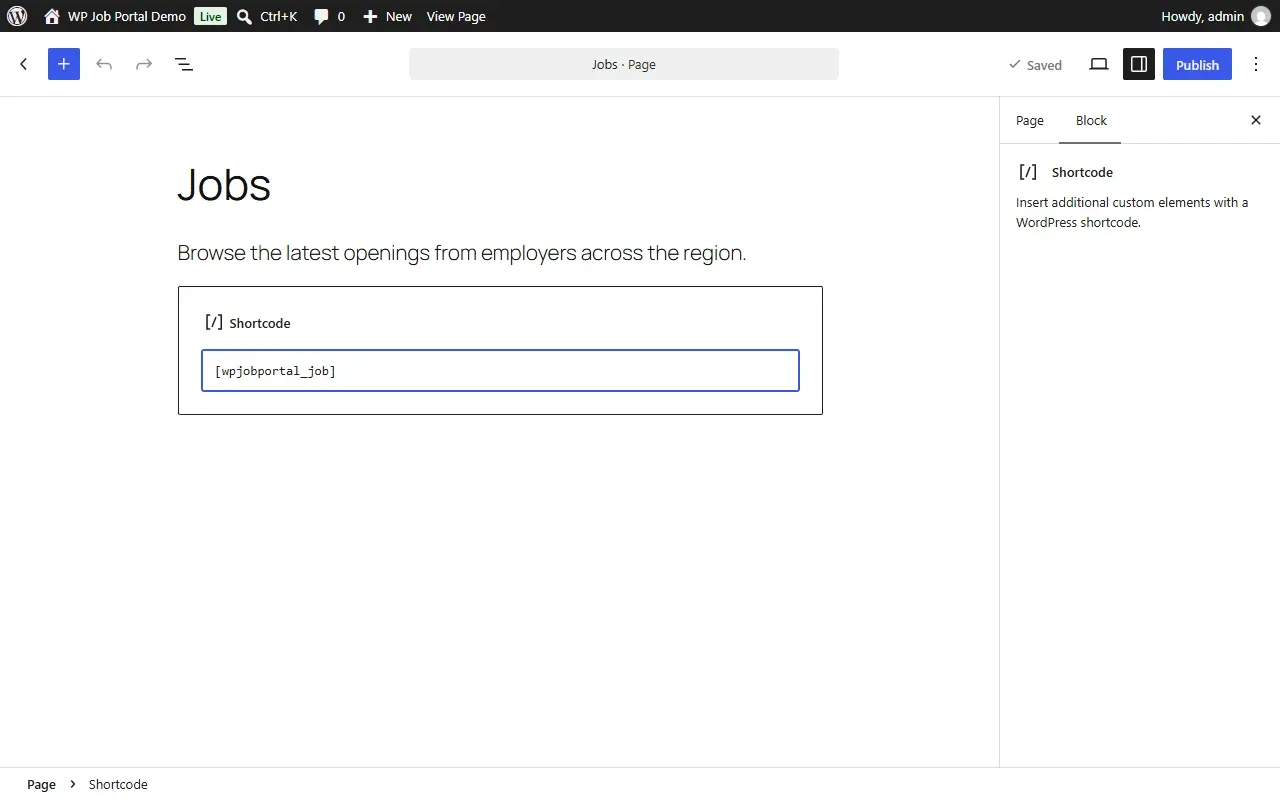
Section titled “Add a shortcode to a page”- In wp-admin, open Pages → Add New Page.
- Type a title, for example
Jobs. - Add a Shortcode block.
- Paste the shortcode, for example
[wpjobportal_job]. - Select Publish.
- Add the page to your site’s menu.
Many shortcodes take attributes that change what they show:
[wpjobportal_job no_of_jobs="10" categories="13" hide_filter="1"]The shortcode reference lists every shortcode, its attributes and the product it needs.
Blocks
Section titled “Blocks”If you would rather not type shortcodes, the block editor has four blocks in the WP Job Portal category:
| Block | What it shows |
|---|---|
| Jobs | Newest, top, hot or featured jobs, with a title, count, columns and layout. |
| Companies | A list of companies. |
| Resumes | A list of resumes. |
| Job Search | A job search form, with a choice of visible fields. |
Blocks suit small lists and forms inside other content. Use the page shortcodes, such as [wpjobportal_job], for the full job board screens.
Page builders
Section titled “Page builders”- Elementor: a Job Portal widget places any of the main WP Job Portal pages, and Pro adds three listing widgets. See Elementor.
- WPBakery Page Builder: WP Job Portal elements are offered only while the WP Job Portal theme is active. See The WP Job Portal theme.