

Widgets
WP Job Portal widgets put small job board pieces, such as the newest jobs or a search box, into your sidebars and footers. Links in a widget open on your Default Page, so set that first in WP Job Portal → Configurations → System & Site.
Add a widget
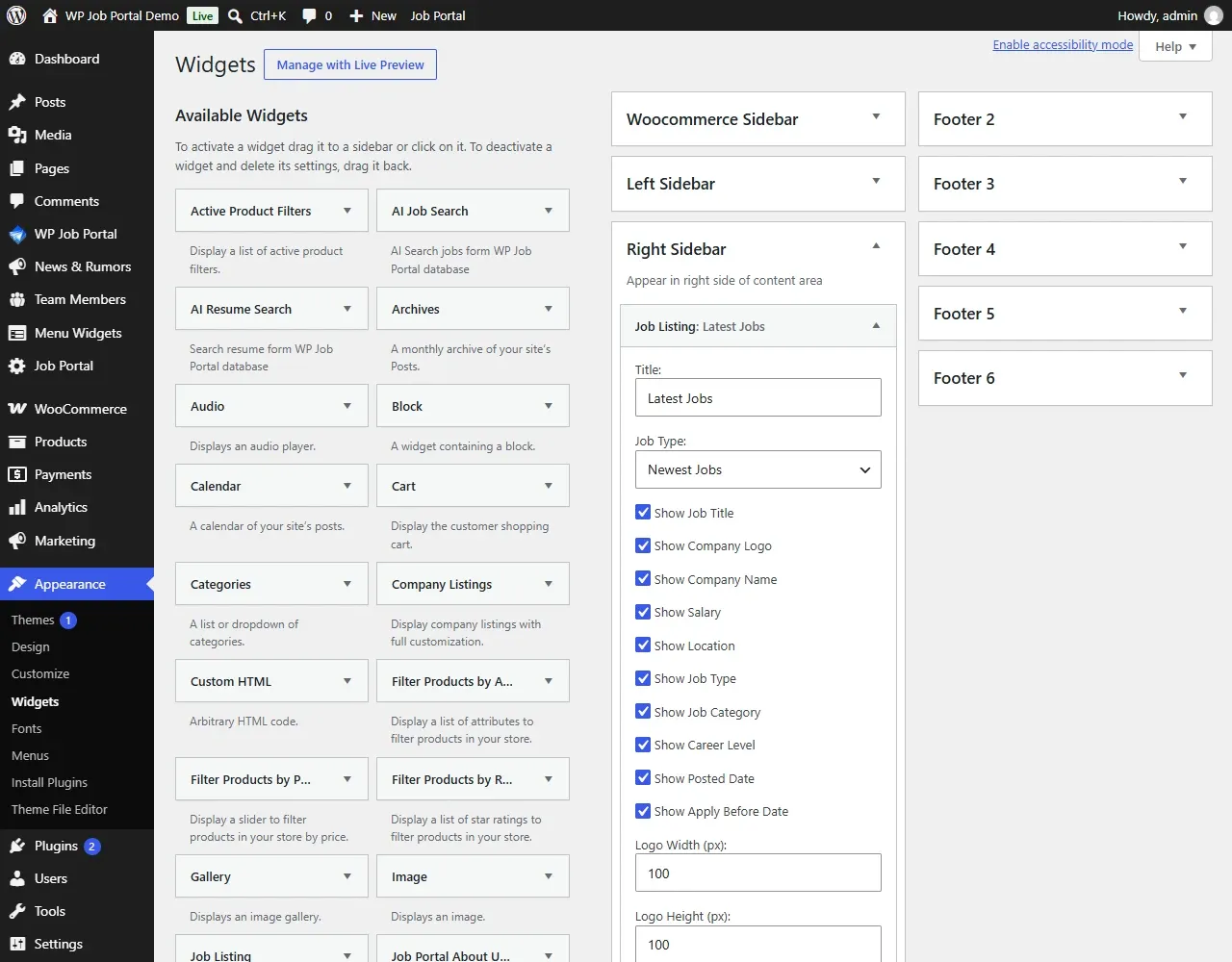
Section titled “Add a widget”- Open Appearance → Widgets.
- Choose the widget area, for example your sidebar.
- Add the widget by its name from the tables below.
- Fill in its options.
- Select Update (or Save in the classic widgets screen).
Free widgets
Section titled “Free widgets”These come with the free plugin.
| Widget | What it shows | Main options |
|---|---|---|
| Job Listing | A list of jobs. | Job Type: Newest Jobs, Top Jobs, Hot Jobs or Featured Jobs. Number Of Jobs to Show. Layout: List or Card. Columns per Row (1 to 4). Labels For Values: None, Text or Icons. Show or hide title, company logo, company name, salary, location, job type, category, career level, posted date and Show Apply Before Date. Logo width and height. |
| Company Listings | A list of companies. | Company Type: Latest Companies or Featured Companies. Number Of Companies. Layout: List or Grid. Columns. Field Labels Display: None, Text or Icons. Show or hide logo, name, location, category, posted date, number of jobs and the View Company button. Logo width and height. |
| Resume Listings | A list of resumes. | Type of Resume: Newest Resumes, Top Resumes or Featured Resumes. Number Of Resumes. Display Style: List or Card. Number of Columns. Show Labels for Values: Text, Icons or None. Show or hide application title, name, category, job type, nationality, location, posted date, photo and View Resume Button. Photo width and height. |
| Jobs By Categories Widget | Categories with their job counts. | Title. Show Maximum records. Show only record that have jobs. Show All Categories. Column per row. Title, background and border colours. |
| Jobs By Types | Job types with their job counts. | Title. Show Maximum records. Show only record that have jobs. Show all types. Column per row. Colours. |
| Jobs By Location Widget | Cities, states or countries with their job counts. | Show jobs by: Jobs By Cities, Jobs by states or Jobs by countries. Show Maximum records. Show only record that have jobs. Column per row. Colours. |
| Jobs stats | Site totals. | Show or hide Employer, Job Seeker, Jobs, Companies, Active Jobs, Resumes and Today. Colours. |
| Job Search | A job search form. | Layout: Vertical or Horizontal. Columns per Row (1 to 5). Search Fields: job title, category, job type, company, city and others. Show Advanced Search Button. Use Icons for Buttons. Show Labels. Show Placeholders. Custom Field Class. |
Featured jobs, companies and resumes are sold through Marketplace Suite. Without it, the featured choices have nothing to show.
Pro widgets
Section titled “Pro widgets”With Pro, two more widgets appear.
| Widget | What it shows | Main options |
|---|---|---|
| Jobs On Map Widget | The newest jobs as pins on a map. | Title. Show number of jobs. Show company and category in the pin. Module height. Zoom. |
| Resume Search | A resume search form for employers. | Layout: Vertical or Horizontal. Columns per Row (1 to 4). Search Fields: application title, name, nationality, gender, category, job type and salary range. Show Advanced Search Button. Use Icons for Buttons. Show Labels. Show Placeholders. Custom Field Class. |
The map widget needs the map settings described in Maps.
AI search widgets
Section titled “AI search widgets”Two AI widgets ship inside Pro and appear only when Smart Search & Matching is active as well.
| Widget | Needs | What it shows |
|---|---|---|
| AI Job Search | Pro and Smart Search & Matching | A single free-text box that searches jobs with AI. Options: Layout, Field Label, Field Placeholder, Show Advanced Search Button, Show Label, Show Placeholder, Use Icons for Buttons, Custom Field Class. |
| AI Resume Search | Pro (with its resume search) and Smart Search & Matching | The same idea for resumes, for employers. Same options. |
See AI search.
Shortcode versions
Section titled “Shortcode versions”Most widgets have a shortcode twin you can place inside page content, for example [wpjobportal_searchjob], [wpjobportal_jobbycategory] and [wpjobportal_jobstats]. Their attributes are listed in the shortcode reference.