

Team and collaboration
A recruiting team is the people who work on one company’s candidates. Membership is per company and doesn’t change anyone’s WordPress role, so a recruiter can work for one company without seeing another’s candidates.
| Role | What they can do |
|---|---|
| Company admin | Everything a recruiter can do, and can add or remove team members and job owners for this company. |
| Recruiter | Works on every job this company has posted and every application to them: notes, messages, tasks, interviews, scorecards, offers, stage moves and rejections. Being given a job is not required. |
| Hiring manager | Can be assigned to candidates and named on interviews and offer approvals, but reaches jobs and candidates only through the jobs given to them. |
The employer who owns a company is added to its team as company admin automatically, and the employer who posted a job is its primary owner. These owners are protected and can’t be removed from the team.
Company admins also manage pipeline stages, talent pools, rejection reasons, message templates and duplicate review, and decide who is assigned to each candidate. Site administrators can do everything on every team.
Add a team member
Section titled “Add a team member”The person must already have a WordPress account. They don’t need an employer or job seeker role.
On the front end, as a company admin:
- In the employer dashboard, open Recruiting → Recruiting Team.
- Choose the Company and select Select company.
- Under Company Members, enter their WordPress username or email.
- Choose the Role.
- Select Add or update member.
In wp-admin, open WP Job Portal → Recruit Team, select Open team on the company, and use Add or update a member in the same way.
To change someone’s role, add them again with the new role.
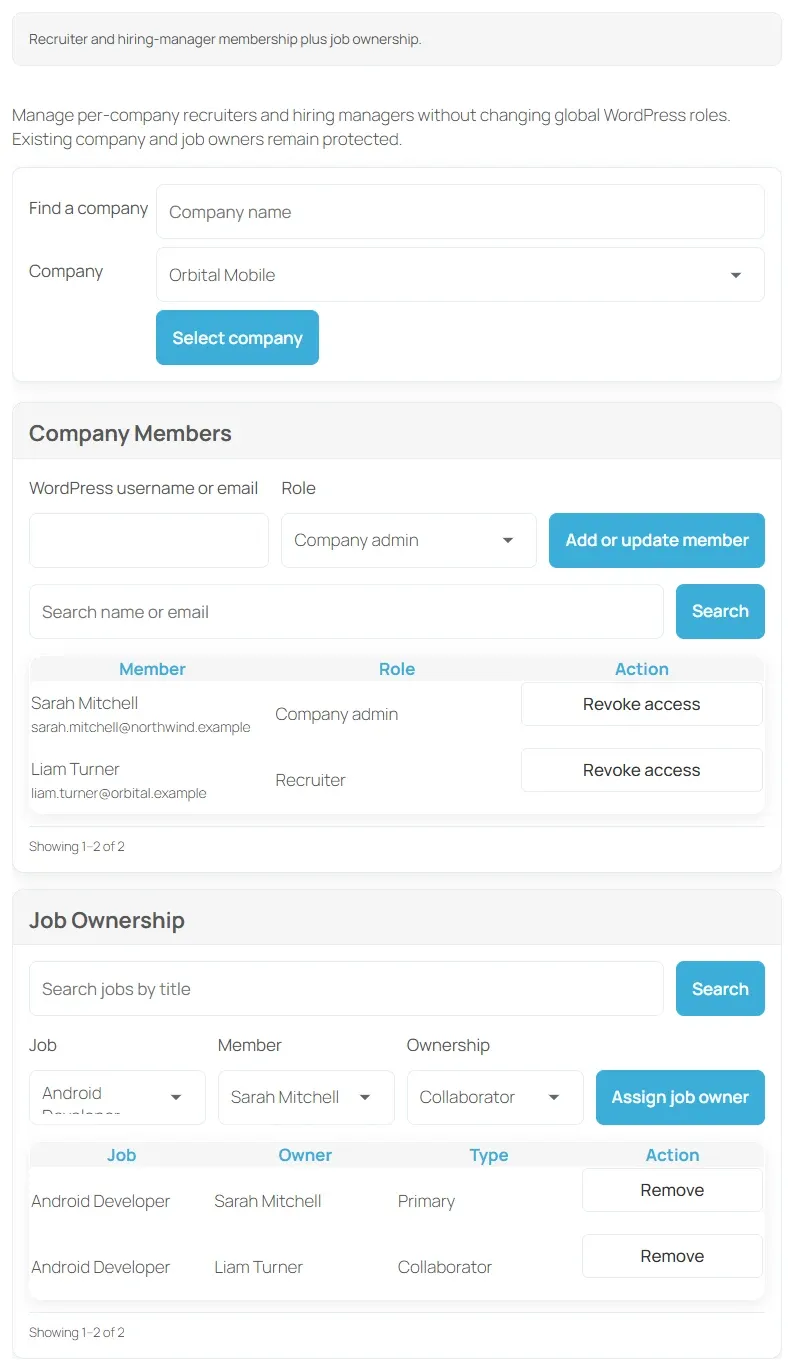
Team members sign in with their own account and find their work under the Recruiting menu in the employer dashboard. See Recruit Suite overview.
Give someone a job
Section titled “Give someone a job”Hiring managers, and anyone else you want to name on a job, need job ownership to reach it.
- Under Job Ownership, choose the Job.
- Choose the team member.
- Choose the Ownership: Collaborator or Primary owner.
- Select Assign job owner.
Select Remove next to an owner to take the job back.
Revoke access
Section titled “Revoke access”- Find the person in the team’s member list and select Revoke access.
- In wp-admin, if they own jobs, choose a colleague in Hand their jobs to, or Nobody — leave the jobs unowned, then confirm with Revoke access.
On the front-end Recruiting Team page there’s no hand-over choice: the person’s jobs are left without that owner.
The membership is kept and marked Revoked, so the history stays. In wp-admin, select Reinstate to give access back, or add the person again from either screen.
See who has access
Section titled “See who has access”WP Job Portal → Recruit Team has two tabs:
- Teams lists each company with its number of team members, jobs and last change. Open a team to see Members, Job ownership and Access history.
- People lists everyone on a recruiting team, with their teams, roles held and owned jobs. Open access shows one person’s memberships and history across companies.
Access history records who was added, changed role, revoked or reinstated, and who gained or lost a job.
Notes and mentions
Section titled “Notes and mentions”Notes are internal to the hiring team. Candidates never see them.
- Open the candidate’s Recruitment details and go to Notes.
- Write the note under Add an internal note.
- To mention a colleague, type
@and their WordPress username. Only active members of the company’s team can be mentioned. - Select Add note.
The author, a company admin or a site administrator can select Remove note.
Team tasks
Section titled “Team tasks”Tasks are internal to-dos for the team, such as “Check references”.
- Open the candidate’s Team Tasks section.
- Select New task.
- Enter the Task and any Details.
- Choose an Assignee, a Due date and a Priority: Normal, High or Low.
- Select Create task.
Overdue tasks are marked Overdue. The creator, the assignee or a company admin can select Complete or Reopen. The creator or a company admin can Delete a task.
Open and overdue tasks across your jobs are listed under Recruiting → Tasks & Reminders. Overdue tasks also send reminders. See Automation.
Activity timeline
Section titled “Activity timeline”The Activity section lists everything done to an application, with who did it and when: notes, tasks, stage moves, ratings, interviews, scorecards, offers, approvals, signatures, candidate requests, assignments, sources, rejections and pool changes.
Limits for team members
Section titled “Limits for team members”- A team member who isn’t an employer can’t export resumes.
- Team members can’t buy packages. If Marketplace sells packages through WooCommerce, team members see Packages are bought by your company owner, on the company account.