

Locations and address data
Jobs, companies and resumes are located by city. The cities people can pick from come from the address data in your database. You load that data for the countries you need, and you can add, edit or hide individual countries, states and cities.
The free plugin includes the main cities of 186 countries. With Pro, you can import the full city and town database instead.
All of this is under WP Job Portal → Address Data.
Load address data
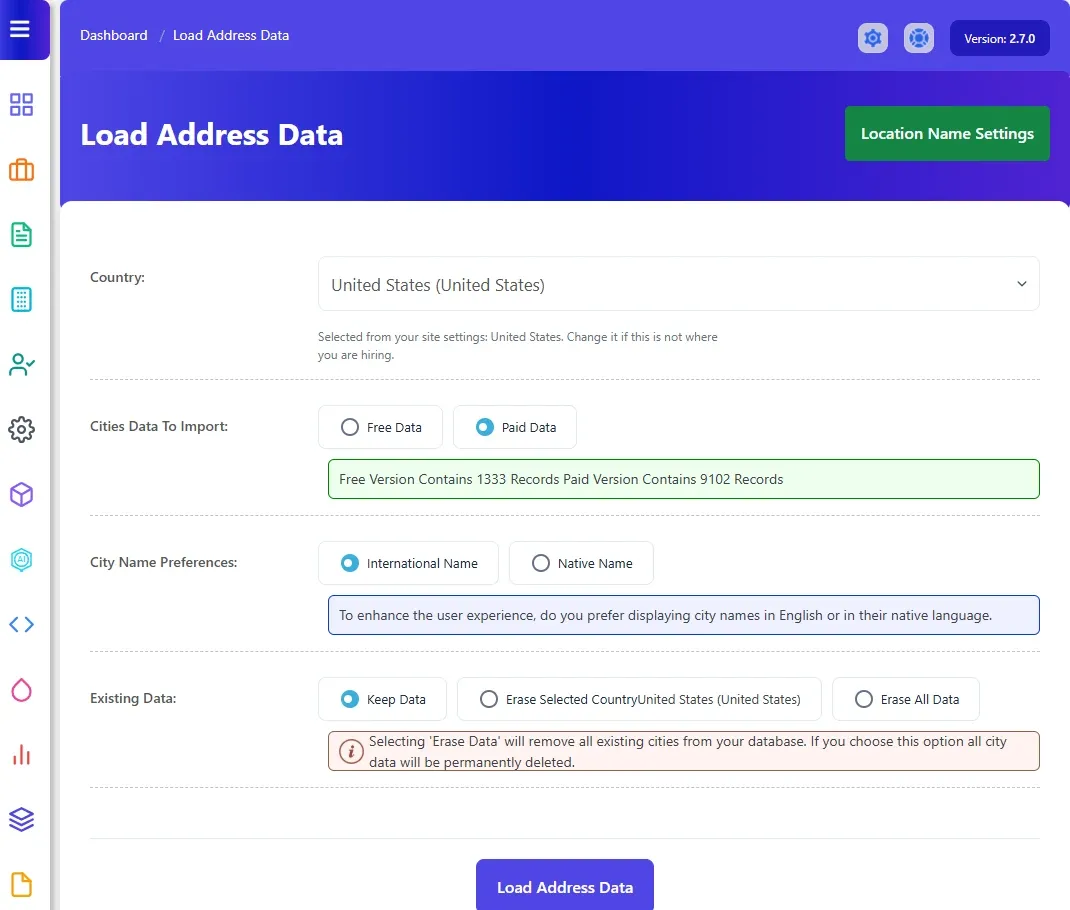
Section titled “Load address data”- Open WP Job Portal → Address Data → Load Address Data.
- Choose the Country. The first time, it is preselected from your site settings; change it if that isn’t where you are hiring.
- Under Cities Data To Import, choose Free Data or Paid Data. Paid Data is only available with Pro.
- Under City Name Preferences, choose International Name or Native Name.
- Under Existing Data, choose what happens to cities already in the database:
- Keep Data adds the new cities and skips ones you already have.
- Erase Selected Country removes that country’s cities first.
- Erase All Data removes every city first.
- Select Load Address Data.
Repeat for each country you need.
With Pro
Section titled “With Pro”Paid Data imports states and cities for every country in one pass, from a file that ships inside Pro. Nothing is downloaded during the import, and the country you choose doesn’t limit it. With Keep Data, the states and cities you already have are kept alongside the import. With either erase option, the imported data replaces them. The swap only happens once the whole import has succeeded.
The Sample Data table below the form shows the last cities added, so you can check the import worked.
International or native city names
Section titled “International or native city names”Each city and country has an International Name (in English) and a Native Name (in the local language). You choose which one the job board shows.
- Open WP Job Portal → Address Data → Location Name Settings.
- Choose International Name or Native Name. Currently Set shows the current choice.
- Select Save Settings.
This updates the names of all cities and countries already in the database.
How a full address is written (for example “City, State, Country” or just “City”) is the Default Address Display Style setting in System & Site.
Manage countries
Section titled “Manage countries”- Open WP Job Portal → Address Data → Countries / Cities.
- Filter by Name, Select Status, Has states or Has cities to find a country.
From a country’s row you can:
- Select the tick or cross to publish or unpublish it. Unpublished countries aren’t offered on forms.
- Select States or Cities to manage that country’s states or cities.
- Edit it: Name, International Name, Native Name and Published.
- Delete it.
To add a country, select Add New Country at the top of the list.
Manage states and cities
Section titled “Manage states and cities”- On the country’s row, select States or Cities.
- Select Add New State or Add New City to add one, or the edit icon to change one.
- Save.
A city has a State (where the country has states), City name, International Name, Native Name, Latitude, Longitude and Published. Latitude and longitude are used by the map features in Pro.
Use Publish and Unpublish to hide cities without deleting them. WP Job Portal won’t delete a city that is still in use.