

Building a resume
Your resume is what employers see when you apply for a job, and on some sites they can also find it by searching. You need one before you can apply with the standard apply form.
Add your resume
Section titled “Add your resume”- On your dashboard, select Add Resume.
- Fill in the Personal Information section. Your name and email are filled in from your account.
- If the form shows a terms and conditions box, read the terms and tick it.
- Select Save Resume.
To leave without saving, select Cancel Resume.
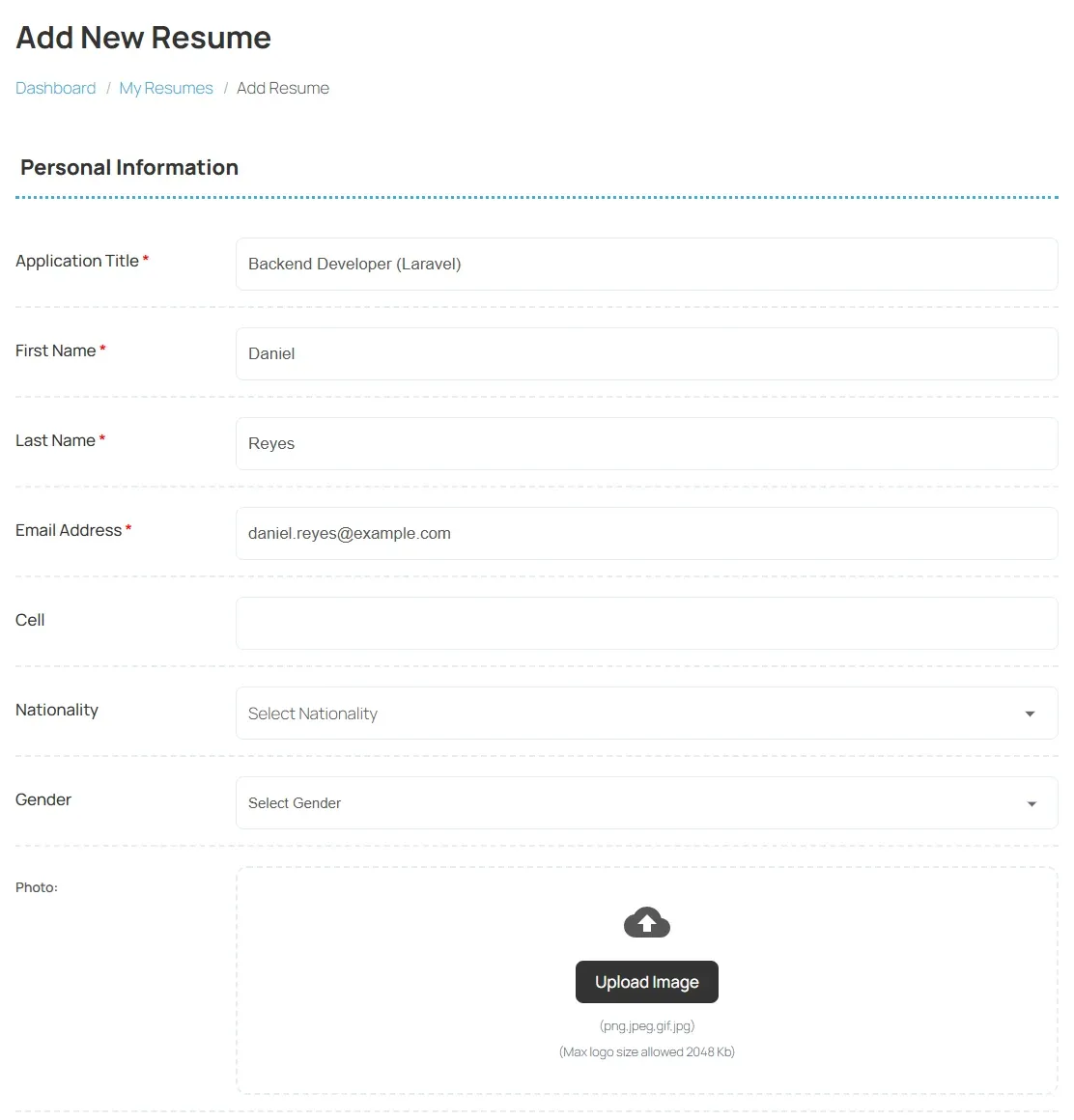
Personal Information fields
Section titled “Personal Information fields”Each site chooses which fields it asks for and which are required (marked with *). These are the usual ones:
| Field | What to enter |
|---|---|
| Application Title | A headline for your resume, such as “Senior accountant”. It is shown in place of your name in some lists. |
| First Name, Last Name | Your name as employers should see it. |
| Email Address | Where employers can reach you. |
| Cell | Your phone number. |
| Nationality | Choose from the list. |
| Gender | Choose from the list. |
| Photo | Select Upload Image. The allowed file types and size are shown under the button. |
| Files | Select Select Multiple Files to attach documents, such as a CV in PDF. The allowed types and size are shown under the button. |
| Category | The kind of work you are looking for. |
| Type | The job type you want, such as full time. |
| Desired Salary | The salary you are looking for. |
| Tags | Words that describe your skills. |
| Searchable | Tick it to let employers find your resume when they search resumes. |
Add more sections
Section titled “Add more sections”With Pro, the resume form has more sections below Personal Information. Each one starts empty; use its button to add an entry, and add as many entries as you need.
| Section | Button | What goes in it |
|---|---|---|
| Add Address | Add New Address | Address, city and location. |
| Education | Add New Institute | Institute, certificate name, study area and dates. |
| Employer | Add New Employer | Past and current jobs: employer name, position, dates, phone, address and city. Tick I currently work there for your current job. |
| Skills | Add Skills | Your skills. |
| Add Language | Add New Language | Languages you speak. |
Your site may rename these sections or add sections of its own.
Approval
Section titled “Approval”Many sites check each new resume before employers can see it. In My Resumes, your resume shows one of these:
| What you see | What it means |
|---|---|
| Waiting For Approval | The site has not checked your resume yet. |
| Rejected | The site did not accept your resume. Contact the site owner to find out why. |
| Edit Resume and Delete Resume buttons | Your resume is approved and live. |
The site may email you when your resume is approved or rejected. Editing an approved resume does not send it back for approval.
Edit or delete your resume
Section titled “Edit or delete your resume”- Open My Resumes from the dashboard.
- Select Edit Resume to change it, then Save Resume.
- Or select Delete Resume and confirm.
One resume or several
Section titled “One resume or several”On the free job board you have one resume. Once it exists, the dashboard link changes from Add Resume to Edit Resume. With Pro, you can keep several resumes, for example one per kind of job, and choose which one to send each time you apply. My Resumes then has an Add New Resume button and a View Resume button for each resume.