

Quick apply and visitor apply
Candidates normally apply with a full resume from their account. Two features make applying easier:
- Quick Apply (free Core) puts a short form on the job page: name, email, phone, message and a file. Logged-in users, visitors or both can use it.
- Visitor apply (Pro) lets visitors fill in the full resume form and apply without registering.
Turn on Quick Apply
Section titled “Turn on Quick Apply”-
Go to WP Job Portal → Configuration and open the Applications tab.
-
Under Job Applications, set the options you want:
Option What it does Enable Quick Apply for Logged-in Users Shows the Quick Apply form to logged-in users on the job page Enable Quick Apply for Visitors Shows the Quick Apply form to visitors on the job page Enable Cover Letter Quick Apply Lets logged-in users pick one of their cover letters on the form. Cover letters need Pro -
Select Save Changes.
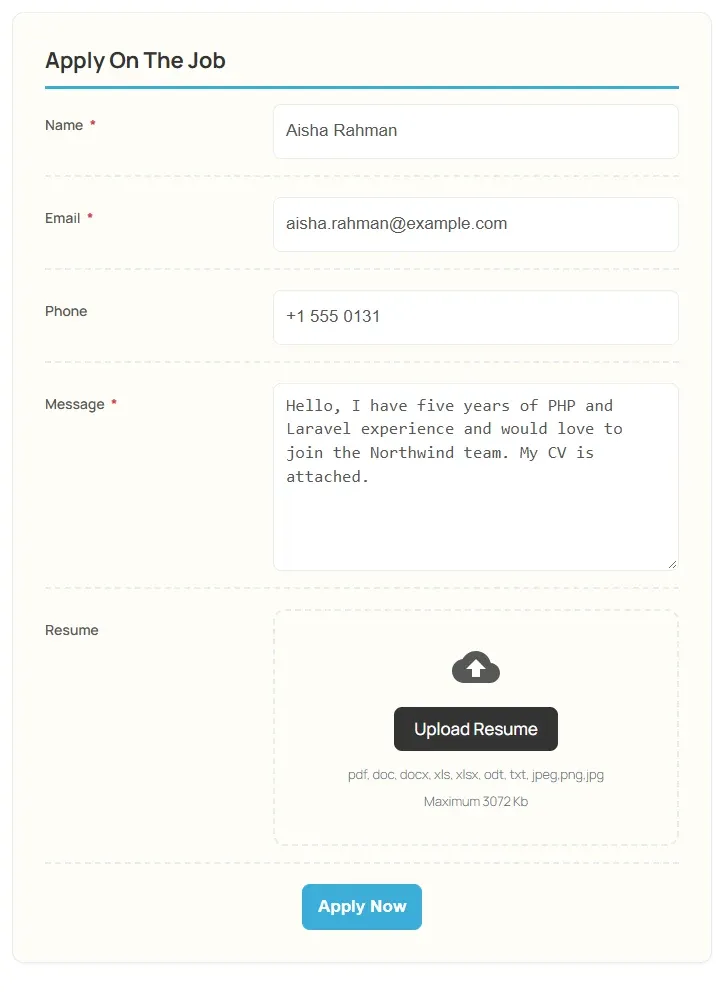
Choose the Quick Apply fields
Section titled “Choose the Quick Apply fields”Go to WP Job Portal → Resume → Quick Apply Fields. The form starts with these fields:
| Field | Notes |
|---|---|
| Name | Always on |
| Always on | |
| Phone | |
| Message | |
| Resume | A file upload for the candidate’s CV |
You can rename, reorder, require or hide the fields here, as on any field list. See Field manager.
What a Quick Apply application creates
Section titled “What a Quick Apply application creates”Each Quick Apply creates a short, approved resume record from the form and applies it to the job. That record:
- appears with the application on the job’s Applied Resume list, where employers and you can see it;
- isn’t in the Resume list or the approval queue;
- can’t be copied to a folder.
Let visitors apply with a full resume
Section titled “Let visitors apply with a full resume”With Pro:
-
Go to WP Job Portal → Configuration and open the Visitors tab.
-
Under General Permissions, set:
Option What it does Visitor Can Apply to Job Lets people who aren’t logged in apply for jobs Visitor Can Add Resume Lets people who aren’t logged in add a resume Visitor Resume Post Redirect Page The page a visitor is sent to after posting a resume -
Select Save Changes.
Resumes that visitors add follow Resume Auto Approve, like any other resume. See Approving resumes. The matching email template is Email Templates → New Visitor Resume.
Protect the forms with a captcha
Section titled “Protect the forms with a captcha”- Go to WP Job Portal → Configuration and open the Security & Captcha tab.
- Under Captcha Options, turn on Captcha on Visitor Quick Apply. With Pro, also turn on Captcha on Visitor Resume Form.
- Choose the Default Captcha Type: Cloudflare Turnstile, Google reCAPTCHA, or Built-in (no keys needed, nothing for visitors to solve).
- Select Save Changes.
Turnstile and reCAPTCHA need keys from those services. See Security and captcha settings.