

Bulk actions
Bulk actions apply one change to every candidate you tick, such as moving a batch to Shortlisted or telling everyone a role is on hold. Each candidate is still checked on its own, so a selection can’t reach anyone you aren’t allowed to work on.
Run a bulk action
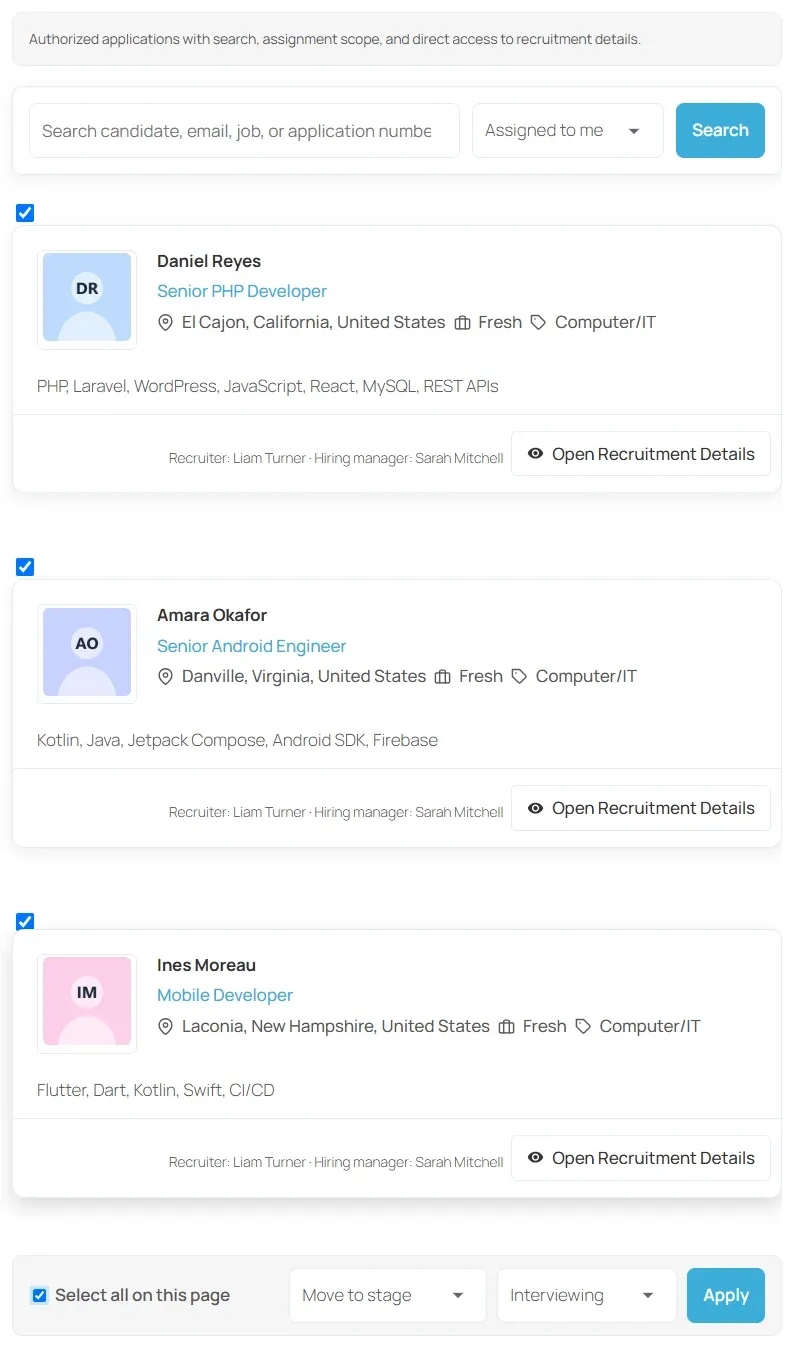
Section titled “Run a bulk action”- In the employer dashboard, open Recruiting → Assigned Candidates.
- Use the scope and search to narrow the list.
- Tick the candidates, or tick Select all on this page.
- In the bulk bar, choose an action in Choose an action.
- Fill in the field that appears for that action.
- Select Apply.
Actions
Section titled “Actions”| Action | Field | What it does |
|---|---|---|
| Move to stage | Stage | Moves each candidate to the chosen pipeline stage |
| Reject with reason | Reason | Records a structured rejection with the chosen reason and moves each candidate to Rejected |
| Add to talent pool | Talent pool | Adds each candidate to the chosen pool |
| Send a message | Template, Subject, Message | Sends each candidate their own message. Anything left blank is taken from the template. |
The lists of stages, reasons, pools and templates come from the companies of the candidates on the page.
What gets skipped
Section titled “What gets skipped”After the run, a notice says how many candidates were updated, how many were skipped and how many failed, with the first reasons for any failures. For example:
- A candidate you can’t act on is skipped.
- A stage, reason, pool or template that belongs to a different company fails for that candidate.
- Moving a candidate to Rejected with Move to stage fails unless a rejection reason is already recorded. Use Reject with reason instead.
- A message with no subject or body, and no template to fill them, fails.
You can select up to 200 candidates at a time.