

Messages and templates
Recruit Suite lets the hiring team write to a candidate about their application and read what the candidate writes back. Templates save retyping the same message, for example an interview invitation sent to many people.
Message one candidate
Section titled “Message one candidate”- Open the candidate’s Recruitment details and go to Messages.
- Check the Subject. It starts as “About” and the job title.
- Write the Message.
- Select Send to candidate.
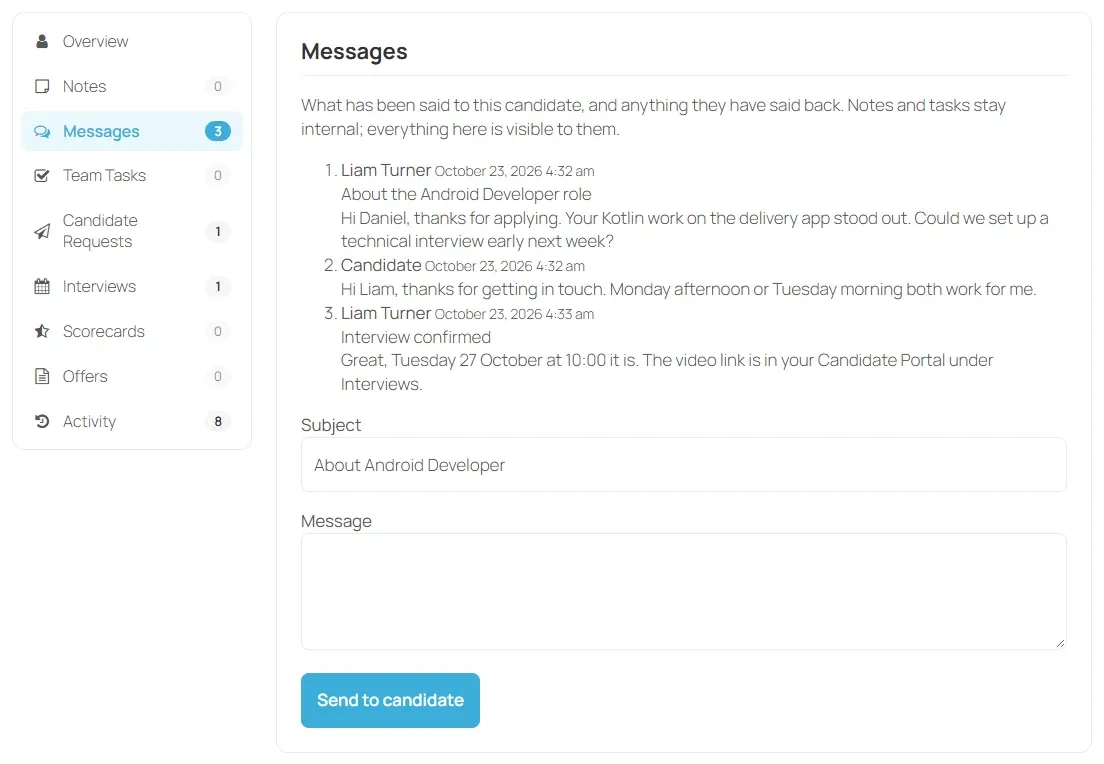
Both a subject and a message are needed. Everything in this section is visible to the candidate. Use Notes for anything internal.
The message appears in the candidate’s Candidate Portal, under Messages and Updates. It’s also emailed to them if Send candidate update emails is turned on in Automation. The candidate must have applied with a job seeker account to receive it.
Read replies
Section titled “Read replies”The candidate answers from Write to the hiring team in their Candidate Portal. Replies appear in the same Messages section, marked as from the candidate, in the order they were written.
When a candidate replies, the company admins and recruiters on the team, anyone who owns the job, and the employer who posted it get a Candidate replied notification.
Placeholders
Section titled “Placeholders”Templates and messages can include these placeholders. They’re replaced when the message is sent.
| Placeholder | Replaced with |
|---|---|
{candidate_name} |
The candidate’s name |
{job_title} |
The job they applied for |
{company_name} |
The hiring company |
Create a template
Section titled “Create a template”Templates belong to one company. Company admins and site administrators manage them.
- In the employer dashboard, open Recruiting → Talent Pools.
- If you manage more than one company, choose it in Settings for and select Show this company.
- Under Message Templates, select Add a template.
- Enter a Name, for example “Interview invitation”.
- Enter the Subject, for example
About your application for {job_title}. - Write the Message.
- Select Save template.
To change a template, select Edit, change it and select Save changes. Select Remove to delete one. Messages already sent keep their text.
Use a template
Section titled “Use a template”Templates are offered when you message candidates from the Assigned Candidates list:
- Open Recruiting → Assigned Candidates.
- Tick the candidates. Tick just one to message a single person.
- In the bulk bar, choose Send a message.
- Choose the Template.
- Leave Subject or Message blank to use the template’s, or type your own to replace it.
- Select Apply.
Each candidate gets their own copy, with the placeholders filled in for them. See Bulk actions.