

Buying a package
On job boards that charge employers, a package is what you buy to post jobs and use other paid features. Each package includes a set number of jobs, companies or featured listings, and lasts for a set time.
Choose a package
Section titled “Choose a package”- On your employer dashboard, open Short Links → Packages.
- Compare the packages. Each one shows its price (or Free), what it includes, and how long it lasts after you buy it (Expiry In).
- On the package you want, select Buy Now.
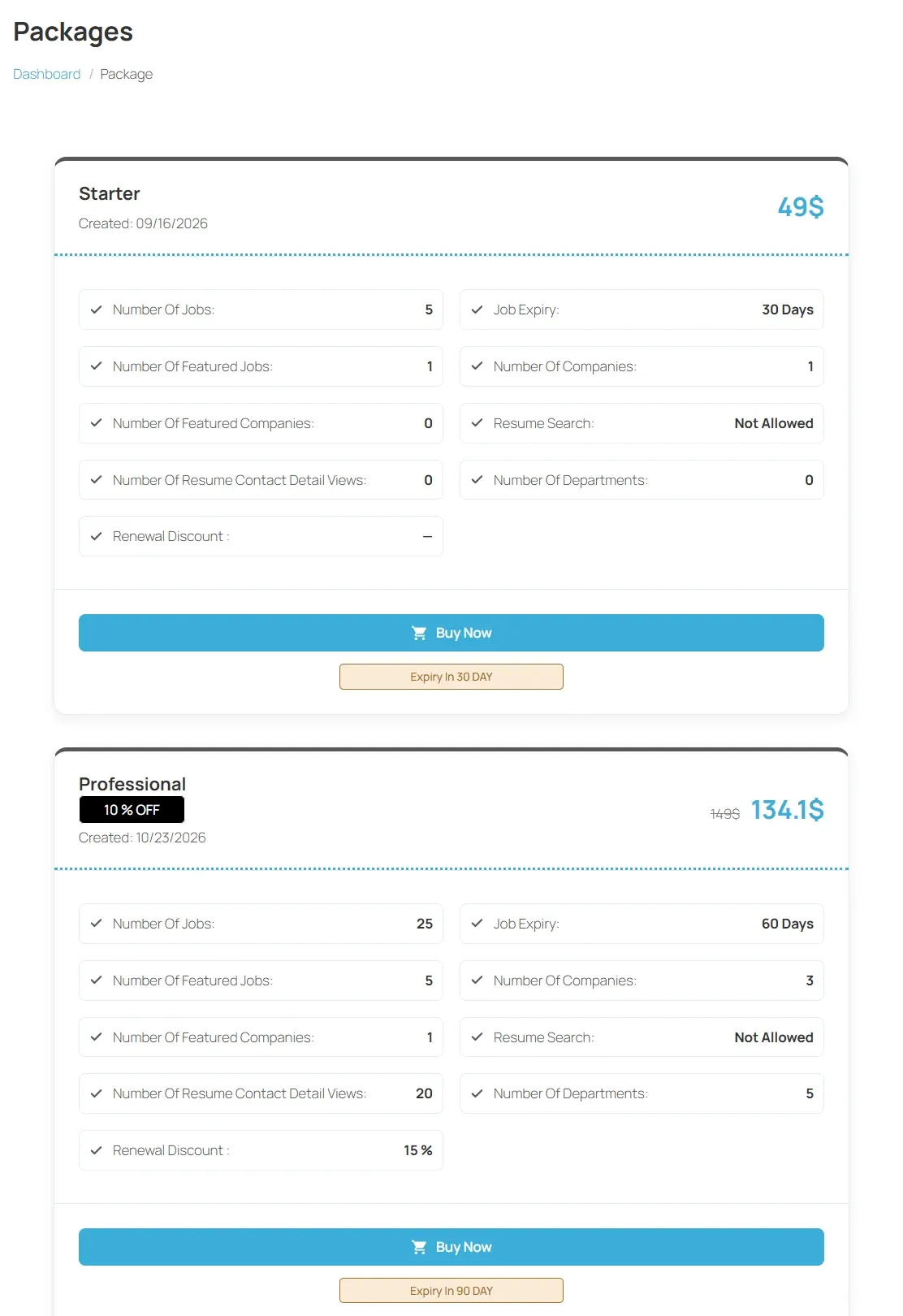
A package can list, among others:
| Line | What it means |
|---|---|
| Number Of Jobs | How many jobs you can post with it. |
| Job Expiry | How long each job stays up. |
| Number Of Companies | How many companies you can add. |
| Number Of Featured Jobs, Number Of Featured Companies | How many listings you can feature. |
| Number Of Departments | How many departments you can add. |
| Number Of Resume Contact Detail Views | How many resumes whose contact details you can reveal. |
| Resume Search | Allowed or Not Allowed. |
Unlimited means there is no cap.
Pay for the package
Section titled “Pay for the package”- Free package: selecting Buy Now adds it to your account straight away.
- Paid package: a box asks you to Please select the payment method. Choose one of the options your job board offers, such as PayPal or Pay with Stripe, and complete the payment on that page. You then return to the job board.
The package appears in My Packages once the payment is confirmed.
Use your package
Section titled “Use your package”When you post a job, the top of the job form shows the package it will use: Total Jobs, Remaining Job and the date it Ends On. Select Change Package to use a different one. See Posting a job.
Some job boards charge per item instead of selling packages. In that case a job or company you save shows Make Payment or Proceed To Payment in your lists until it is paid for.
My Packages
Section titled “My Packages”Open Short Links → My Packages to see each package you have, with what is left of it, for example Remaining Jobs and Remaining Featured Job, and the date it Ends On. Select Renew This Package to buy the same package again.
My Subscriptions
Section titled “My Subscriptions”If you bought a package that renews automatically, it appears in Short Links → My Subscriptions with its Package, Type, Billing Cycle and Next Billing Date.
- Select Cancel to stop the subscription.
- If the subscription shows Manage, the payment provider handles it: select Manage to change or cancel it there. Managed in WooCommerce means you manage it from the shop’s account pages.
Invoices
Section titled “Invoices”Open Short Links → Invoices for a record of each completed paid purchase, with its Description, Amount, Payment Method and Created date.