

URLs, slugs and SEO
Job board pages have readable addresses such as /jobs/ or a job’s own page named after its title. You can change the words used in those addresses, decide what goes into a job’s URL, and set the title shown in the browser tab and in search results.
Change a slug
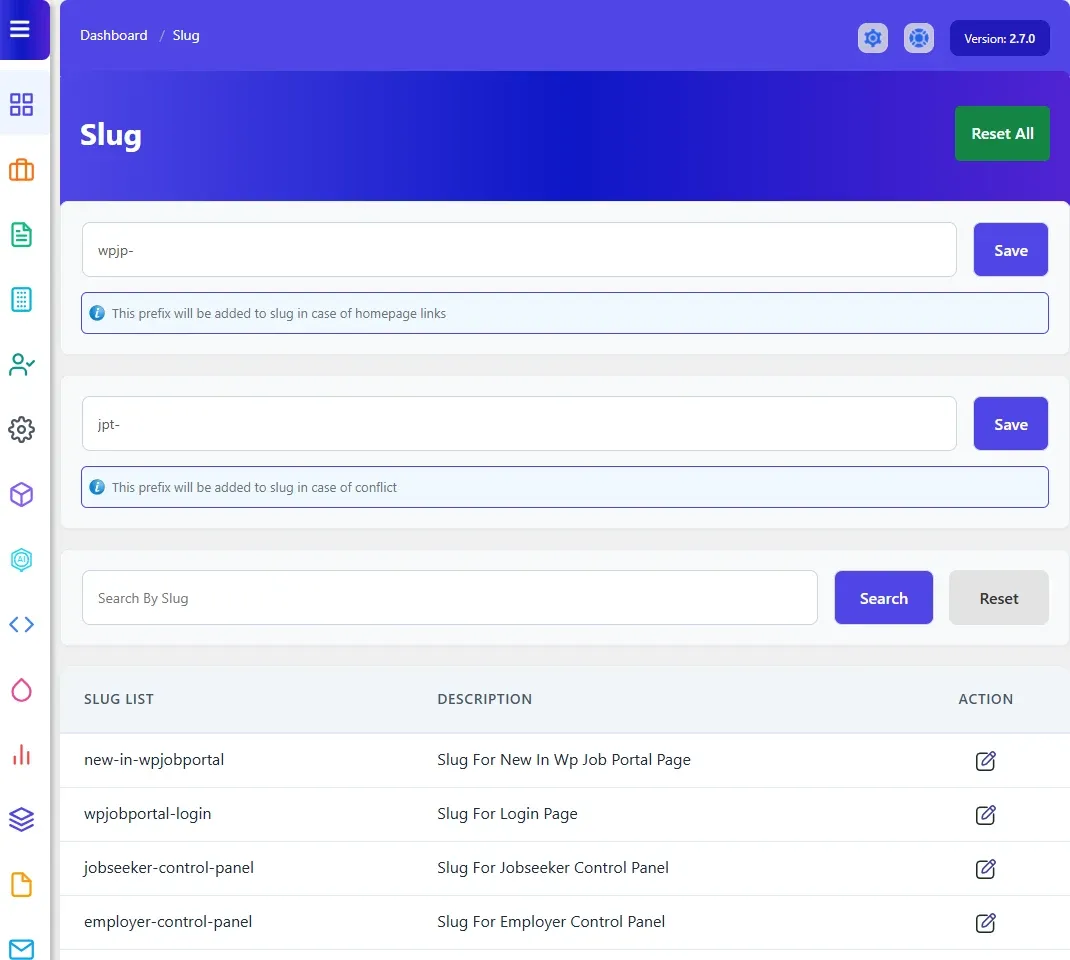
Section titled “Change a slug”Each job board screen (the jobs list, the employer control panel, the login page and so on) has a slug: the word that identifies it in the address.
- Open WP Job Portal → Dashboard → Slug.
- Find the screen in Slug List. The Description column says which screen it is, for example “slug for job main listing page”. Use Search By Slug to filter.
- Select the edit icon, type the new slug, and select Save in the popup.
- Select Save under the list.
A slug that is already used by another screen isn’t saved. Slugs are cleaned up the way WordPress cleans post slugs: lower case, with spaces turned into hyphens.
Reset All, at the top of the screen, puts every slug back to its original value.
Slug prefixes
Section titled “Slug prefixes”Two boxes above the list set prefixes WP Job Portal adds to slugs in particular cases:
| Box | What it does |
|---|---|
| Home Slug Prefix | Added to slugs in links when the job board is on your site’s home page. |
| Slug Prefix | Added to a slug when it conflicts with something else on your site. |
Type the prefix and select Save next to the box.
Set the URL of job, company and resume pages
Section titled “Set the URL of job, company and resume pages”Detail pages can carry useful words in their address, for example the job title, company and location.
- Open WP Job Portal → Configuration and the URL & SEO tab.
- Under URL Structure, select the available tags to build each structure:
- Job Detail URL Structure:
title,company,category,location,jobtype. - Company Detail URL Structure:
name,category,location. - Resume Detail URL Structure:
title,category,location.
- Job Detail URL Structure:
- Save the settings.
The same three structures can also be typed in the URL Settings section of WP Job Portal → Dashboard → SEO, written with square brackets, for example [title] [company] [location].
See URL & SEO settings.
Set browser titles for detail pages
Section titled “Set browser titles for detail pages”The document title is the text in the browser tab and usually the headline in search results.
- Open WP Job Portal → Dashboard → SEO.
- Under Document Title Settings, fill in the three boxes with the placeholders you want:
| Box | Placeholders |
|---|---|
| Company Detail Document Title | [name] [location] [separator] [sitename] |
| Job Detail Document Title | [title] [companyname] [jobcategory] [jobtype] [location] [separator] [sitename] |
| Resume Detail Document Title | [applicationtitle] [jobcategory] [jobtype] [location] [separator] [sitename] |
- Select Save.
For example, [title] [separator] [companyname] [separator] [sitename] gives job pages a title made of the job title, the company name and your site name.
In these titles [separator] is always a hyphen (-), so the default job title looks like “Senior PHP Developer Santa Barbara - Your Site”. It doesn’t follow the separator set in an SEO plugin or your theme. The titles of the other job board pages, such as the jobs list, use a vertical bar instead (“Jobs | Your Site”).