

Resume actions and ratings
Resume actions are the quick buttons on a job’s list of applicants: shortlist, hire, reject or mark as spam, add a note and rate the applicant. They were the Resume Action add-on and are now part of Recruit Suite. They work alongside the pipeline, so a status set here moves the candidate on the board too.
Set an applicant’s status
Section titled “Set an applicant’s status”- Open the job’s list of applicants: as an employer, from the job in My Jobs; in wp-admin, from the job’s applied resumes under WP Job Portal → Jobs.
- On the applicant, select one of the status buttons.
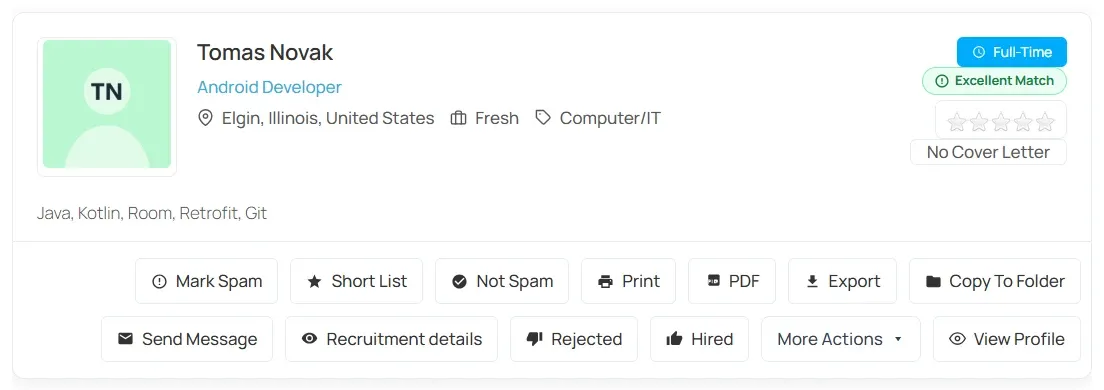
| Button | Status | Pipeline stage |
|---|---|---|
| Short List | Short listed | Shortlisted |
| Hired | Hired | Hired |
| Rejected | Rejected | Rejected |
| Mark Spam | Spam | Spam |
| Not Spam | Inbox | Inbox |
Every new application starts in Inbox.
When you set Rejected here, Recruit Suite records a structured rejection with the reason Not selected, so the pipeline and reports stay complete. It isn’t shown to the candidate. To choose a reason or tell the candidate, reject from the candidate’s Overview instead. See Candidates and pools.
The job seeker is emailed when the status changes, if the Applied Resume Status Change email is switched on for job seekers. See Email templates.
Filter by status
Section titled “Filter by status”The applicant list has tabs for Inbox, Short listed, Spam, Hired and Rejected, each with a count, and an Advanced Search panel. Advanced search filters by title, name, nationality, job category, gender and job type.
Candidates in the Interviewing or Offer stage, or in a stage you added, appear under Inbox here. Use the pipeline to see them by stage.
Rate an applicant
Section titled “Rate an applicant”Each applicant has a 1 to 5 star rating:
| Stars | Label |
|---|---|
| 1 | Very Poor |
| 2 | Poor |
| 3 | Regular |
| 4 | Good |
| 5 | Very Good |
Select a star to set the rating. Rating changes are recorded in the candidate’s Activity timeline.
For a fuller evaluation with written evidence, use a scorecard. See Interviews and scorecards.
Other buttons
Section titled “Other buttons”| Button | What it does |
|---|---|
| Add Note | Opens a note box for the application. Select Save to keep it. |
| View Details | Shows the applicant’s expected salary, total experience and education. Not shown for quick-apply applications. |
| Email Candidate | Writes an email to the applicant. Shown only on one job’s applicant list. |
On a resume, Resume Files Download downloads all the files attached to it.
The application note is separate from Recruit Suite’s team notes. Changes to it are recorded in the Activity timeline.