

Searching and applying
You can browse the newest jobs, look through them by category, type or city, or search with the fields you care about. When you find a job you want, you apply from the job’s own page.
Browse jobs
Section titled “Browse jobs”From the dashboard menu, open one of these:
- Newest Jobs: the latest jobs on the site.
- Jobs By Categories, Jobs By Types, Jobs By Cities: pick a category, type or city to see its jobs.
Many sites show a filter bar above the job list. Type a Title or City, choose a Category, and select Find Jobs. Select Reset to clear it.
Search for jobs
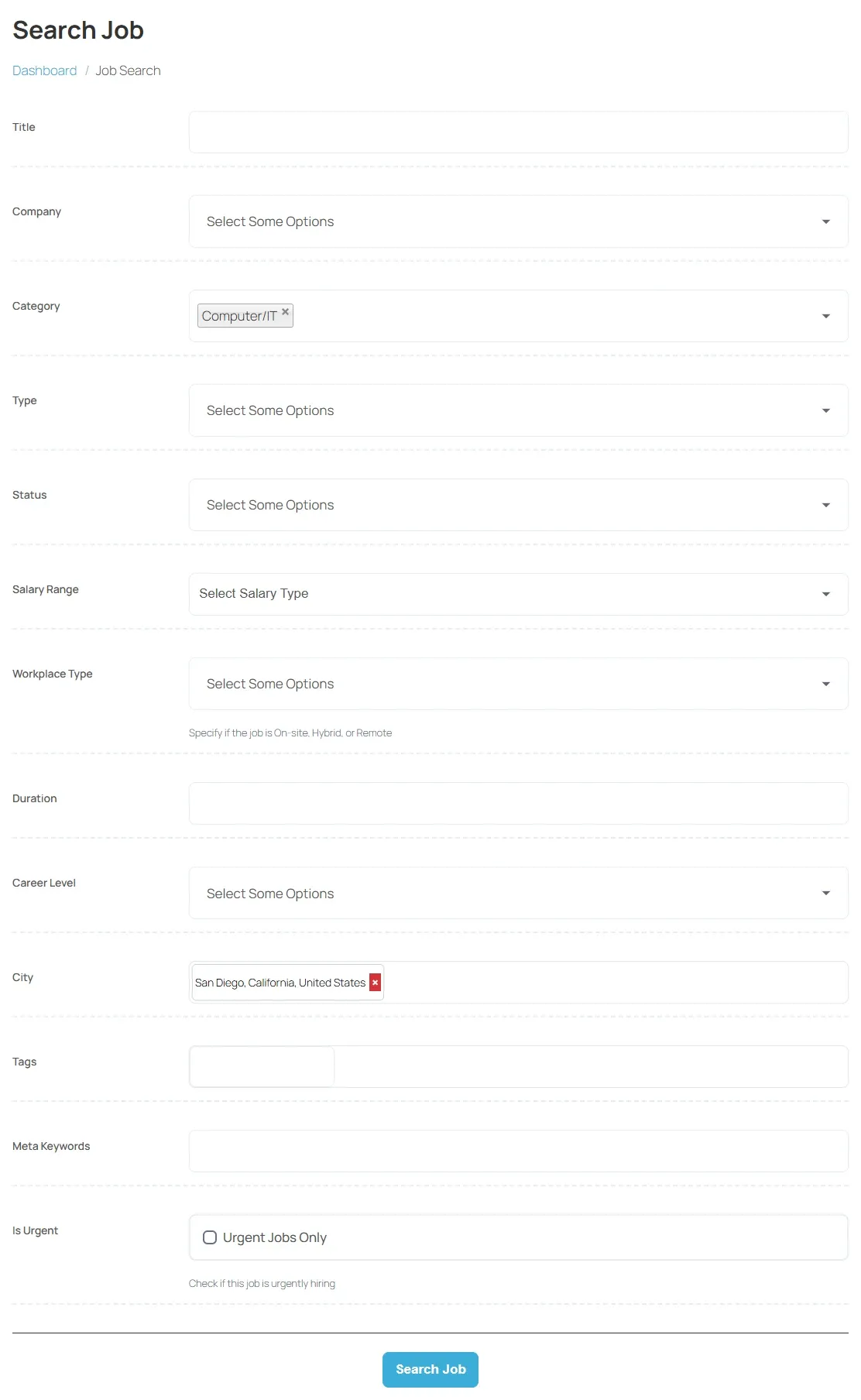
Section titled “Search for jobs”- In the dashboard menu, select Search Job.
- Fill in any of the search fields. Each site chooses its own fields; common ones are the job title, category, job type, city, salary, workplace type (On-site, Hybrid or Remote) and Date Posted (Past 24 hours, Past Week or Past Month). Some sites have an Urgent Jobs Only box.
- Select Search Job.
With Smart Search & Matching, the site may show a single search box instead. Type anything you know about the job, such as a title, skills or a description, and select Search Jobs. See AI search.
Save a search and run it again
Section titled “Save a search and run it again”After you run a search, the results page shows a Search Name box.
- Enter a name you will recognise, such as “Remote design jobs”.
- Select Save Search.
To use it later, open Saved Searches from the dashboard and select Run Search next to it. Select Delete to remove one you no longer need.
Apply for a job
Section titled “Apply for a job”- Open the job by selecting its title.
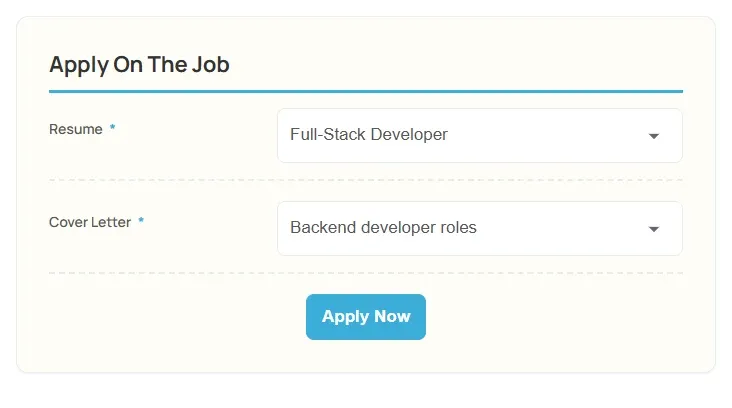
- Select Apply On This Job. The page moves to the Apply On The Job form at the bottom.
- Under Resume, choose the resume to send. You only have a choice with Pro, which lets you keep several resumes.
- With Pro, choose a Cover Letter. See Cover letters.
- Select Apply Now.
You see “Successfully applied on job”, and the job appears in My Applied Jobs. In job lists its button now reads You Have Already Applied.
Messages you might see on the apply form
Section titled “Messages you might see on the apply form”| Message | What to do |
|---|---|
| “You do not have any resume!” | Select Add Resume and create one first. See Building a resume. |
| “You have already applied on this job.” | Nothing. You can apply for each job once. |
| “You are not a logged in member.” | Select Login and sign in. |
| “You do not have any role” | Select Select Role and choose Job seeker. |
| “You are logged in as employer.” | Employer accounts can’t apply. Use a job seeker account. |
Jobs that take applications elsewhere
Section titled “Jobs that take applications elsewhere”Some employers take applications on their own website. On those jobs, Apply On This Job and Apply Now open the employer’s page in a new tab, and you apply there. These applications don’t appear in My Applied Jobs.
Quick apply
Section titled “Quick apply”Some sites use a short form instead of asking for a saved resume. You fill in Name, Email, Phone and Message, select Upload Resume to attach your resume file, and select Apply Now.
Apply without an account
Section titled “Apply without an account”If you are not signed in, the apply form shows Login. Some sites also offer Apply As Visitor, which opens a resume form you fill in once for this job and send with Apply Now. Applying as a visitor needs Pro.
Paying to apply
Section titled “Paying to apply”With Marketplace, a site can charge for applications:
- If you need a package, choose one under Apply With Package. If you have none, select Buy Package.
- If each application has a price, the form shows the amount. Choose a Payment Method and select Proceed To Payment.