

Data export
With Pro, you can download the resumes of the people who applied to a job as a spreadsheet file. This is handy for sharing a shortlist with a hiring manager or keeping an offline record. Employers can do the same for their own jobs.
The export covers resumes of applicants. There is no export of jobs, companies or the applications list itself.
Export one applicant’s resume
Section titled “Export one applicant’s resume”- Open WP Job Portal → Jobs.
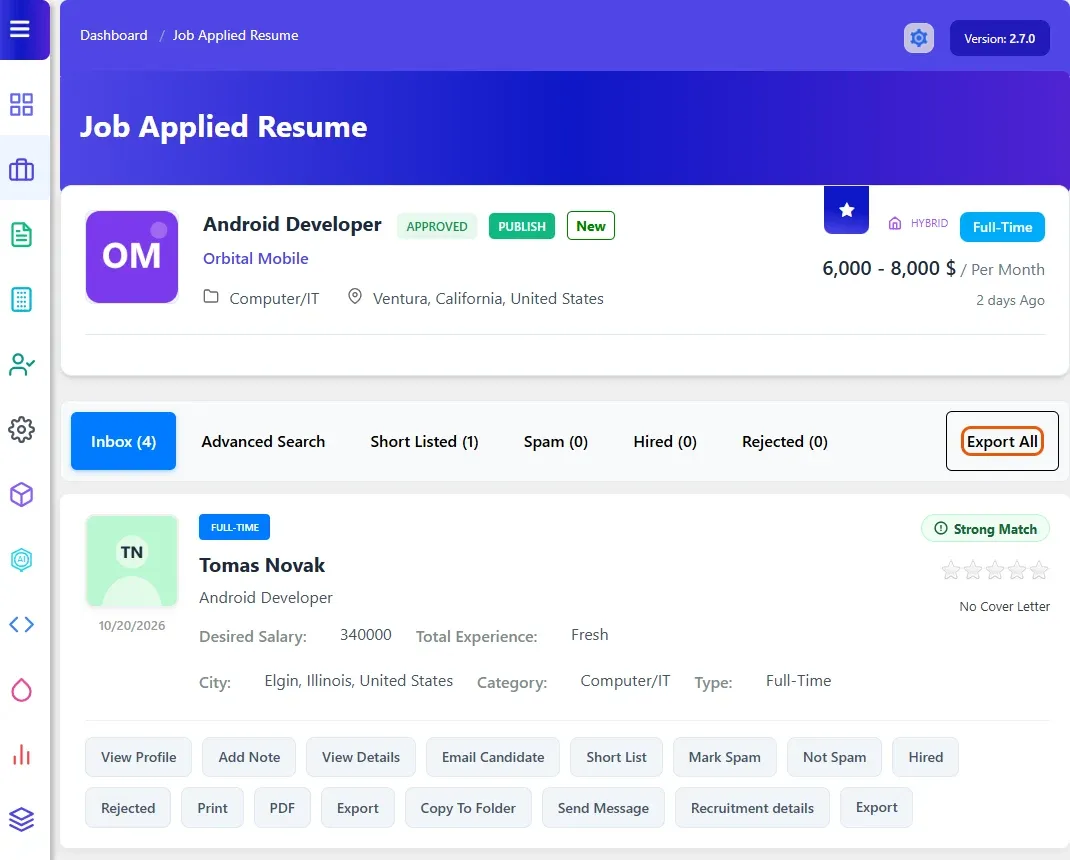
- On the job, select Applied Resume.
- On the applicant, select Export.
The file downloads as export-resume.xls.
Export all applicants of a job
Section titled “Export all applicants of a job”- Open WP Job Portal → Jobs.
- On the job, select Applied Resume.
- Select Export All at the top of the list.
The file downloads as export-resumes.xls, with every applicant to that job.
What is in the file
Section titled “What is in the file”The file is an .xls spreadsheet holding the resume details, laid out by resume section and labelled with your resume field titles. It is encoded as UTF-8, so names in any language keep their characters.
If a resume has no data to export, for example because it was deleted, you get a “No resume data is available for export.” message instead of a file.
Exports by employers
Section titled “Exports by employers”Employers see the same Export and Export All buttons on the applicants page of their own jobs in their dashboard. An employer can only export applicants of jobs they own. Administrators can export any job’s applicants.
With Recruit Suite, team members who can manage a job can export its applicants as well.
If the export link has expired
Section titled “If the export link has expired”Export links carry a security token that expires. If you get “The resume export link has expired.”, go back to the applicants page, reload it, and select Export again.