

Interviews and scorecards
Interviews and scorecards give every candidate a written, comparable evaluation. You schedule interviews against the application, and each interviewer rates the candidate on the same five competencies, with evidence and a recommendation.
Schedule an interview
Section titled “Schedule an interview”- Open the candidate’s Recruitment details and go to Interviews.
- Select Schedule interview to open the form.
- Enter an Interview title, for example “First interview”.
- Choose the Type: Video, Phone, On-site or Other.
- Set the Date and time in the site’s timezone.
- Choose the Duration: 30, 45, 60 or 90 minutes.
- Choose an Interviewer from the company’s team, or leave it Unassigned.
- Enter a Location or meeting link if you have one.
- Select Schedule interview at the bottom of the form.
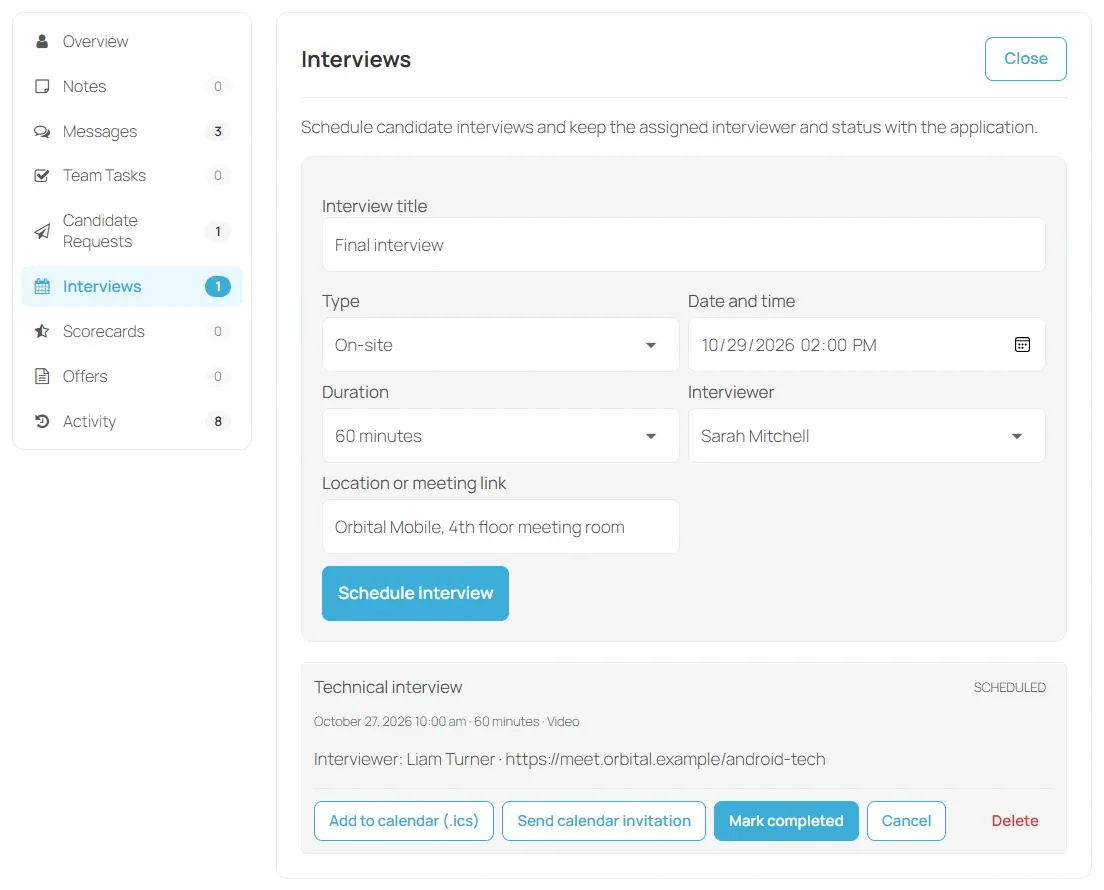
The interviewer gets an Interview assigned notification. The candidate sees the interview in their Candidate Portal and gets an update. If calendar invitations are turned on in Automation, both receive an invitation by email.
Manage an interview
Section titled “Manage an interview”Each interview shows its date, length, type, interviewer and location, with these buttons:
| Button | What it does |
|---|---|
| Add to calendar (.ics) | Downloads a calendar file for a scheduled interview |
| Send calendar invitation | Emails a calendar invitation to the candidate and the interviewer now |
| Mark completed | Records that the interview took place |
| Cancel | Cancels the interview. With calendar invitations on, a cancellation is sent. |
| Mark scheduled | Puts a completed or cancelled interview back to scheduled |
| Delete | Removes the interview |
You can’t delete an interview that has scorecards. Only the person who scheduled it, or a site administrator, can delete it.
Upcoming interviews for all your jobs are listed under Recruiting → Interviews in the employer dashboard.
Fill in a scorecard
Section titled “Fill in a scorecard”- Open the candidate’s Scorecards section and select Add scorecard.
- In Related interview, choose the interview, or General candidate evaluation.
- Rate each competency from 1 to 5, and add evidence in the box under it.
- Fill in Strengths, Concerns and Evaluation summary.
- Choose a Recommendation: Strong yes, Yes, Mixed, No or Strong no.
- Select Save scorecard.
Every competency and the recommendation are required.
The five competencies are the same for every job:
- Relevant experience
- Role-specific skills
- Communication
- Problem solving
- Culture contribution
The scorecard’s overall score is the average of the five ratings.
Each person has one scorecard per interview for a candidate. Saving again for the same interview updates your earlier scorecard rather than adding a second one.
Read the results
Section titled “Read the results”The Structured Scorecards section shows how many scorecards were submitted and the average score out of 5. Each scorecard shows the evaluator, their score, recommendation and summary. Select View evaluation evidence to see each rating with its notes, strengths and concerns.
The candidate’s header also shows the average, for example “4.20 / 5 from 3 scorecards”.
Recruiting → Scorecards in the employer dashboard lists submitted scorecards across your jobs. Recruiting insights reports the average rating for a company or job.
Scorecards are internal. Candidates never see them.