

Managing resumes
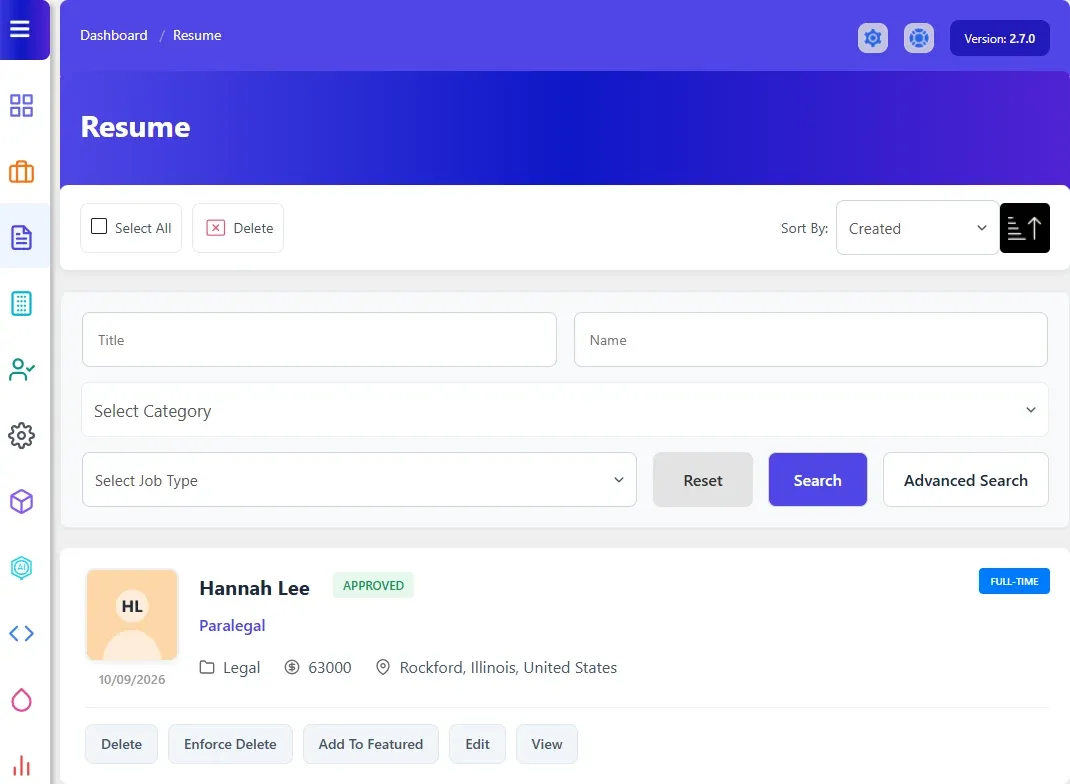
The resume list in wp-admin shows every approved and rejected resume that job seekers have created. Use it to look up a candidate, correct a resume, or remove one at the job seeker’s request.
Open the resume list
Section titled “Open the resume list”Go to WP Job Portal → Resume.
Two kinds of resume are not in this list:
- Resumes waiting for approval. They are in Resume → Approval Queue. See Approving resumes.
- The short records created by Quick Apply. They appear only with the application, under the job. See Quick apply and visitor apply.
There is no Add New button here. Resumes are created by job seekers on the site.
Find a resume
Section titled “Find a resume”- Type in Title (the resume’s application title) or Name, or pick a Category or Job Type.
- For more filters, select Advanced Search. This adds Date Start, Date End and a status filter (Approved or Rejected). With Marketplace Suite there is also a Featured checkbox.
- Select Search.
Select Reset to clear the filters. To change the order, pick a field next to Sort By (Application Title, First Name, Category, Job Type, Location, Created or Status) and use the arrow beside it to switch direction.
View a resume
Section titled “View a resume”Select View on the resume’s row. The View Resume page shows the resume as a whole, starting with Personal Information.
Edit a resume
Section titled “Edit a resume”- Select Edit on the resume’s row.
- The Edit Resume page uses the same form job seekers see on the site. Change what you need.
- Select Save Resume.
Which fields and sections the form has is set in Resume → Fields. See Field manager.
Delete a resume
Section titled “Delete a resume”Each row has two delete buttons.
| Button | What it does |
|---|---|
| Delete | Deletes the resume. It refuses if the resume has been used to apply for a job |
| Enforce Delete | Deletes the resume together with its applications, addresses, education, employment history, languages and uploaded files and photo. With Pro, its folder entries and messages go too |
To delete several resumes at once, tick them (or Select All) and select Delete at the top. Resumes that have applications are skipped.