

Maps
With Pro, jobs and resumes can carry a map position, and job and resume pages show a map. You choose the map provider: Google Maps, which needs an API key, or OpenStreetMap, which does not.
Set up maps
Section titled “Set up maps”- Open WP Job Portal → Configurations.
- Open the Integrations tab.
- Find Mapping & Geo Location.
- Set the options below.
- Save the settings.
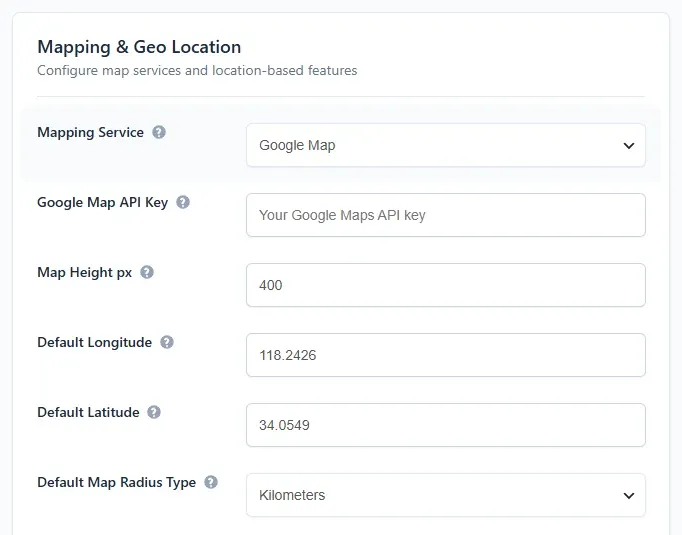
| Option | What it does |
|---|---|
| Mapping Service | Google Map or Open Street Map. |
| Google Map API Key | Your Google Maps API key. Needed only for Google Map. |
| Map Height px | Height of the maps the plugin draws, in pixels. |
| Default Longitude | Where a map is centred when nothing else sets its position. |
| Default Latitude | As above. |
| Default Map Radius Type | Meters, Kilometers, Miles or Nautical Miles. In 2.7.0 nothing on the site uses this setting. |
The same section also holds Max Records for City Field and Max Records for Tag Field, the number of suggestions the city and tag boxes offer as you type.
Where maps appear
Section titled “Where maps appear”| Place | What you see |
|---|---|
| Job form | A map picker with Longitude and Latitude boxes. Employers click the map or type the position. |
| Job detail page | A map of the job’s position, when the job has one. |
| Resume form | A Map link in the address section that opens a picker, with Latitude and Longitude boxes. |
| Resume detail page | A map of the address position. |
Jobs On Map Widget and [wpjobportal_jobsonmap] |
The newest jobs as pins. Only jobs with a position appear. |
The job form’s map is the Map field. You can unpublish it or change its title in the field manager.
Searching by distance
Section titled “Searching by distance”In 2.7.0 the job search page has no map, position or distance fields, so job seekers cannot search by distance. They search by City instead.