

Cover letters
With Pro, job seekers can write several cover letters and choose one each time they apply. Employers then see it with the application. In wp-admin you can review, edit, approve and delete every cover letter on the site.
Without Pro, the Cover Letter menu entry is greyed out.
Open the cover letters list
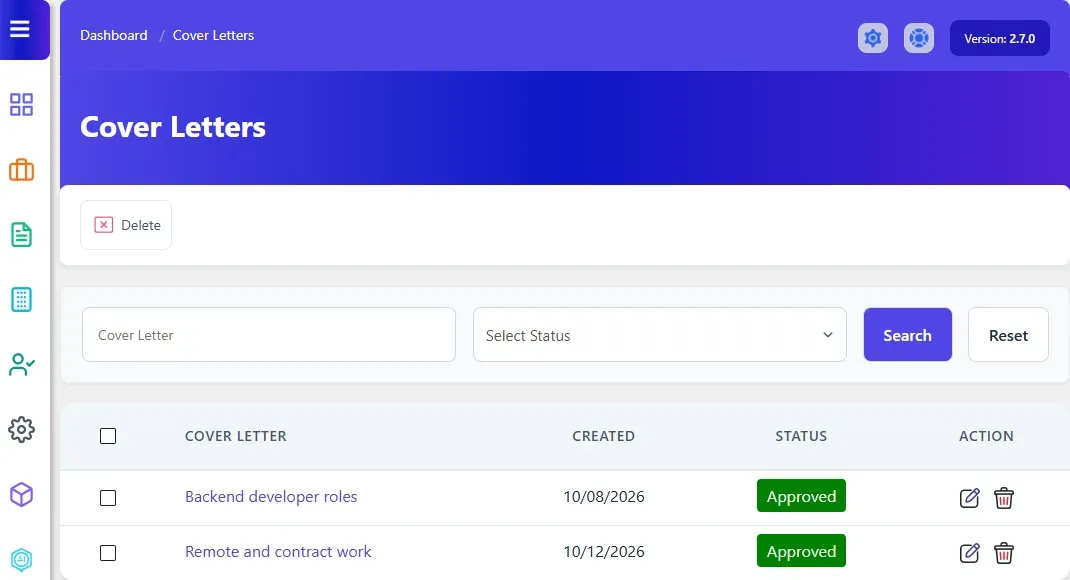
Section titled “Open the cover letters list”Go to WP Job Portal → Cover Letters. The list shows each cover letter’s title, created date and status.
Cover letters waiting for approval are not in this list. They are in Cover Letters → Approval Queue.
To narrow the list, type part of the title in Cover Letter or pick a status, then select Search.
There is no Add New button. Cover letters are written by job seekers on the site. See Cover letters (job seeker guide).
Edit a cover letter
Section titled “Edit a cover letter”- Select the cover letter’s title or the edit icon on its row.
- Change the Title, the Description (the letter itself) or the Status.
- Select Save Cover Letter.
Delete a cover letter
Section titled “Delete a cover letter”Select the delete icon on the cover letter’s row. To delete several, tick them and select Delete at the top.
A cover letter can’t be deleted once it has been sent with an application.
Approve cover letters
Section titled “Approve cover letters”- Go to WP Job Portal → Cover Letters → Approval Queue. The page is titled Cover Letters Approval Queue.
- Select the approve (tick) or reject (cross) icon on a cover letter’s row.
To handle several at once, tick them and select Approve or Reject at the top. Use Cover Letter Title to narrow the queue.
Turn auto-approve on or off
Section titled “Turn auto-approve on or off”- Go to WP Job Portal → Configuration and open the Applications tab.
- Under Auto-Approve Rules, set Cover Letter Auto Approve.
- Select Save Changes.
With it on, new cover letters are approved as soon as they’re saved.
Cover letters in applications
Section titled “Cover letters in applications”- Employers and you see the letter with the application, under View Cover Letter. See Handling applications.
- To let logged-in users pick a cover letter on the Quick Apply form, turn on Enable Cover Letter Quick Apply. See Quick apply and visitor apply.